Light control
Experts and users can control the lights from anywhere with an internet connection using the Signify Interact Builder web portal or app. For each group, they can turn it on/off, adjust the light level, adjust the color temperature of tunable white lights, or call scenes.
| Users will only be able to view and control groups that they have been granted access to control by an expert. |
Light control using the web portal
-
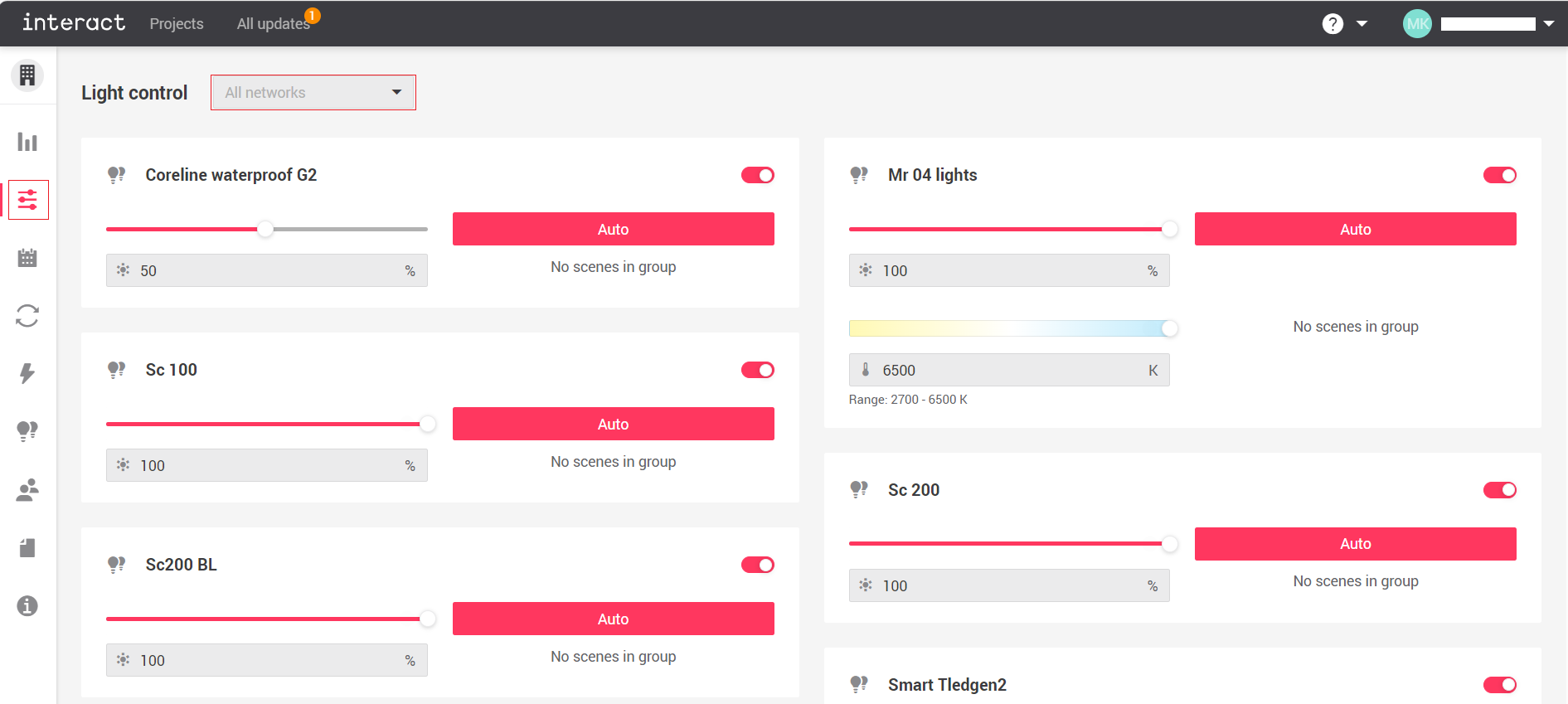
To access remote control, navigate to your project, then click the Light control icon from the side panel.
-
Choose the network from the dropdown next to Light control (default is groups in all networks are displayed).
-
Turn-on/off the group by using the toggle in the top right corner of each group’s panel. Return the group to automatic operation by clicking the Auto button (lights in the group will go to task level and resume normal operation). Sliders and numeric inputs are available to adjust the light level, and if applicable, the tunable white light color temperature. If scenes are configured, they are listed below the Auto button and can be clicked to call the scene.
| It is currently not possible to view the actual light output status, as there is no system feedback indicating the levels. The sliders may not accurately reflect the real-life light output. |
Light control using the app
-
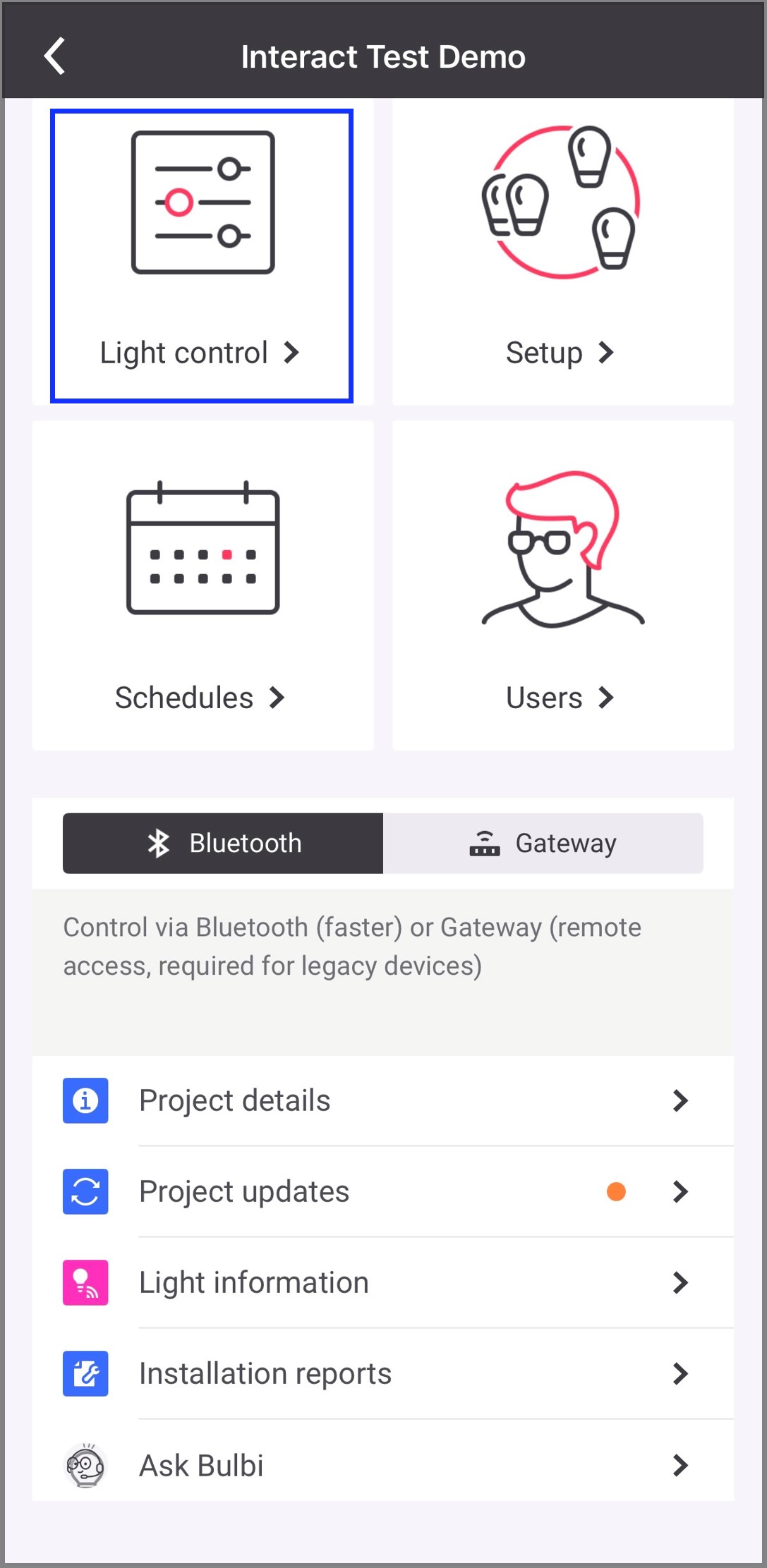
Navigate to the appropriate project, then tap Light control from the main project screen.
-
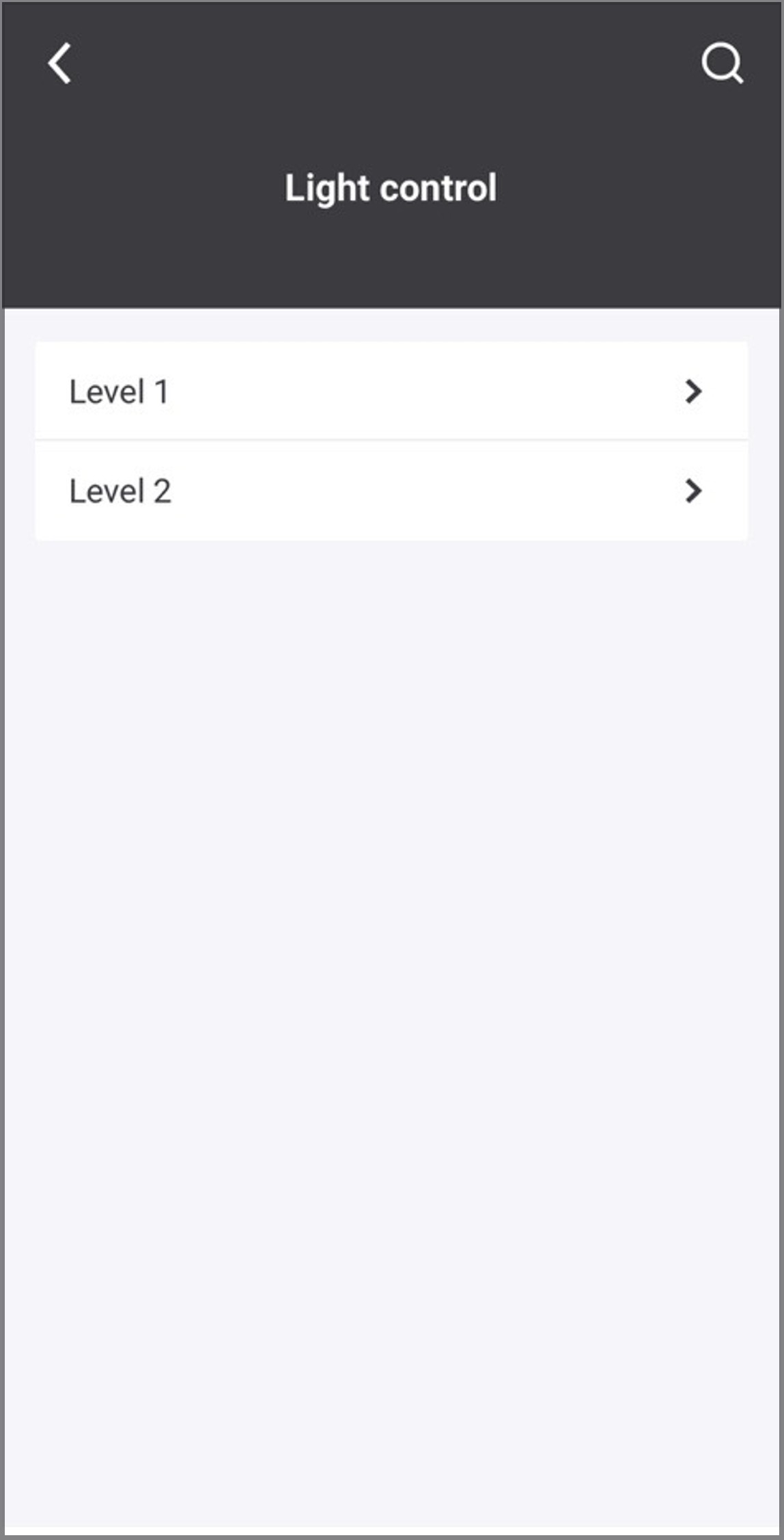
Tap the network that contains the group you want to control from the list in the Light control screen.
-
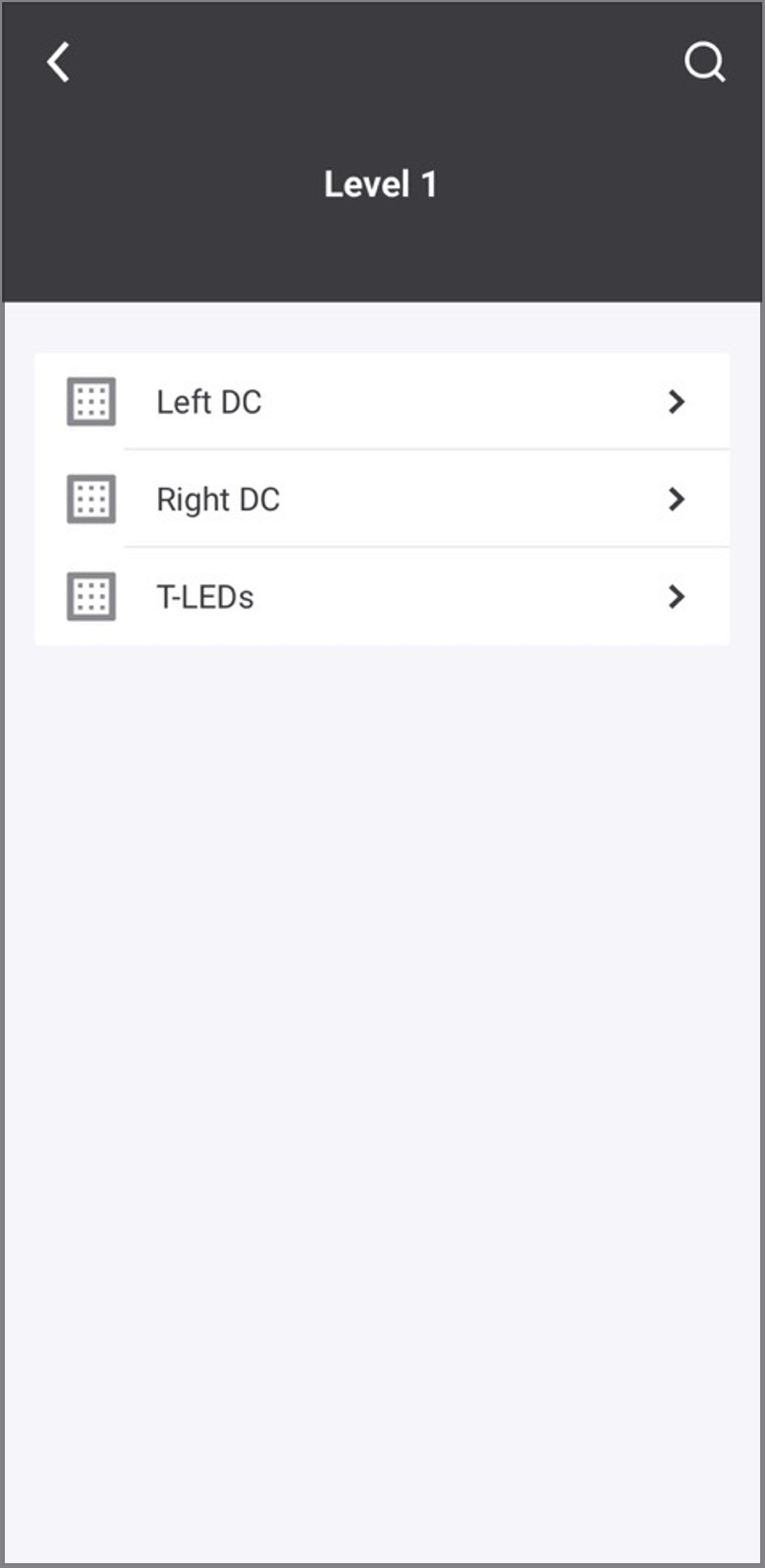
Tap the group you want to control.
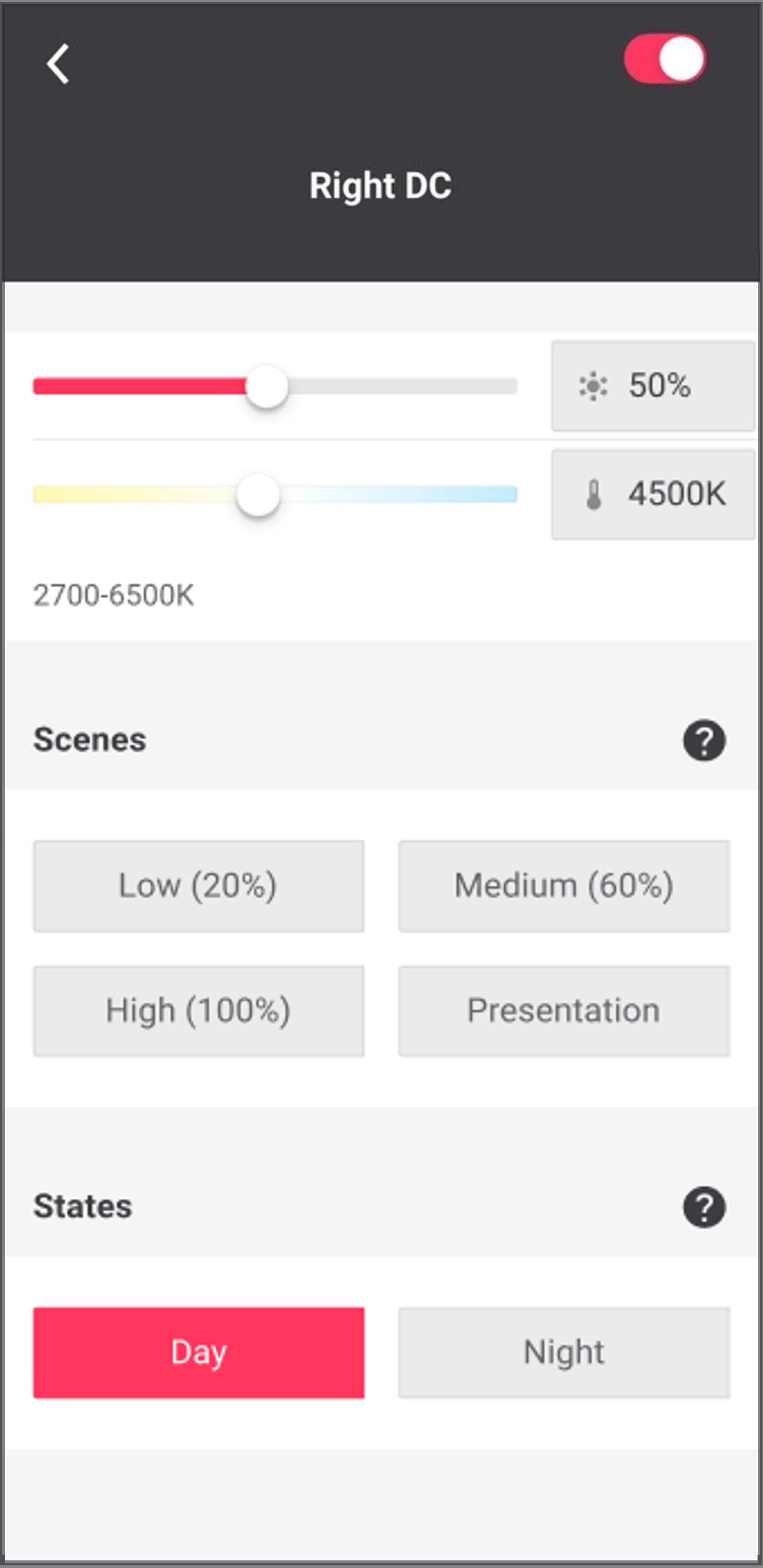
Turn-on/off the group by using the toggle button in the top right corner of the group light control screen. Sliders and numeric inputs are available to adjust the light level, and if applicable, the tunable white light color temperature. If scenes are configured, they are listed in the Scenes section and can be tapped to call the scene.
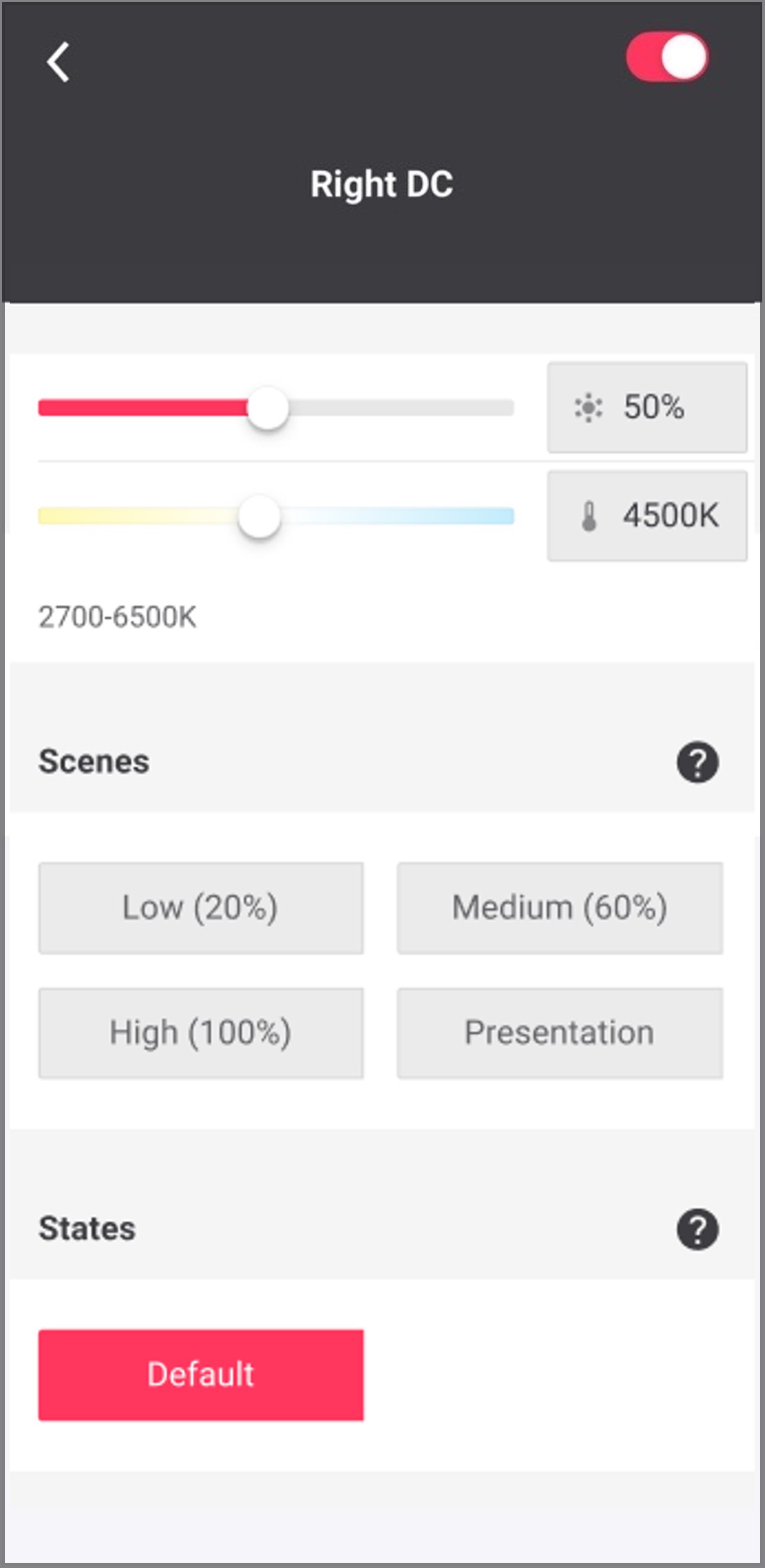
If light states are configured, they appear in the States section. Tap the required state to activate it for the selected group. Tap the Default light state to return the group to automatic operation (lights in the group will go to task level and resume normal operation).
-
For Light behavior V2 groups, up to six light states can be saved and displayed in this list.
-
For non-Light behavior V2 groups, only one light state can be saved and displayed in this list as Default.
-
The Default state acts as an Auto On Auto Off state until user performs any changes in it.
-
| It is currently not possible to view the actual light output status, as there is no system feedback indicating the levels. The sliders may not accurately reflect the real-life light output. |