Project updates
Project updates allow the smart lighting system to enable new system features and functionalities as they become available. Project updates are important to complete once commissioning is completed, as well as after commissioning when new updates become available, to ensure that the smart lighting system stays up to date with the latest features, functionalities, security updates and bug fixes. Project updates:
-
Update firmware to the latest available version. This can be gateway firmware only, light firmware, or both.
-
Update device project settings and groups to the latest available version. This will migrate each light and group’s configuration settings to enable support for the latest features and functionalities of the system.
Project updates require all lights added to the project to be reachable during the update. Lights that are offline or are unreachable over Zigbee during an update via a gateway will result in a failure to fully update the project. To prepare a project for a successful update, follow these tips before initiating a project update:
-
Force delete (remove) non-existing lights: Use the app to force delete any lights that no longer exist in the project. This includes lights that have been replaced, moved, or factory reset.
-
Power cycle all lights: Turn off power for at least 10 seconds, then re-energize the lights. After a power cycle, make sure all lights are energized and remain so during the project update process. Avoid any interruptions such as circuit breakers being turned off or existing systems cutting power to the lights.
-
Power cycle all gateways: Turn off power for at least 10 seconds, then re-energize the gateways. After a power cycle, wait at least 5 minutes for all gateways to boot up before checking gateway status. Ensure the gateways stay energized and have a stable internet connection during the project update process. Ensure each gateway is physically installed within range of at least two lights in the wireless network that it needs to update.
-
Check gateway status: Gateway connection status can be confirmed using the Signify Interact Builder web portal or app:
-
Using the portal: Navigate to the project and click the Installation setup page from the side panel. Check that all wireless networks with gateways have a 'Connected' gateway status.
-
Using the app: Navigate to the project Setup screen, then enter each network with a gateway one by one. In the Network screen, tap the Gateway tile. Each gateway should report a 'Connected' status.
-
-
Limit interference: Reduce or eliminate sources of interference, such as other 2.4GHz devices (Bluetooth, ZigBee, Wifi, microwave oven…), to ensure smooth communication during the update.
By following these steps, you can improve the likelihood of a successful project update process.
Project updates can be initiated using the Signify Interact Builder web portal or app.
To initiate a project update using the web portal:
-
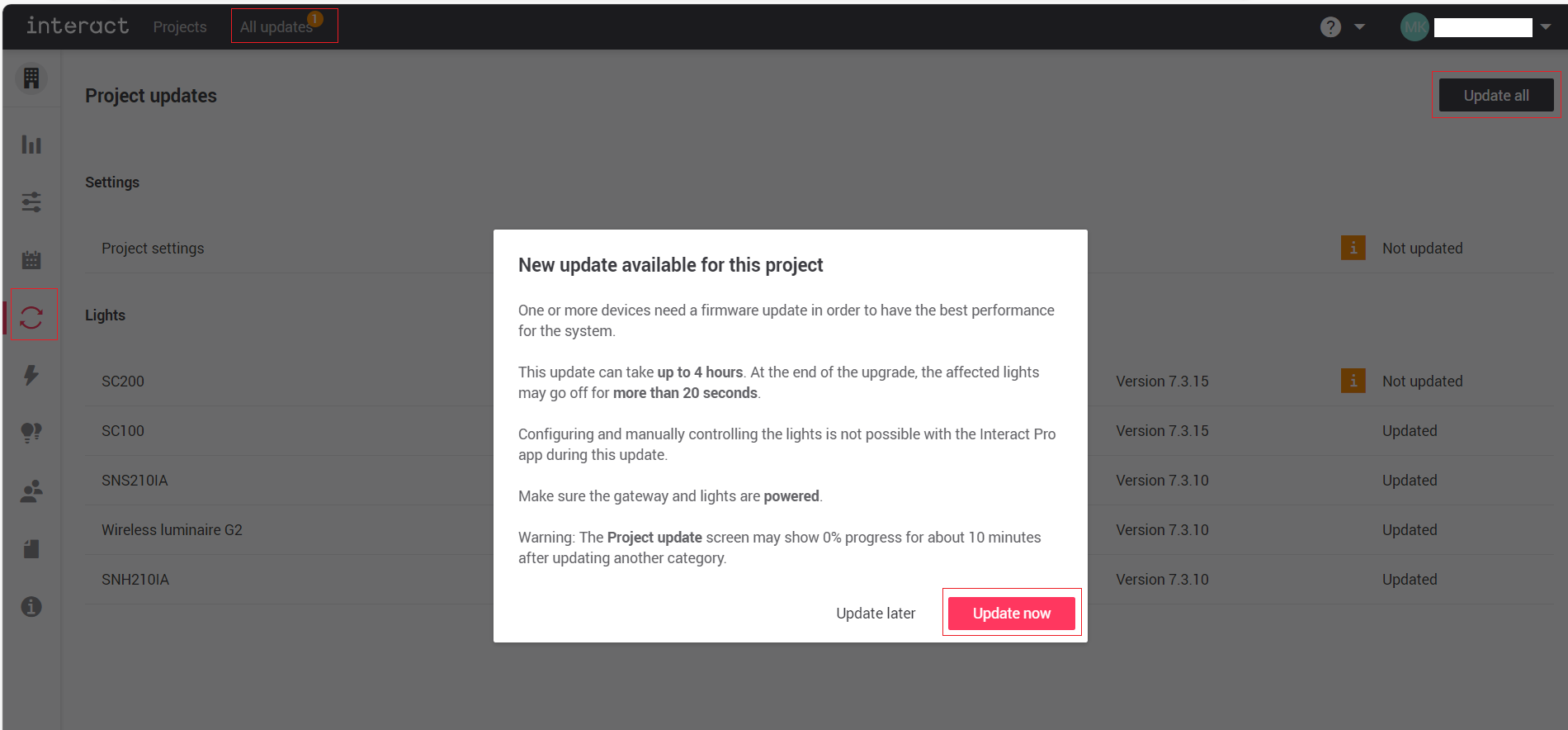
Navigate to the appropriate project, then click the Project updates icon from the side panel. If a project update is available, the New update available for this project page is displayed.
-
Click Update now to initiate the project update. Click Update later if you would like to view more details first.
-
If you closed the New update available for this project page and wish to start a project update, click Update all on the top right to start the project update.
To initiate a project update using the app:
-
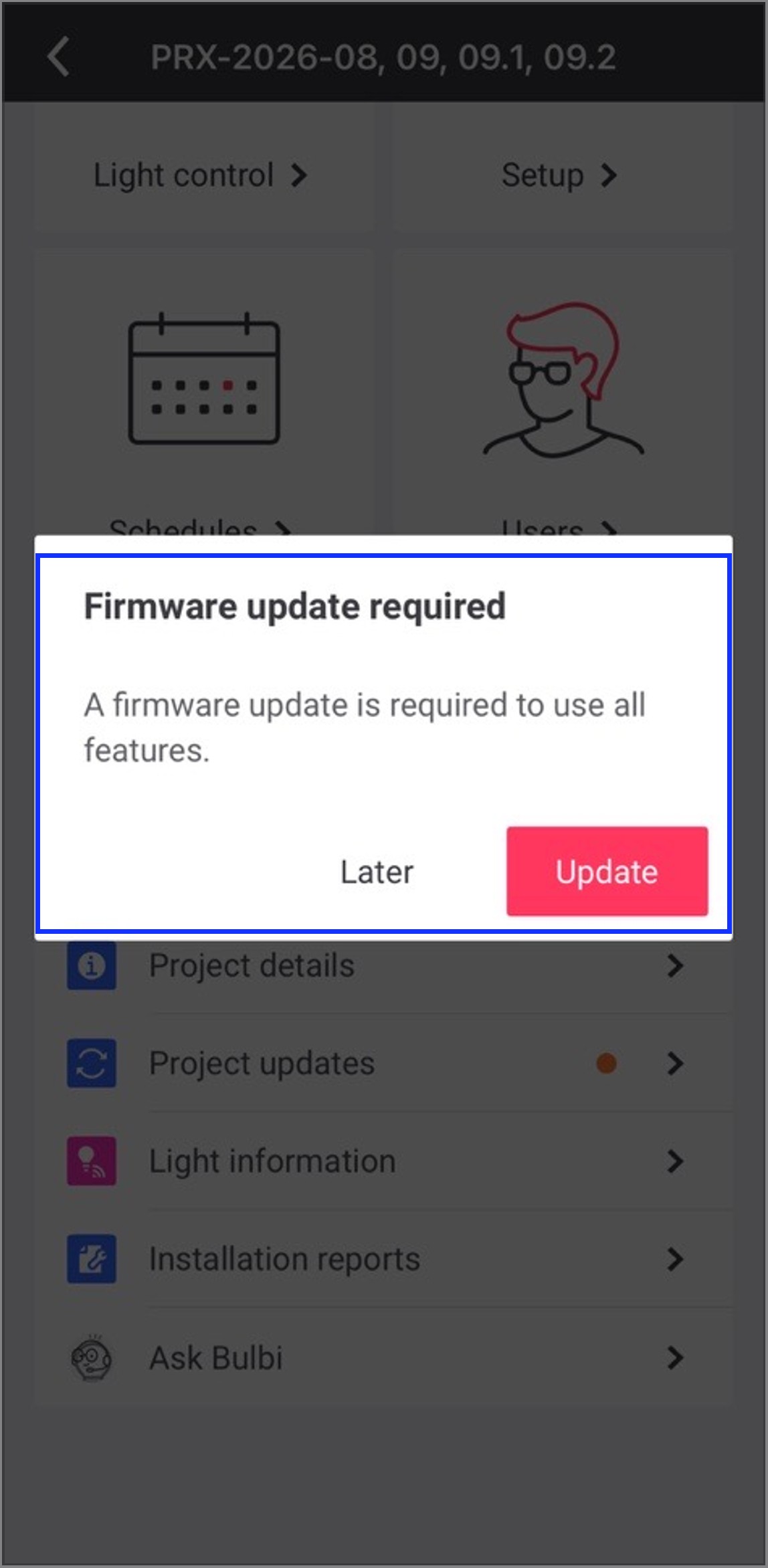
Navigate to the appropriate project, the Firmware update required pop-up screen appears if any update is needed to the selected project.
OR
Tap Project updates in the Project screen.
An orange-color dot at the Project updates option indicates that an update is required to that project. 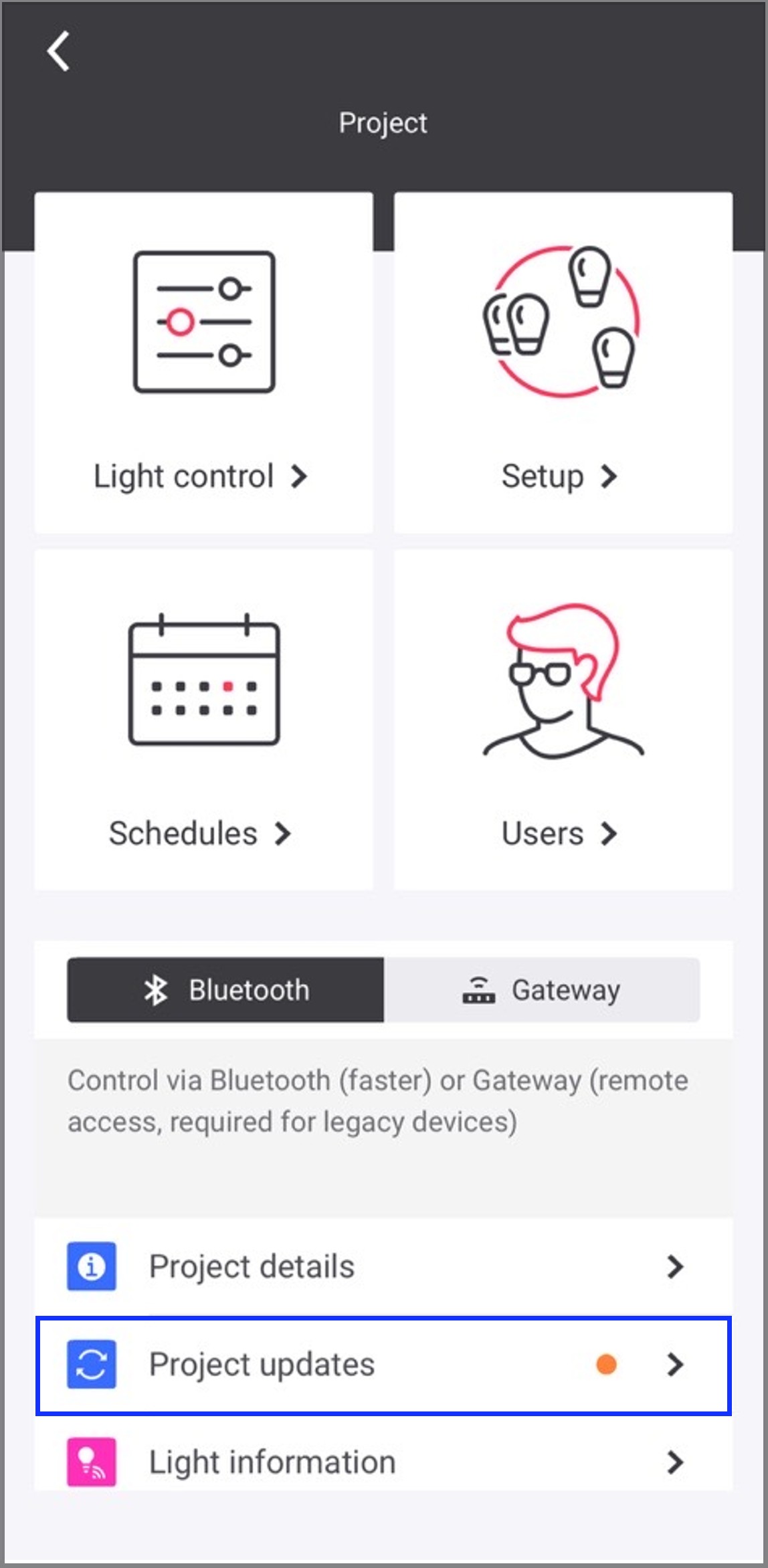
-
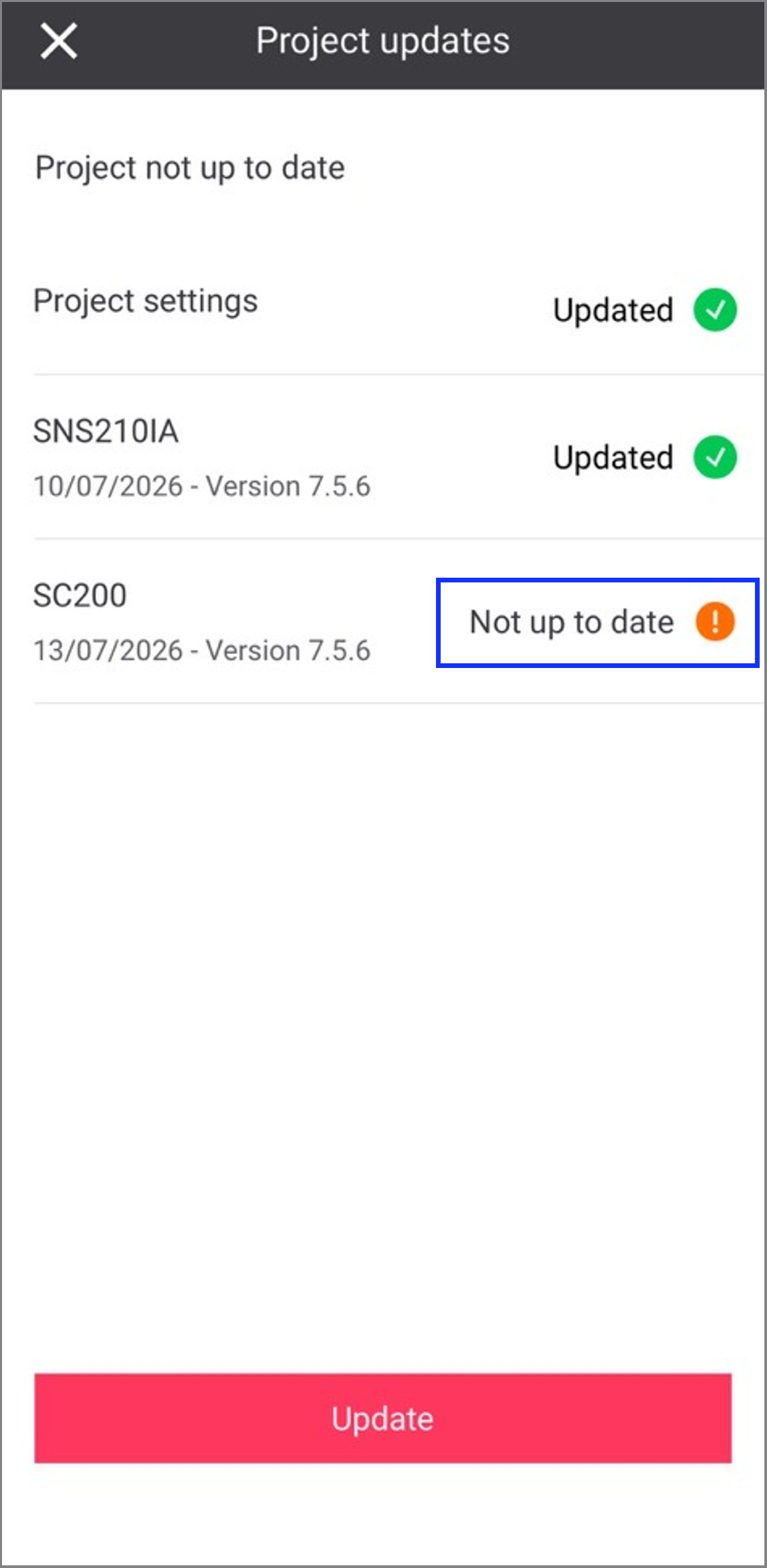
In the Project updates screen, you can view the firmware updates required for that project.
-
Tap Update now to initiate the project update. Tap Remind me later if you would like to view more details first.
-
If you closed the New update available for this project page and wish to start a project update, tap Update on the Project updates screen to start the project update.
| During firmware updates initiated via the gateway or through the update screen for connected networks, the Signify Interact Builder mobile app is unavailable for the project being updated, and a message appears as Update in progress…. |
Time estimation to update a project
Updating a project with gateway(s) consumes time. The updated device firmware files and project settings need to be downloaded by the gateway(s) and transmitted to all of the devices in the wireless network(s) via Zigbee, which is relatively a slow wireless protocol. Project update time mostly depends on the quality of the Zigbee network and reachability of all devices in the network(s).
Assuming that there is a high-speed internet connection to the gateway (>10 Mbps to download, and >1 Mbps to upload), the following table summarizes the approximate time taken to update a project based on the number of device types and network size.
|
| Update process description | Time estimation (approx.) |
|---|---|
Gateway firmware update Note: All gateways in the project are updated in parallel. |
15 minutes (time out after 20 minutes) |
Device firmware update Note: The device firmware update occurs project-wide, sequentially by device type. Consider the firmware update time for each device type in the project to estimate the total device firmware update time. |
60–90 minutes per device type (time out after 12 hours) |
Project settings update Note: The project settings update occurs project-wide, sequentially for each device within each network in parallel. To estimate the project settings update time, consider the time it takes to update all devices in the network that has the highest number of devices. |
45–60 seconds per device |
Example to calculate the project update time
Consider a project having three networks with gateway, and the devices assigned to each network are as follows.
Network 1 with gateway:
-
50 x SNS210 IA built-in luminaire sensors
-
50 x SNS441 IA built-in luminaire transceivers
Network 2 with gateway:
-
80 x SNS210 IA built-in luminaire sensors
-
20 x SNS441 IA built-in luminaire transceivers
-
30 x Wireless driver gen 2
Network 3 with gateway:
-
100 x SNS210 IA built-in luminaire sensors
-
20 x SNS441 IA built-in luminaire transceivers
-
30 x Smart T-LED gen 2
Time estimation
-
Total firmware update time
-
Gateway firmware update time = 15 minutes (all three gateways are updated in parallel)
-
Device firmware update time = (60–90) minutes x 4 device types (SNS210 IA, SNS441 IA, Wireless driver gen 2, and Smart T-LED gen 2) = (240–360) minutes
-
Total firmware update time = 15 minutes + (240–360) minutes = (255–375) minutes
-
-
Project settings update time
-
Project settings update time = (45–60) seconds x 150 devices (highest number of devices is 150 in Network 3) = (113–150) minutes
-
-
Total estimated time to update a project
-
Total estimated time to update a project = (Total firmware update time) + (Project settings update time) = (255–375) minutes + (113–150) minutes = (368–525) minutes
-
Total estimated time to update a project = (368–525) minutes = (6.13 to 8.75) hours
|