On-site commissioning
After doing the optional off-site preparation, the system is ready for localizing the Interact ready luminaires and devices and deploying the behavior configurations. This is done by using the mobile app on-site.
Bluetooth and Gateway mode
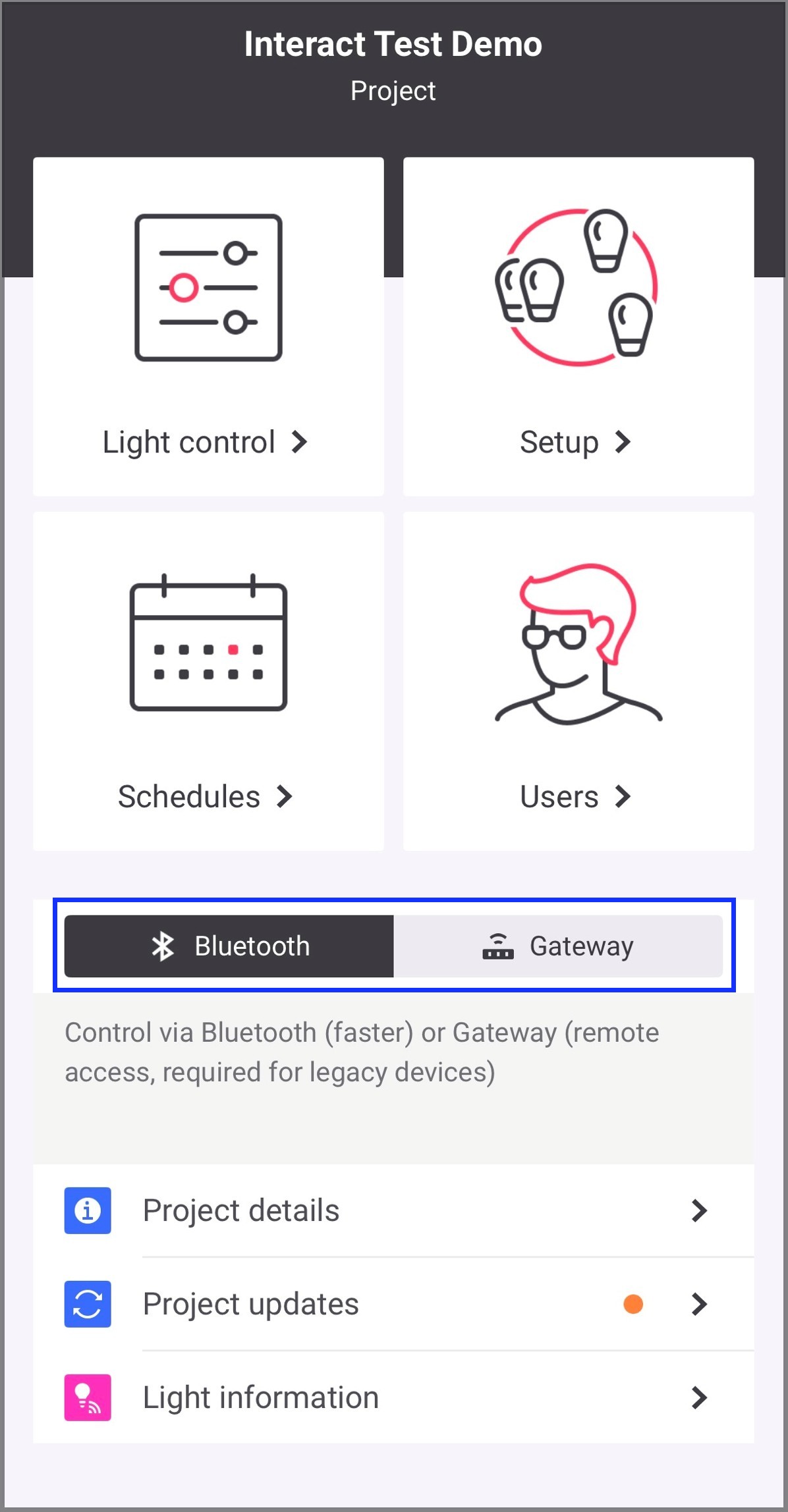
Bluetooth mode utilizes your phone as a proximity antenna to add devices to the Zigbee network and configure behavior settings. It is the default commissioning mode, it is fast and efficient and must always be used unless legacy devices that do not support Bluetooth are part of the network.
Gateway mode uses the cloud and the gateway as the primary access point to end devices. This mode allows for remote adjustments to behavior settings and light control without needing close proximity to the devices. However, it must not be used for commissioning unless legacy devices that lack native Bluetooth support are present on the network. When used for commissioning purposes, the Zigbee network is opened, allowing any powered-on auto-join device to connect based on proximity. For projects with multiple Zigbee networks, ensure that only the devices of one network are powered-on and can be discovered at a time. This prevents unintended devices to join the wrong network during commissioning.
Start/Stop commissioning with network view mode
Perform the following procedure to start/stop commissioning a network.
-
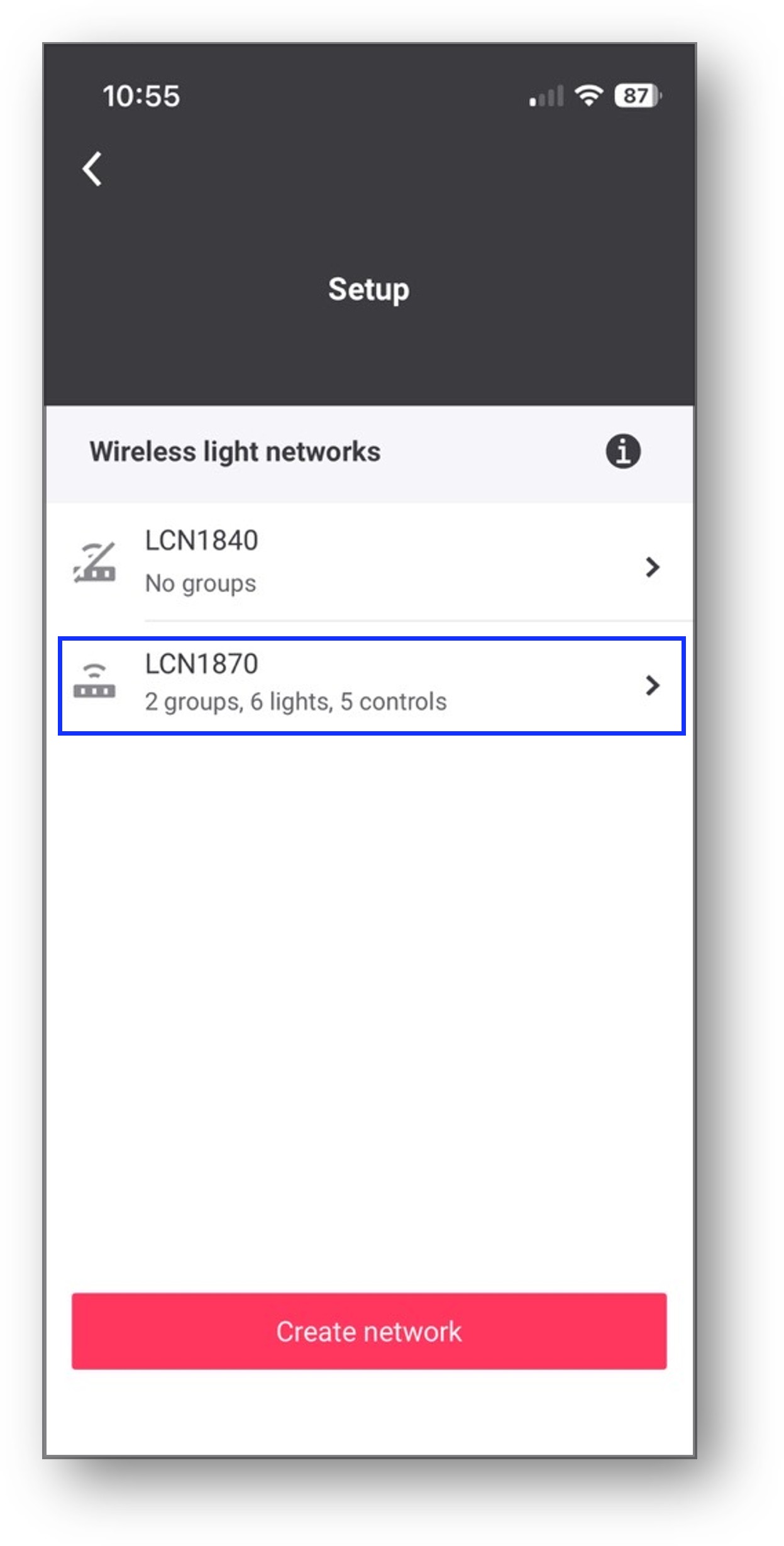
In the mobile app, navigate to Setup and tap any network available in the list.
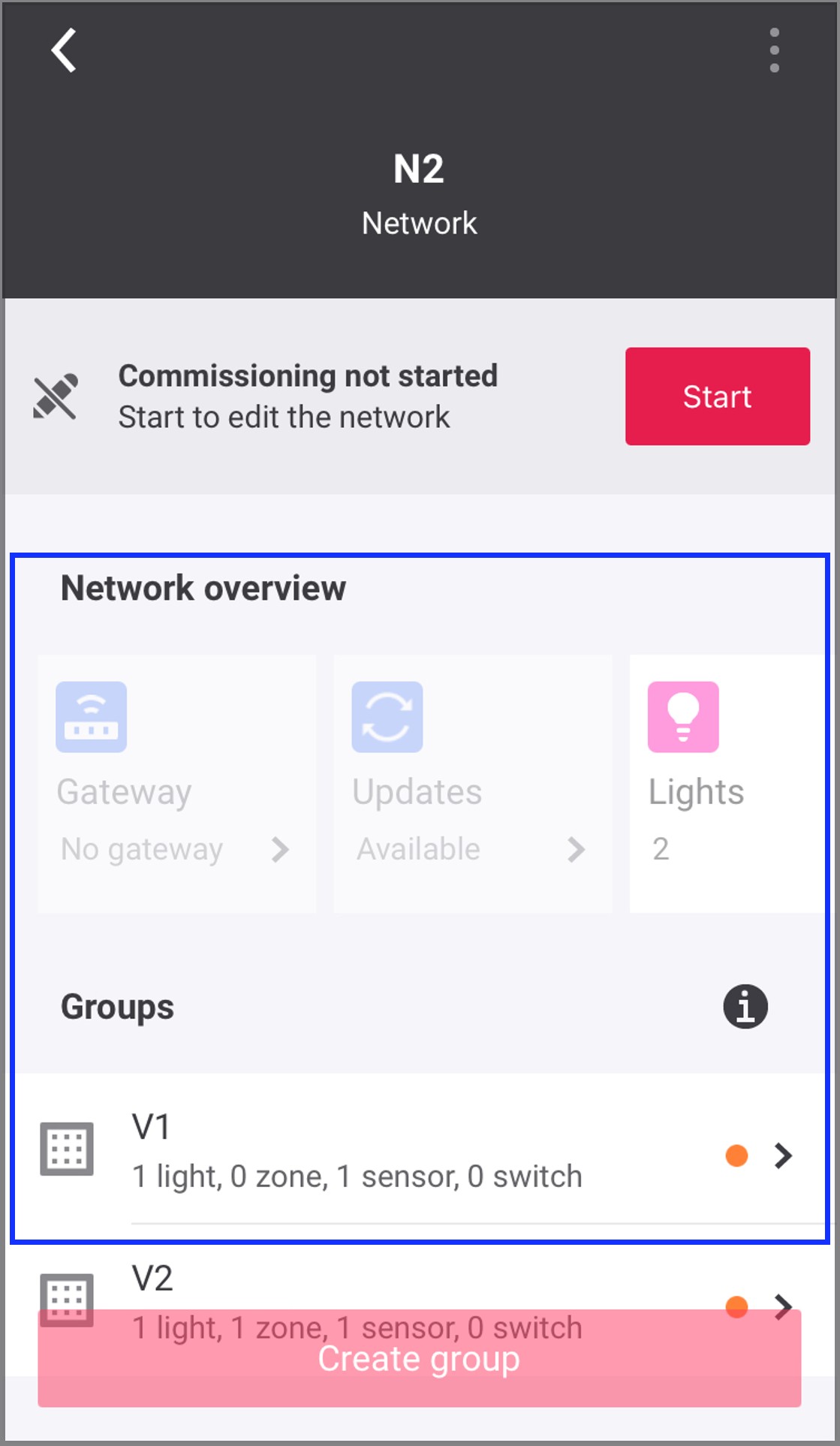
Result: The Network overview (Gateway, Updates, Lights, Controls, Input/Output, and Zigbee channel), and Groups appear in the view mode only for the selected network. You can not edit or commission this network.
-
In the network screen, tap Start to start commissioning a network.
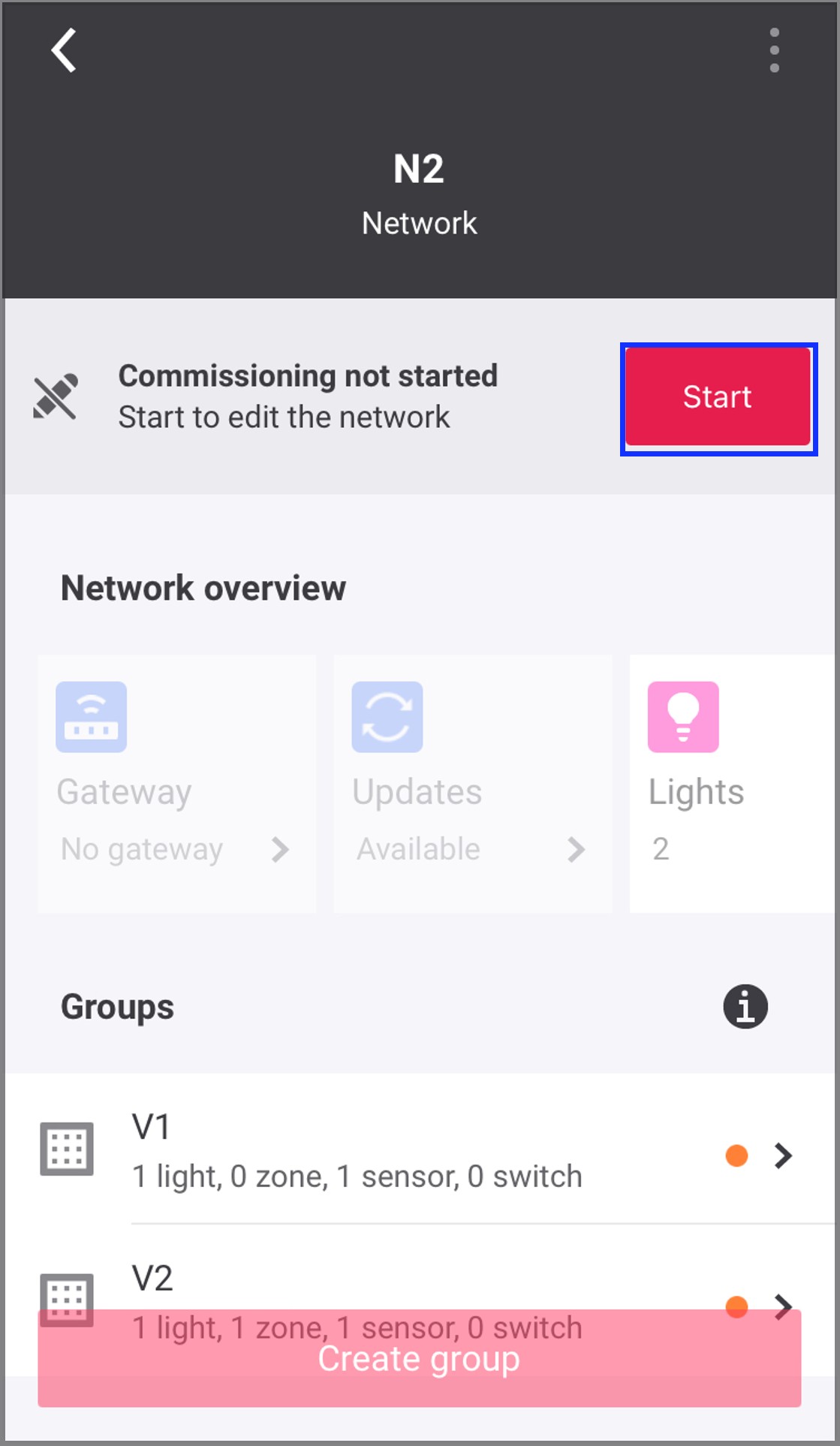
Result: The selected network details will be downloaded and locked to the mobile device for editing.
-
Do the required commissioning for the selected network.
-
Once the network commissioning is completed, tap Stop in the network screen.
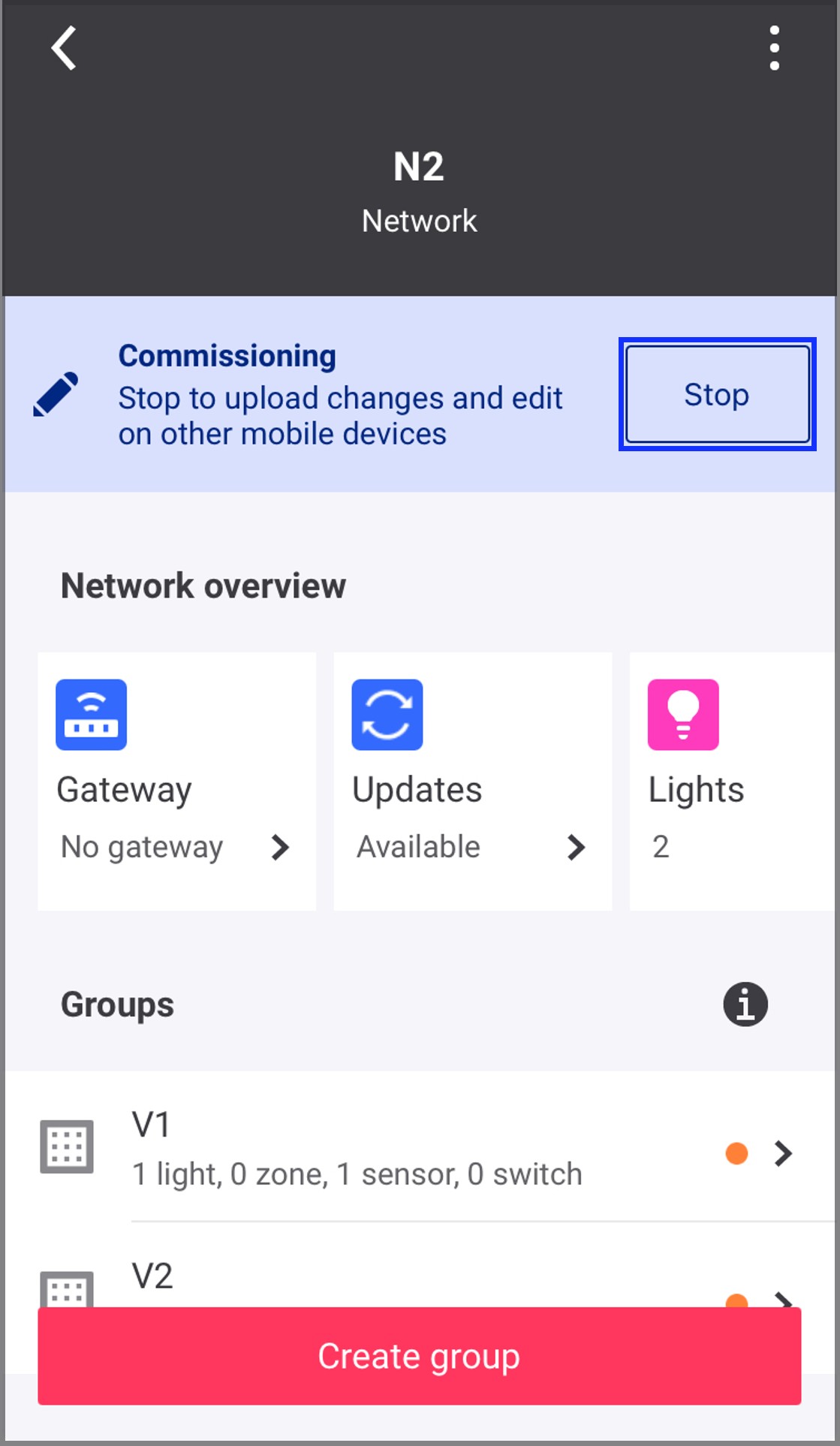
Result: The current network details will be uploaded to the cloud and the network will be unlocked, allowing other mobile devices to access it.
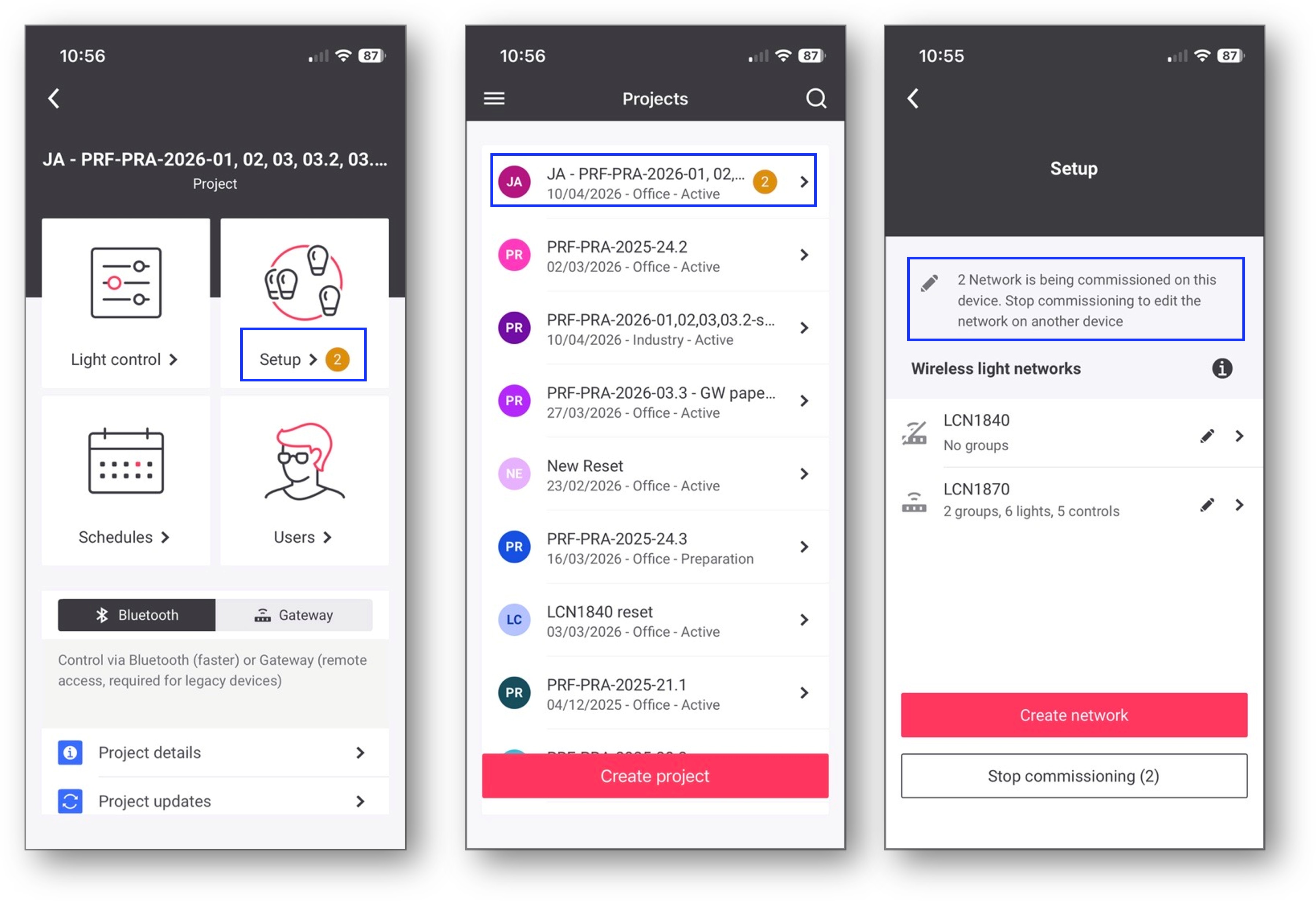
You can start commissioning on multiple networks in parallel by leaving a network without tapping the Stop button. While it is generally recommended to stop commissioning when you exit a network, but some situations require keeping multiple networks locked at the same time.
For example, if you are working in a facility without internet access (due to poor or no cellular service or unavailable Wi‑Fi), you can start commissioning multiple networks from a place where your phone has internet connectivity. You can then enter the facility and navigate freely between those networks. Once commissioning is completed and your device reconnects to the internet, you can stop commissioning on all networks to sync the latest details to the cloud and unlock the networks so that they are accessible from other mobile devices.
|
On-site guidelines for commissioning
Mains powered Interact ready luminaires and devices are added to groups or zones on-site using the mobile app and Bluetooth Low Energy (BLE) to communicate. To ensure this process proceeds efficiently, follow these recommendations:
-
Ensure your mobile phone is fully charged and Bluetooth is enabled.
-
Set a long screen timeout of 10 minutes or more on your mobile phone. Eventually dim the screen brightness to save battery. The app must stay active while deploying behavior settings to groups. If the phone goes to sleep during deployment, deployment will have to be repeated.
-
Before attempting to add any mains powered luminaires or devices, power cycle them if they have been energized for more than 24 hours. After 24 hours, luminaires or devices at factory default settings may not be discoverable by the app.
-
Do not walk away with the mobile phone while adding luminaires and devices, or while deploying behavior settings to groups. The mobile app requires a stable BLE connection to each target device it adds to the wireless network. For behavior deployment to a group, the phone establishes a BLE connection with a single device that acts as a BLE to Zigbee gateway, allowing the group behavior to be deployed through this device to all devices in the group/network. In both cases, avoid breaking this connection by walking out of BLE range while the app is still adding or deploying.
-
Zigbee Green Power (ZGP) devices (battery-powered sensors and battery-powered or kinetic switches) require at least one mains powered device to be added to the group first. ZGP devices are transmit only devices, so a mains powered device is required to “hear” these devices to add them to the group. It is recommended to add all mains powered luminaires and devices to the groups in a wireless network first, then add the ZGP devices after.