Light behavior
Light behavior refers to all possible configurations that determine how groups of lights respond to motion (occupancy), no motion (vacancy), and light level (daylight sensing).
Occupancy sensing
Occupancy sensing determines if and how a group responds to motion (occupancy) and no motion (vacancy). Interact motion sensors use passive infrared (PIR) technology to detect motion. PIR works by detecting changes in infrared radiation (heat) emitted by objects in the sensor’s field of view, which requires a direct line of sight between moving objects and the sensor. The sensitivity and field of view vary based on the sensor sensitivity (if adjustable) and the installation height.
Daylight sensing
Daylight sensing measures the light level detected by sensors in a zone and automatically adjusts the light level to maintain a calibrated light level set point (lux). When ambient light increases, the luminaires will dim down, and when it decreases, the luminaires will brighten to maintain the desired light level set point.
Light behavior states
Light behavior states are discrete, predefined configurations stored in devices that determine how groups of lights respond to occupancy and daylight sensing. Each state contains a set of configurable parameters allowing for occupancy sensing, daylight sensing, light level, and time delay adjustments.
Light behavior state parameters
Occupancy sensing
-
Occupancy sensing is enabled and On and Off option (occupancy mode) is selected.
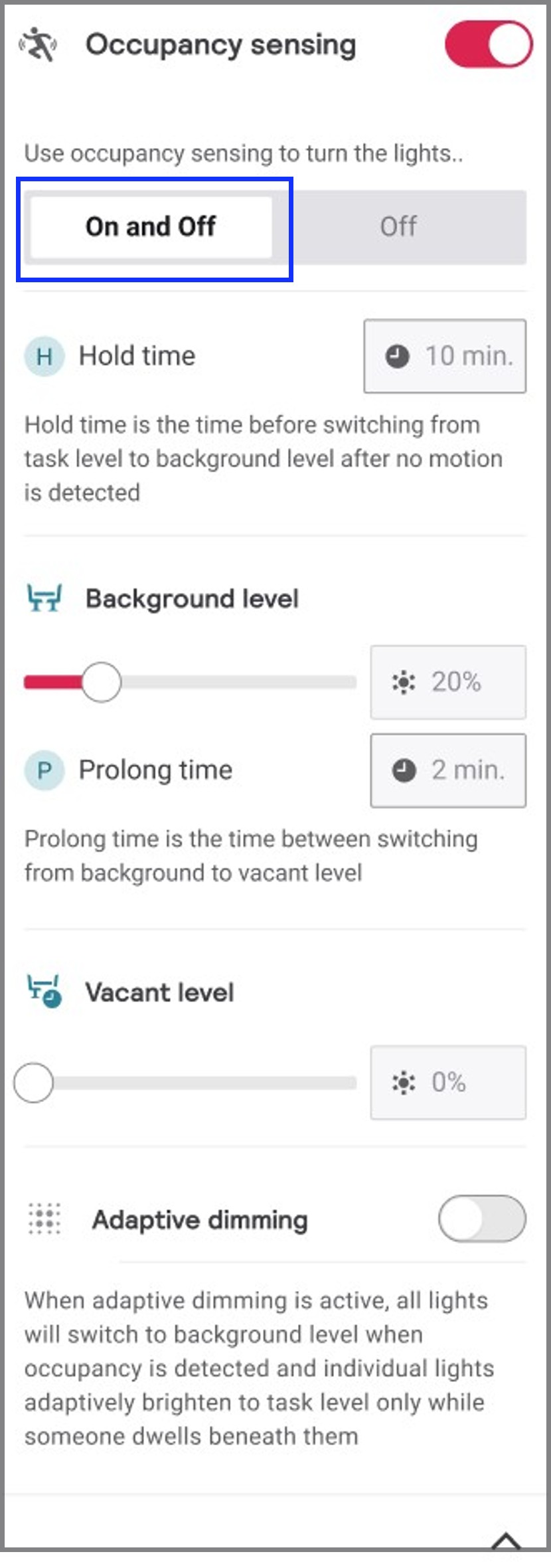
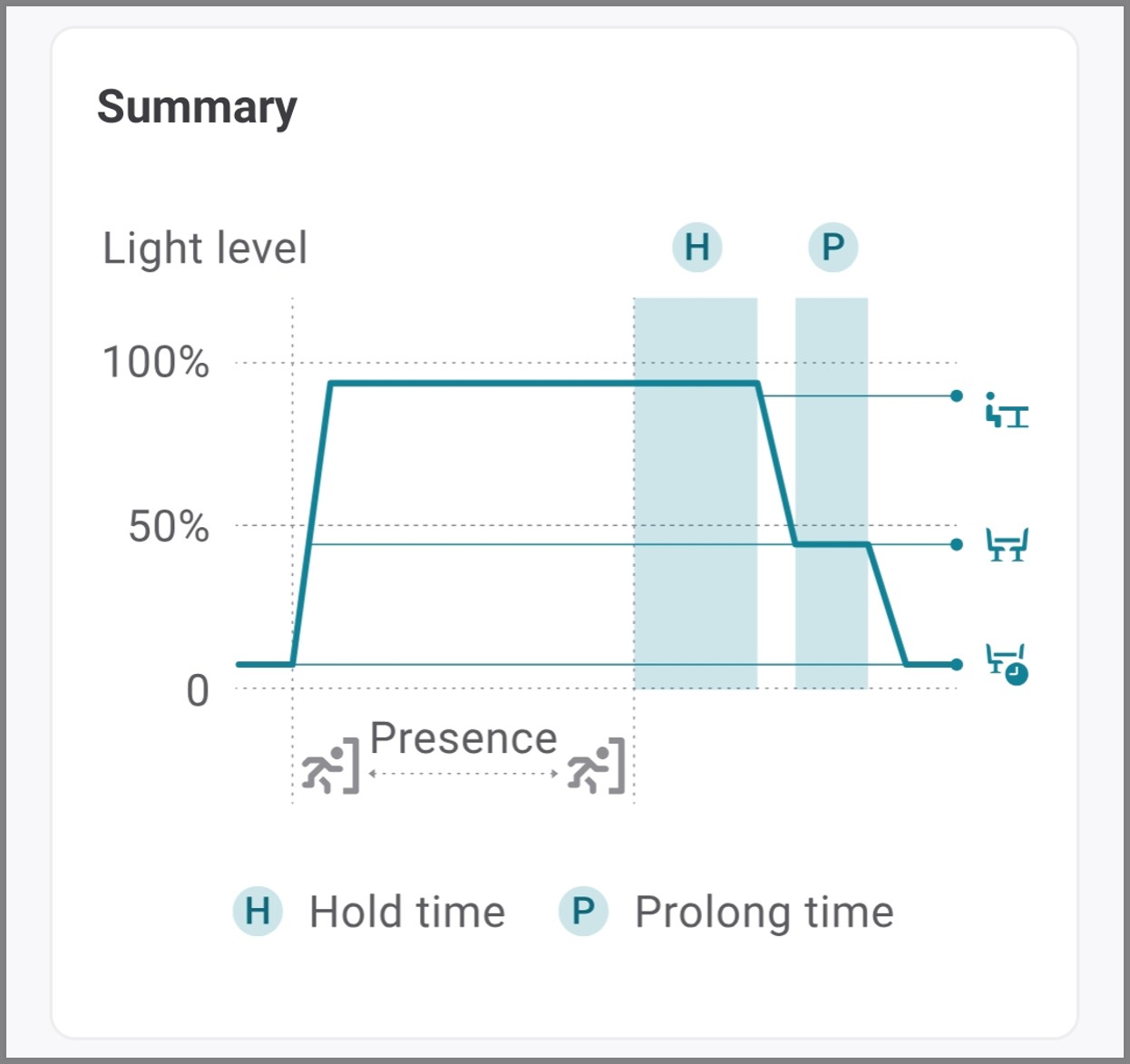
The group responds to both occupancy and vacancy. When occupancy is detected, the group transitions from Vacant level to Task level. A manual override (wall switch, app/portal light control or schedule) can turn the lights to on, off, a specific scene, dim level or color temperature.
Once the configured Hold time expires after vacancy, the group transitions from its current status to the Background level if a Prolong time has been set. Once the configured Prolong time expires, the group transitions from Background level to Vacant level. If motion is detected during the Prolong time, the group transitions from Background level to Task level. If the Prolong time is not set (0 minutes), the group transitions directly from its present status to Vacant level once the configured Hold time expires.
-
Occupancy sensing is enabled and Off option (vacancy mode) is selected.
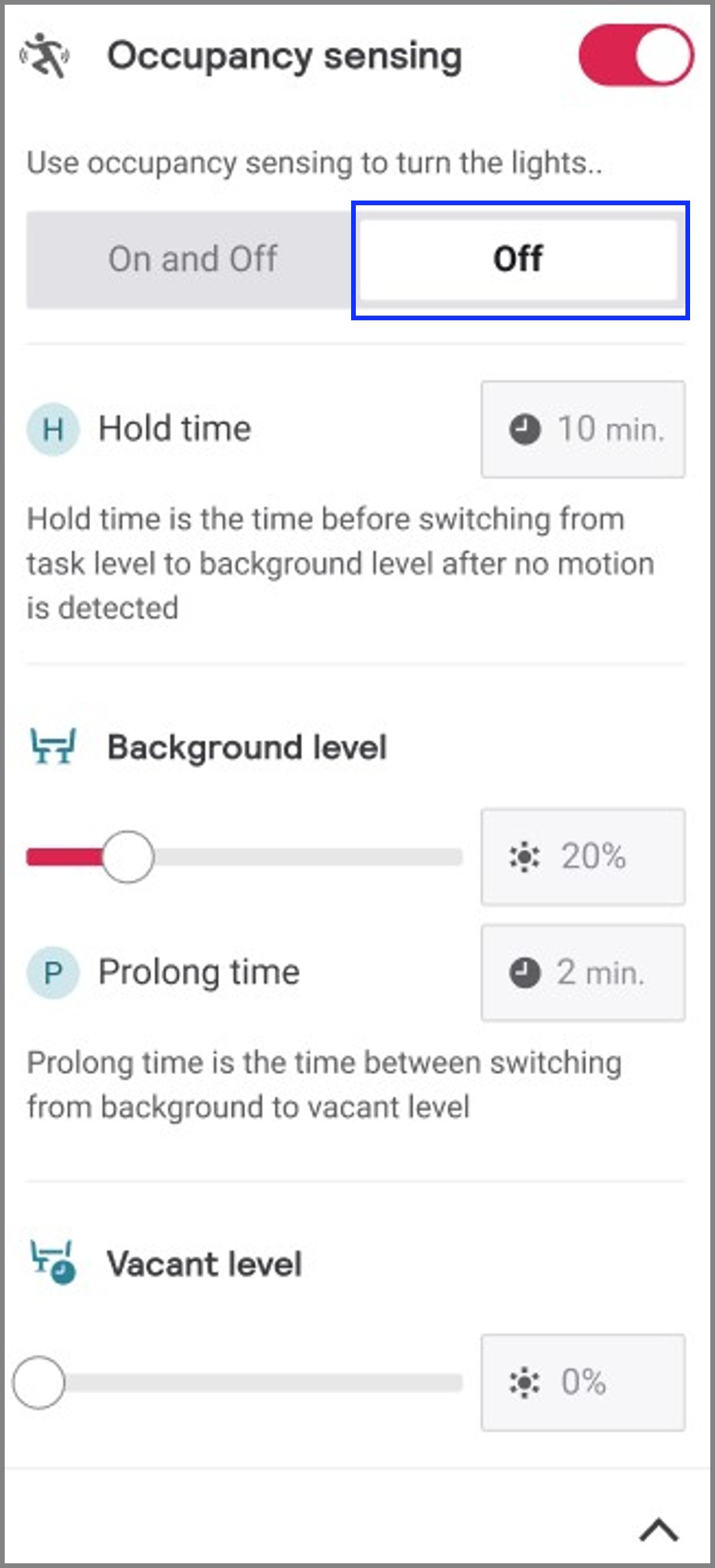
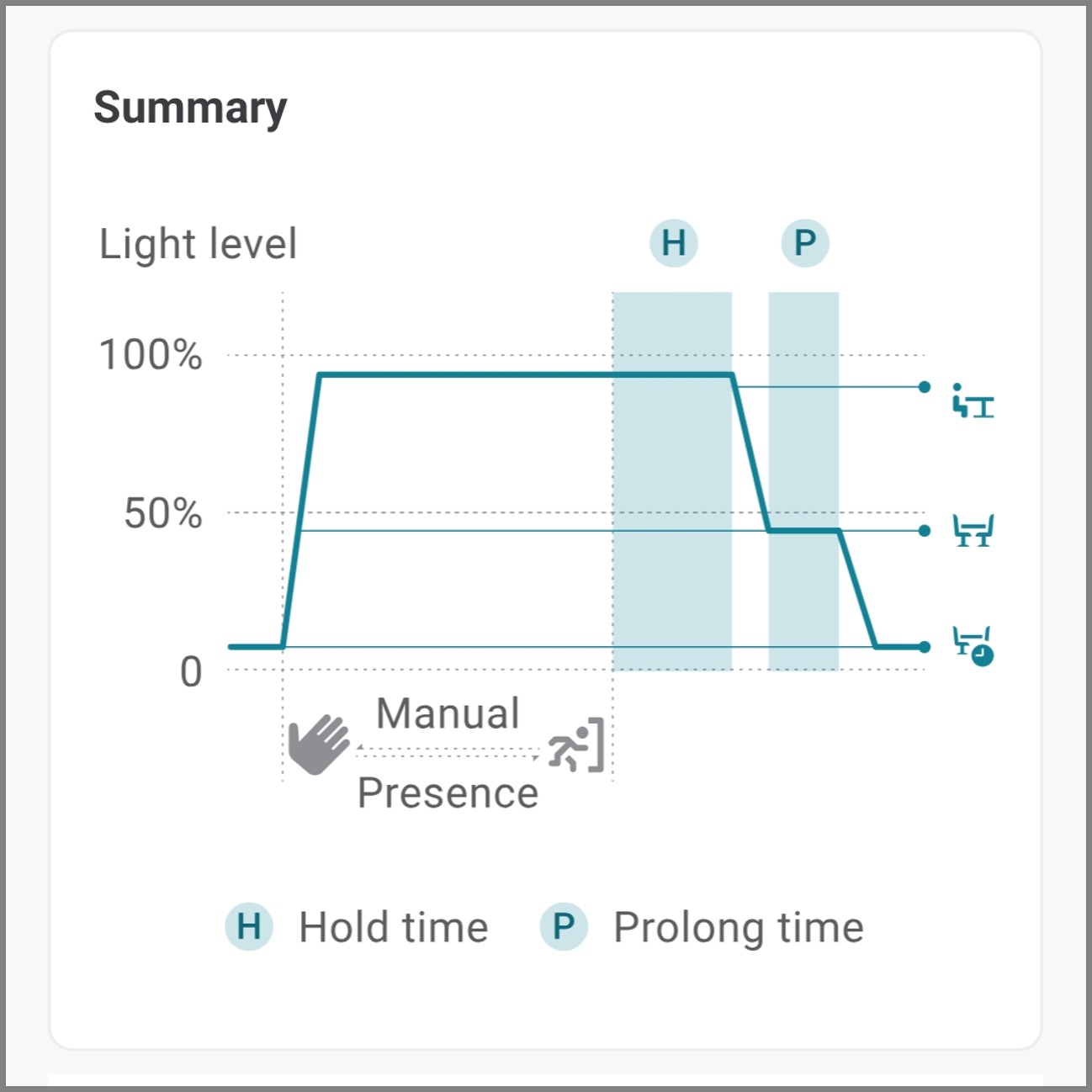
The group does not initially responds to occupancy. A manual override (wall switch, app/portal light control or schedule) is required to turn the lights on, off, a specific scene, dim level or color temperature.
Once the configured Hold time expires after vacancy, the group transitions from its current status to the Background level if a Prolong time has been set. Once the configured Prolong time expires, the group transitions from Background level to Vacant level. If motion is detected during the Prolong time, the group transitions from Background level to Task level. If the Prolong time is not set (0 minutes), the group transitions directly from its present status to Vacant level once the configured Hold time expires.
-
Occupancy sensing is enabled, On and Off option is selected, and Adaptive dimming option is enabled.
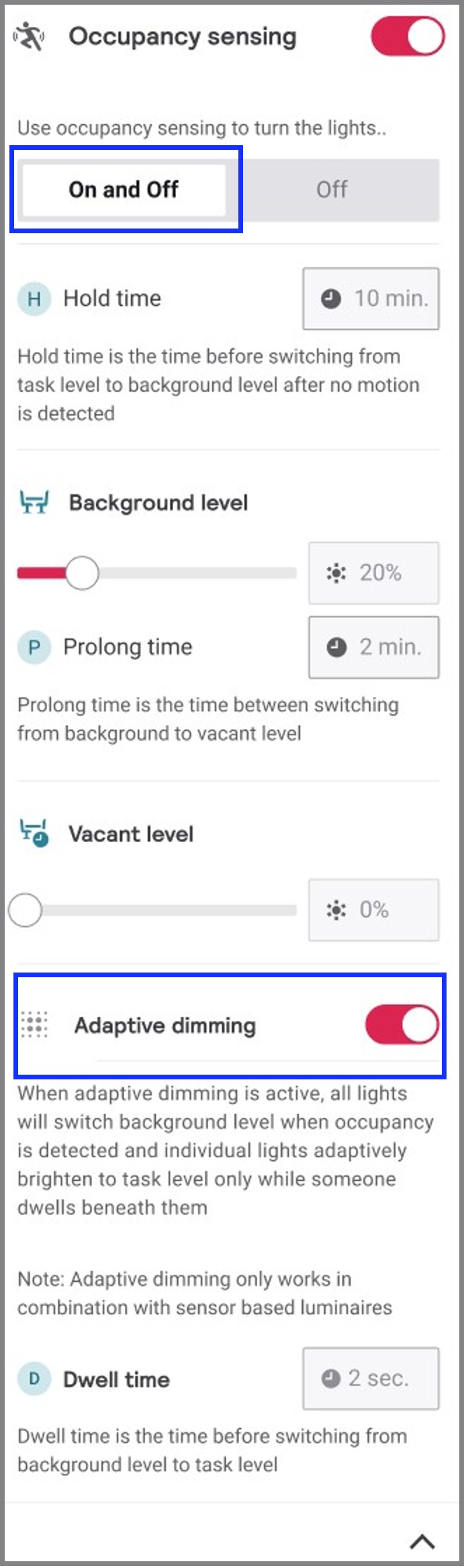
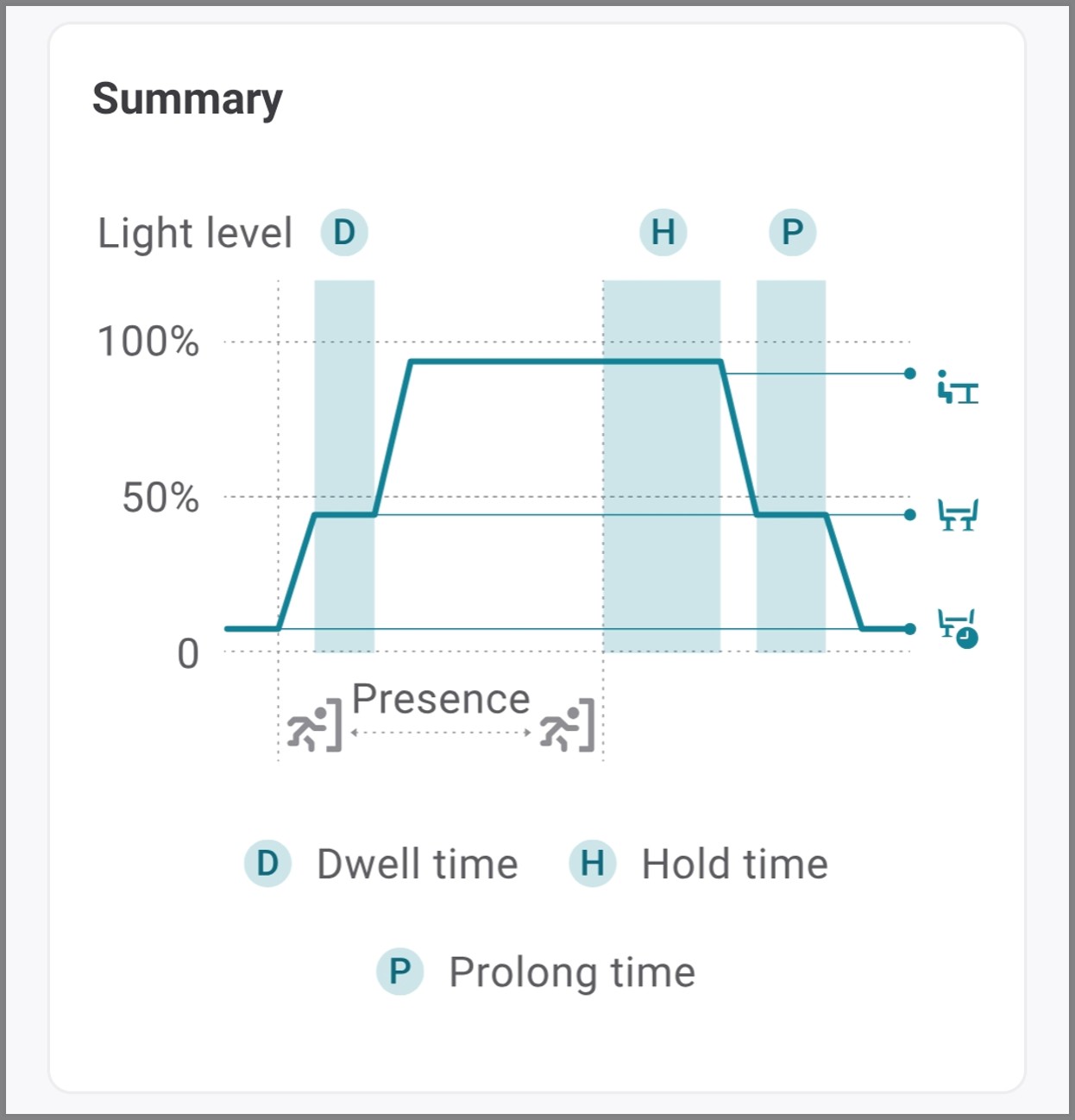
The group responds to both occupancy and vacancy. When occupancy is detected, the group transitions from Vacant level to Background level. When an individual built-in sensor detects motion and the configured dwell time is exceeded, sensor transitions the light from Background level to Task level. A manual override (wall switch, app/portal light control or schedule) can turn the lights to on, off, a specific scene, dim level or color temperature.
-
Occupancy sensing is disabled.
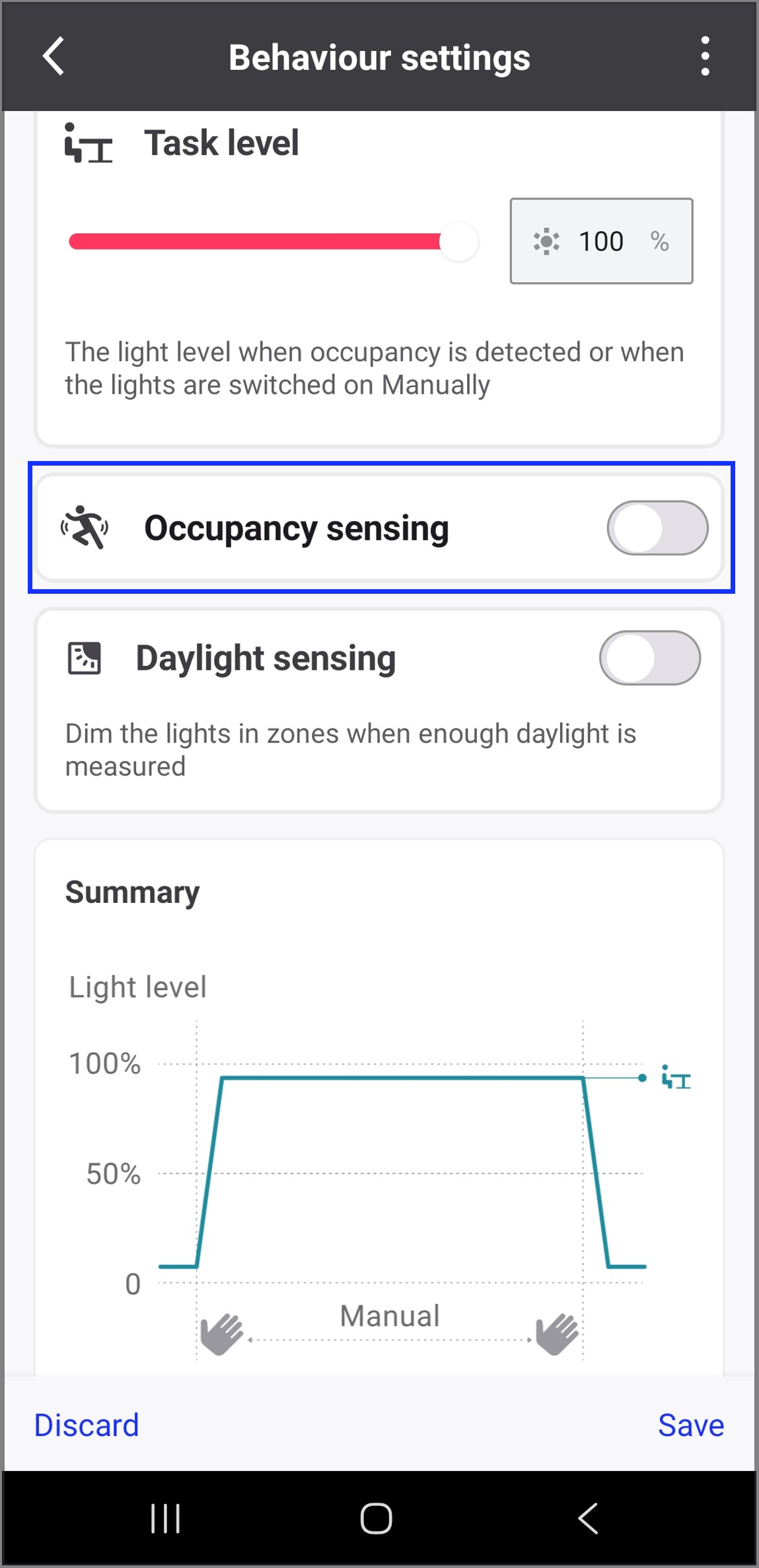
The group does not respond to occupancy or vacancy. A manual override (wall switch, app/portal light control or schedule) is required to turn the lights on, off, a specific scene, dim level or color temperature.
Daylight sensing
-
Daylight sensing is enabled.
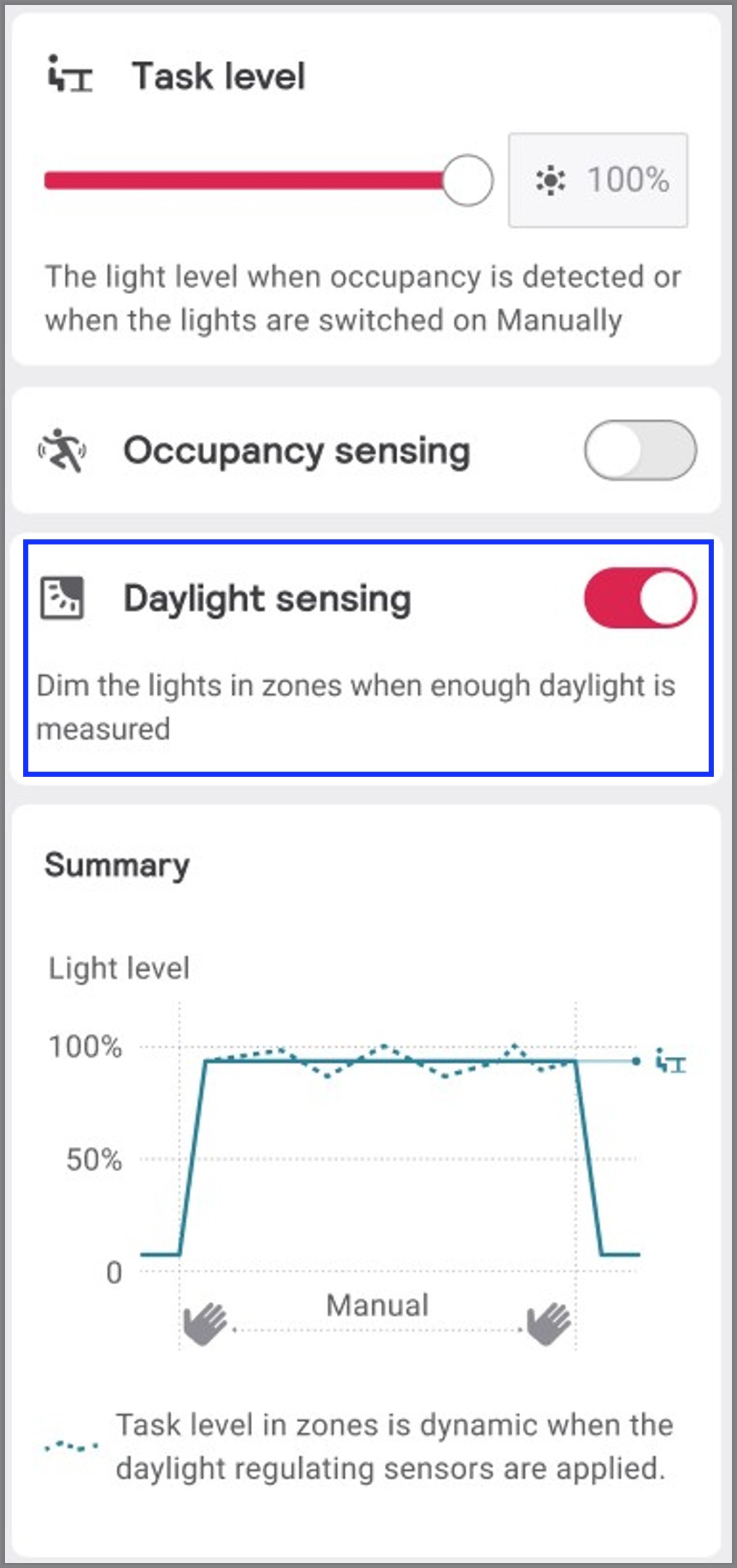
When a group is commanded to Task level, the lights assigned to zones within the group automatically regulate their output to maintain the calibrated light-level set point. By default, built-in sensors regulate the light level of their associated devices individually. Alternatively, they can be configured to follow a designated zone master built-in sensor. Devices in a zone without a built-in sensor follow the zone master built-in sensor configured for regulation within the same zone. If a zone contains only devices without built-in sensors, a battery-powered multi-sensor must be installed in that zone to enable light level regulation.
-
Daylight sensing is disabled.
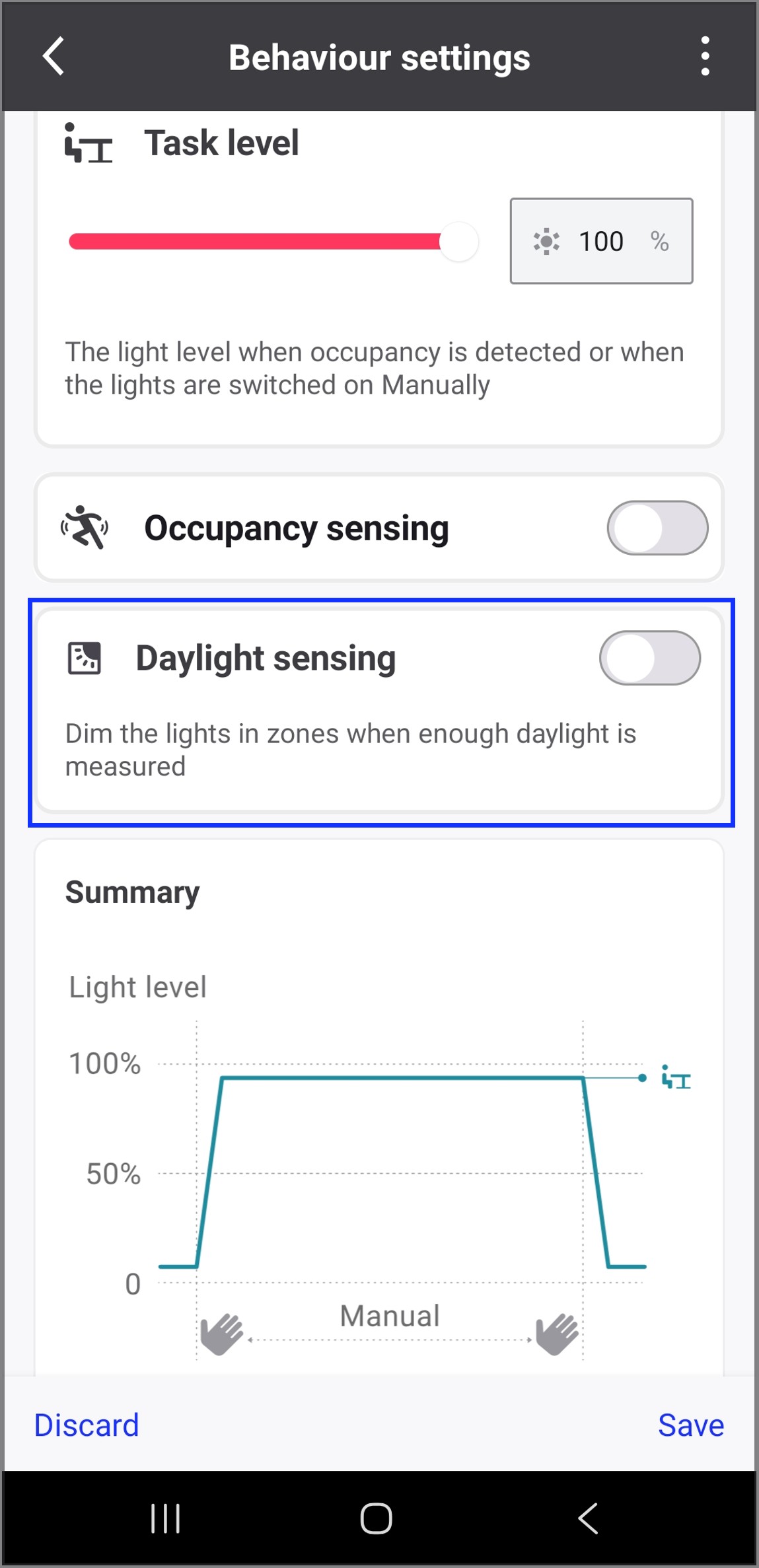
The zones in the group do not automatically adjusts their light level in response to the daylight level.
Light levels
-
Task level (1-100%)
The light level that a group switches to upon occupancy when Occupancy sensing is enabled to turn the lights On and Off, or in response to a manual On command. If Daylight sensing is enabled, the Task level behaves as a switch-on level, then daylight regulation begins. -
Background level (0-100%)
-
When Occupancy sensing is enabled, a light level that the group switches to during the configured Prolong time upon vacancy. Background level is useful as a warning level before the lights switch to Vacant level.
-
A light level that the group switches to upon occupancy, when both Occupancy sensing and Adaptive dimming are enabled.
-
-
Vacant level (0-100%)
When Occupancy sensing is enabled, a light level that the group switches to upon vacancy after the configured Hold time and Prolong time are expired. This level is maintained until occupancy is detected.
Time delays
-
Hold time (1-60 min)
When Occupancy sensing is enabled, Hold time defines the duration for which the group maintains its current status, whether operating at Task level or under a manual override, after occupancy is no longer detected. Once the Hold time expires, the group transitions to Background level (if Prolong Time > 0) or directly to Vacant level (if Prolong Time = 0).The minimum hold time for a group can be configured to less than 5 minutes with additional restrictions to the number of luminaires and areas per network. See the following table for requirements:
Hold time Maximum number of groups Maximum number of nodes 1 minute
6
50
2 minutes
12
75
3 minutes
18
100
4 minutes
24
125
-
Latest firmware (FW > 7.4.12) is required.
-
Battery powered sensors (ZGP) cannot use hold time lower than five minutes.
-
Node refers to any device that has an antenna and is part of the Zigbee mesh, for example: SC200, SC100, SNH210, Wireless drivers (WIA). Battery-powered sensors and switches (ZGP devices) are not counted as nodes.
-
-
Prolong time (0-30 min)
When Occupancy sensing is enabled, Prolong time defines the duration for which the group remains at Background level after the Hold time has expired before transitioning to Vacant level. -
Dwell time (0-30 sec)
When Occupancy sensing option is selected as On and Off and Adaptive dimming option is enabled, Dwell time defines the minimum amount of time that luminaires with built-in sensors must detect motion before switching from Background level to Task level. Upon occupancy, the whole group switches to Background level then individual luminaires will switch to Task level if they detect dwelling motion that exceeds the configured Dwell time.
Zones and Scenes
A zone is a sub-selection of luminaries inside a group. Zones allow multiple luminaires to be set in unison when Scenes are configured vs lights in the group that are not in zones, which must be individually set. In addition, luminaires must be in zones to enable Daylight sensing.
A scene can be triggered either by a single press of a button from a 4-button switch, the LightControl application, or via a schedule. A scene always behaves as a manual override, meaning lights resume normal or automatic behavior once the group Hold time expires.
Dim curve
The system applies a dimming curve that appears linear to the human eye. This means that when the light level is adjusted from 100% to 50%, the lights will visually dim to what a person would perceive as approximately 50% brightness. However, these perceived light levels do not correspond linearly to actual energy consumption. Human vision is more sensitive to changes at lower light levels and less sensitive at higher levels, so the human visual response is not proportional to the electrical power consumption.
The following graph illustrates how the perceived light output changes relative to the input values set through the UI.
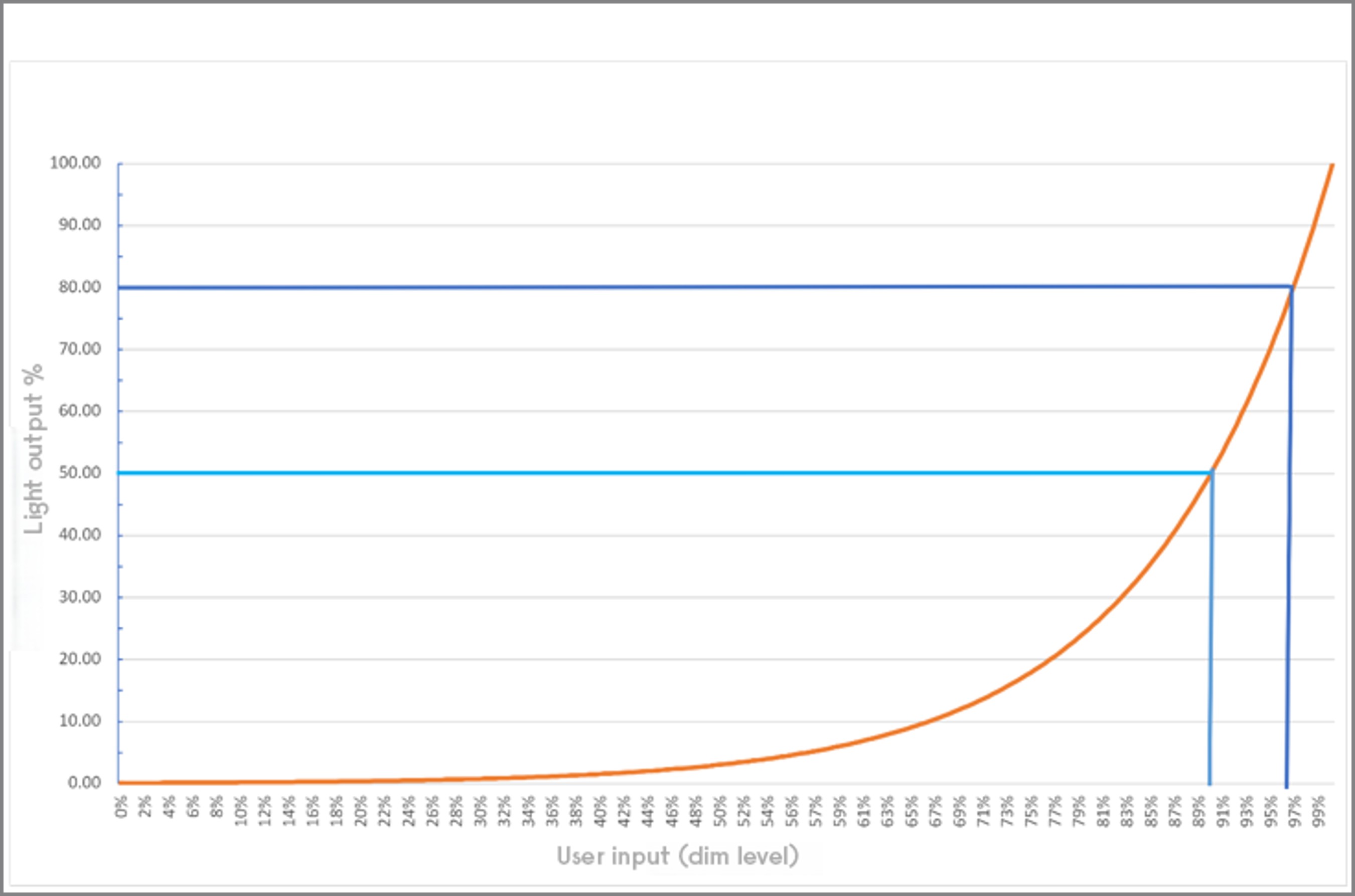
An exception to the above behavior occurs when using BACnet light control commands. In this case, the system switches to a linear to energy curve. This means that if the lights are set to 50% brightness through BACnet, the energy consumption will also be approximately 50%. This approach ensures that the light output is directly proportional to the energy used, rather than how it appears to the human eye.
High end trim
The high end trim feature sets the new maximum value for dimming level and proportionally scales down the rest of the values, such as task, background, and vacant level. This includes any manual dimming or scene levels.
If the high end trim value is 90%, then 90% is the new 100% dim level, and all other values are also scaled down to 90% of their original value.
High-end trim values are linear to energy, which differs from the linear-to-eye behavior used for scenes or any other control mechanisms from the UI. As a result, setting the high-end trim value at 80% will yield an energy consumption close to 80%.
| When using low levels (<20%), the energy consumption tends to be higher than normal due to loss of efficiency and stand by power consumption. |
Daylight sensing settings
Daylight sensing settings are defined globally for a group, ensuring that the same configuration is applied across all configured light behavior states in that group.
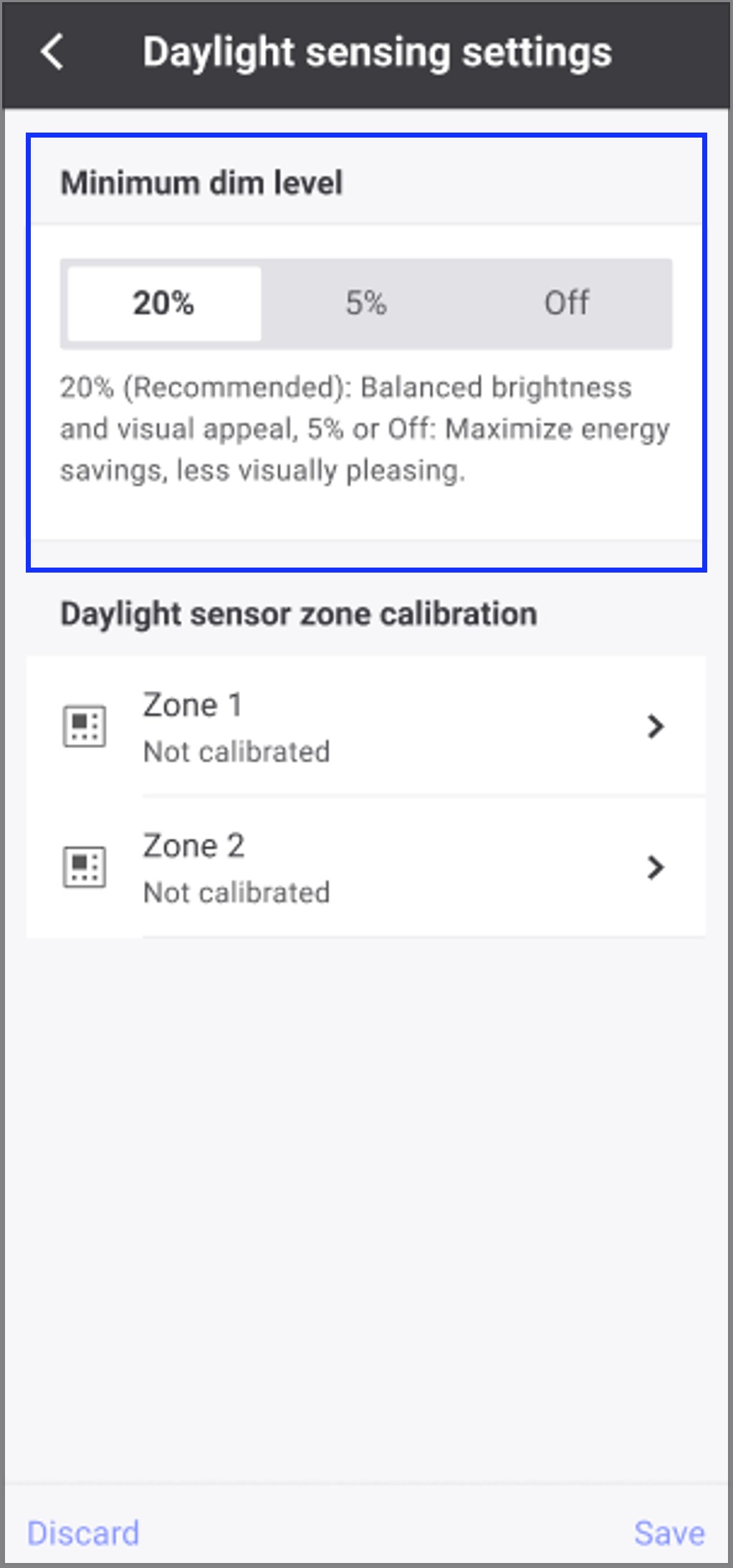
Minimum dim level of Daylight sensing
-
Minimum dim level to 20%
If Daylight sensing is enabled, this is the default (recommended) minimum dim level that lights in a group will dim to when trying to maintain the light level set point. -
Minimum dim level to 5%
If Daylight sensing is enabled, this option allows the lights to dim to 5% when trying to maintain the light level set point, thereby increasing the energy savings. -
Minimum dim level to Off
This option allows the lights to dim to 0%. When the detected light level is greater than the target light level, the lights will dim down to a minimum level (5% or the driver’s minimum dim level, whichever is greater). If the light level remains above 150% of the target light level continuously for 10 minutes, then the lights will be switched off. Once the ambient light level falls and remains below the target light level continuously for 6 minutes, then the lights will be switched on, if the group is currently set to the Task level (occupied or manually turned on).-
Dim to Off operates independently of the Daylight sensing settings configured for the group’s light behavior states. As a result, if dim to Off is enabled, the lights will still dim to off even when Daylight sensing is disabled in one or more light behavior states.
-
Lights that have dimmed to off may remain off even when the group is re-occupied after transitioning to the Vacant level. When Occupancy sensing with On and Off option is enabled and the ambient light level remains sufficiently high, re-occupancy will not automatically turn on lights that have been dimmed to off.
-
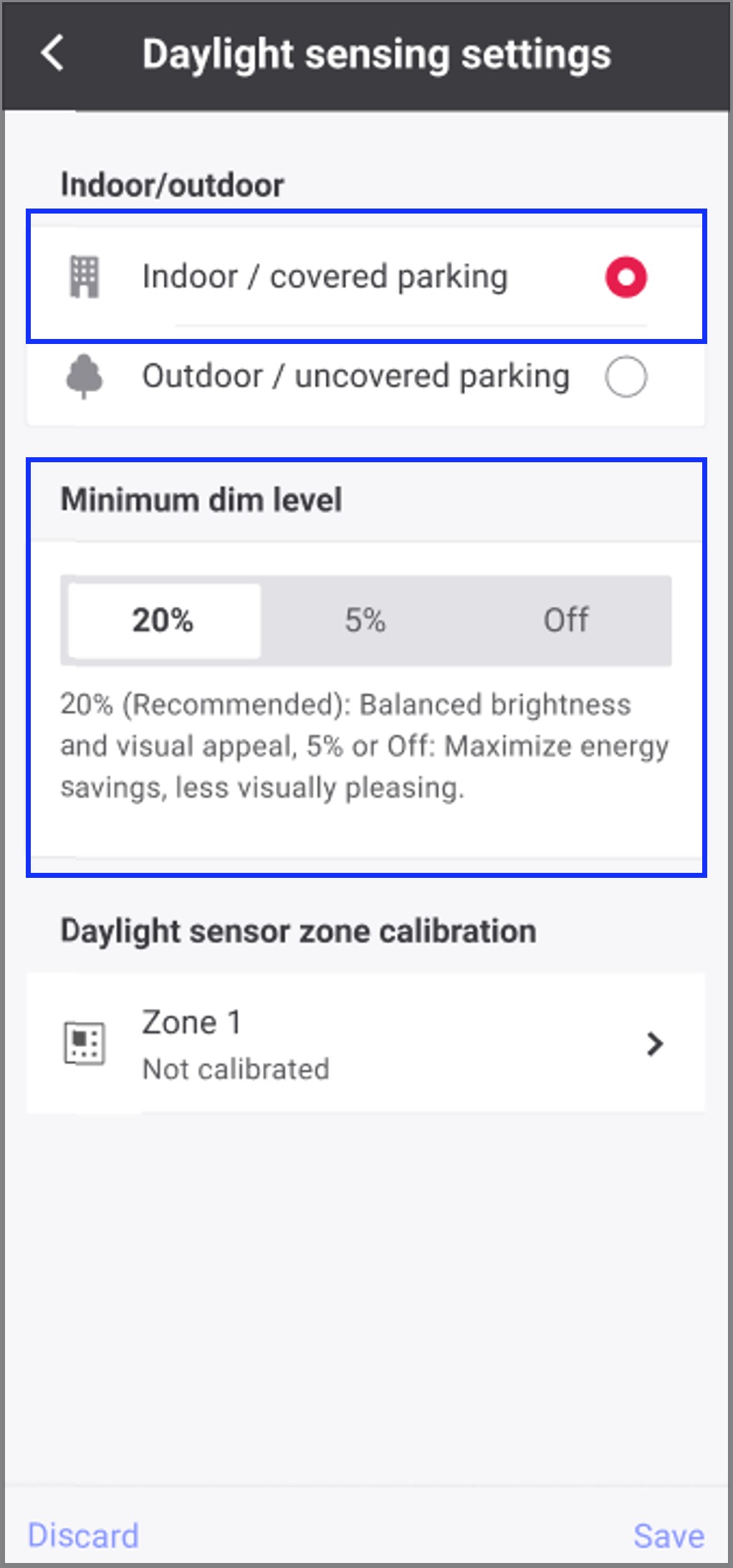
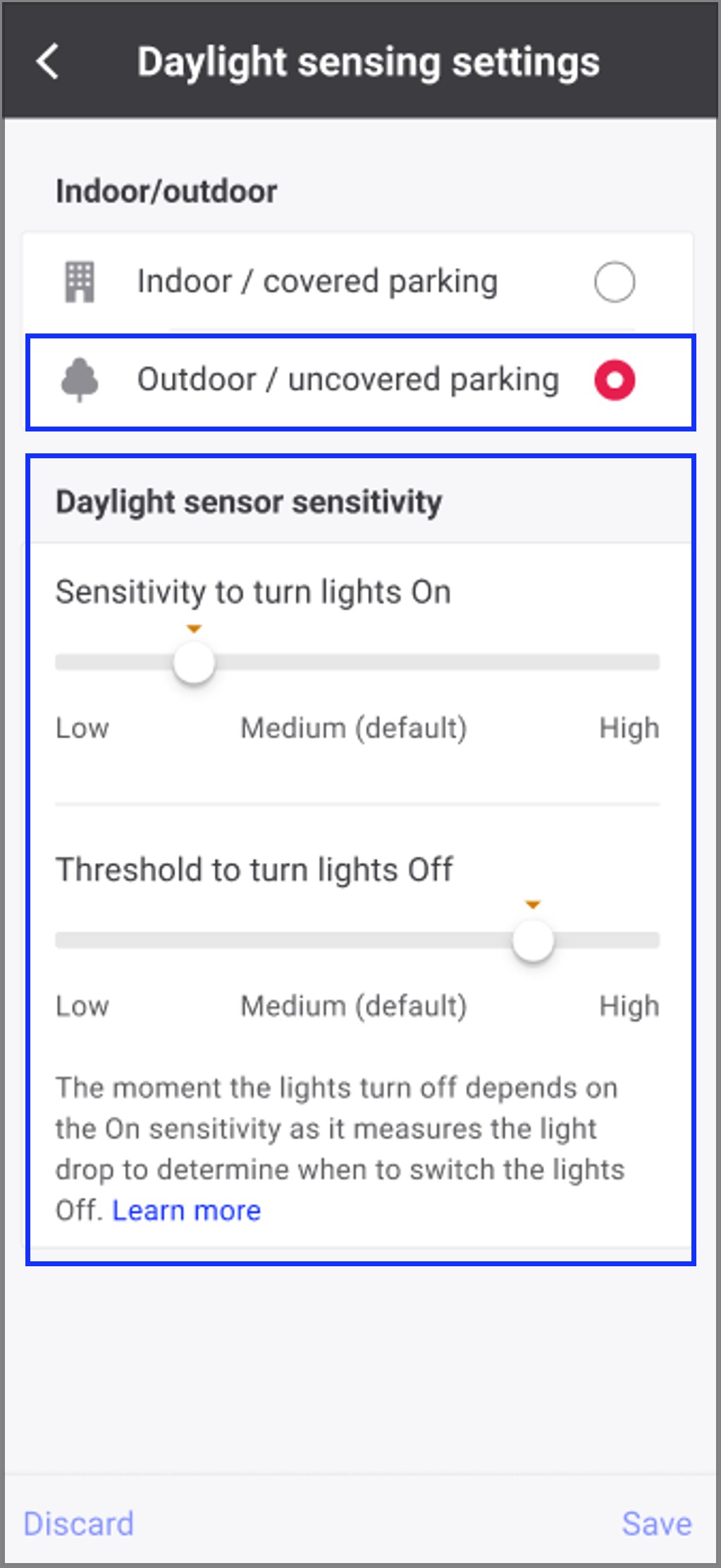
Indoor/outdoor
This option will be visible only if any outdoor parking sensor is added to a group.
Indoor sensors
For Indoor sensors, minimum dim level can be set to 20%, 5% or Off.
Outdoor sensors
-
Turn on lights
For Outdoor sensors, threshold to turn lights On can be adjusted between Low, Medium, and High through a slider. By default, sensitivity is set to Medium.Lights automatically turn on when the measured outdoor ambient light level falls below the configured threshold. The turn-on threshold can be adjusted using the sensitivity slider, with Low, Medium, and High settings that determine how responsive the system is to changes in outdoor light conditions. Higher sensitivity causes the lights to turn on at brighter ambient light levels, while lower sensitivity requires darker conditions to turn on the lights.
-
Turn off lights
For Outdoor sensors, threshold to turn lights Off can be adjusted between Low, Medium, and High through a slider. By default, threshold is set to Medium.Lights automatically turn Off when the measured outdoor light level reaches the configured threshold setting (Low, Medium, or High). This threshold to turn off lights is determined by the configured On sensitivity value as it measures the light drop.