Migration scenarios for Light behavior V2
Rules to enable Light behavior V2 features
-
The Light behavior V2 feature is available only for devices operating on firmware version 8.x.x or above.
-
Following the Light behavior V2 system release, all newly created networks and groups in each network support Light behavior V2 functionality by default.
-
Following the Light behavior V2 system release, all newly created groups in the network support Light behavior V2 functionality by default.
When the first device added to a new group has firmware below 8.x.x:
-
The group is downgraded and supports only non-Light behavior V2 features.
-
Any device with firmware 8.x.x or above that is subsequently added to the group is also restricted to non-Light behavior V2 features. To regain Light behavior V2 capability, affected devices must be deleted (reset).
-
If all devices are deleted from the group, the group auto-upgrades to support Light behavior V2 features.
When the first device added to a new group has firmware 8.x.x or above:
-
The group is locked as a Light behavior V2 group.
-
Devices having firmware below 8.x.x cannot be added to the group.
-
Any attempt to add a device with firmware below 8.x.x results in the device becoming an unassigned device in the network. Such devices must be upgraded to firmware version 8.x.x or later using the Updates function in Network overview and then deleted (reset) before they can be added to a Light behavior V2 group.
-
-
Groups created before the Light behavior V2 system release support only non-Light behavior V2 features. Following a successful project update (gateways required), new groups created in existing networks with gateways will support Light behavior V2.
Migration scenarios for new projects
Perform the applicable scenario-based procedure to enable Light behavior V2 functionality for the group.
Scenario 1: All devices having firmware version 8.x.x
-
Create new project, networks, groups, and zones.
For more information, see:
-
Add devices to groups or zones.
For more information, see:
-
Deploy the Light behavior V2 configurations to groups.
Scenario 2: Devices having firmware version above and below 8.x.x
-
Create new project, networks, groups, and zones.
For more information, see:
-
Add devices to groups or zones.
For more information, see:
-
Update all devices firmware version via gateway or bluetooth.
For more information, see:
-
Delete all updated devices to reset them and empty all groups.
Empty groups will auto-upgrade to Light behavior V2 functionality. -
Add the updated devices to groups or zones.
-
Deploy the Light behavior V2 configurations to groups.
Scenario 3: Devices having firmware version below 8.x.x
-
Create new project, networks, groups, and zones.
For more information, see:
-
Add devices to groups or zones.
For more information, see:
-
Update all devices firmware version via gateway or bluetooth.
For more information, see:
-
Delete all updated devices to reset them and empty all groups.
Empty groups will auto-upgrade to Light behavior V2 functionality. -
Add the updated devices to groups or zones.
-
Deploy the Light behavior V2 configurations to groups.
Scenario 4: Adding devices with firmware version below 8.x.x to a Light behavior V2 group after the first device added had firmware version 8.x.x or above.
-
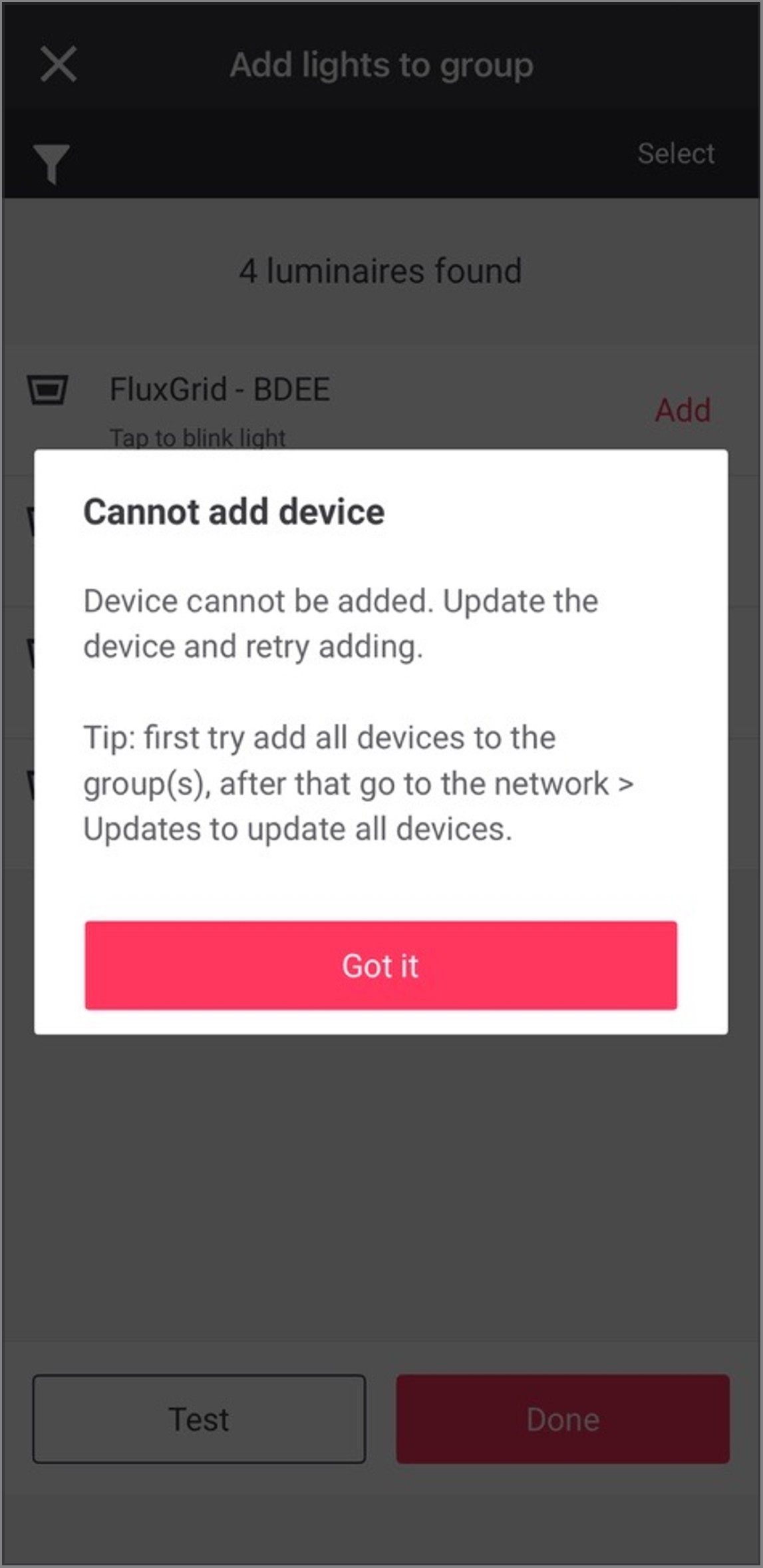
Add devices with firmware version below 8.x.x to a Light behavior V2 group where a device with 8.x.x firmware was the first device added to the group.
Result: The devices cannot be added to the group and are listed as unassigned devices in the network.
-
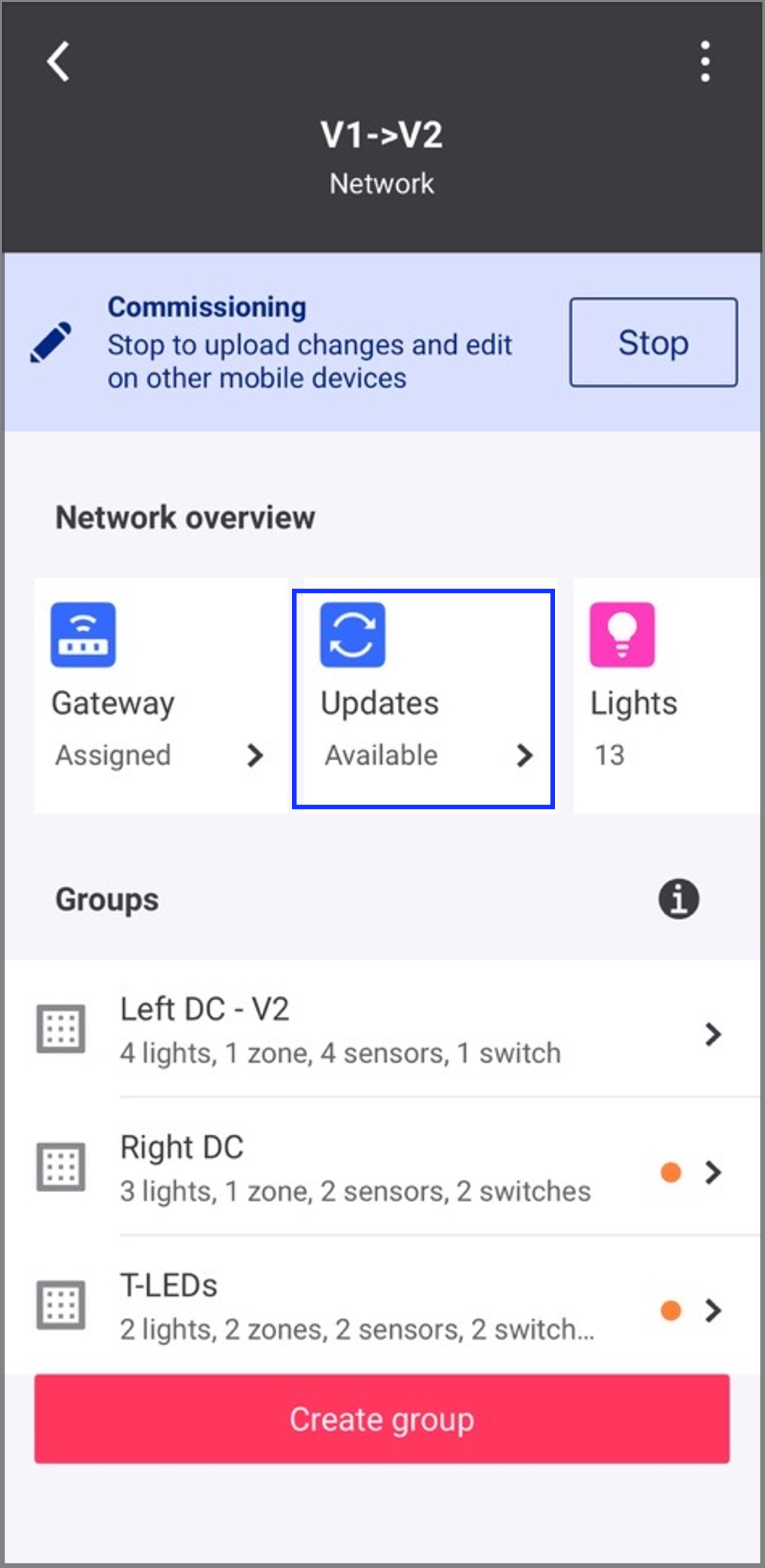
Navigate to the Network screen, then tap Updates from Network overview.
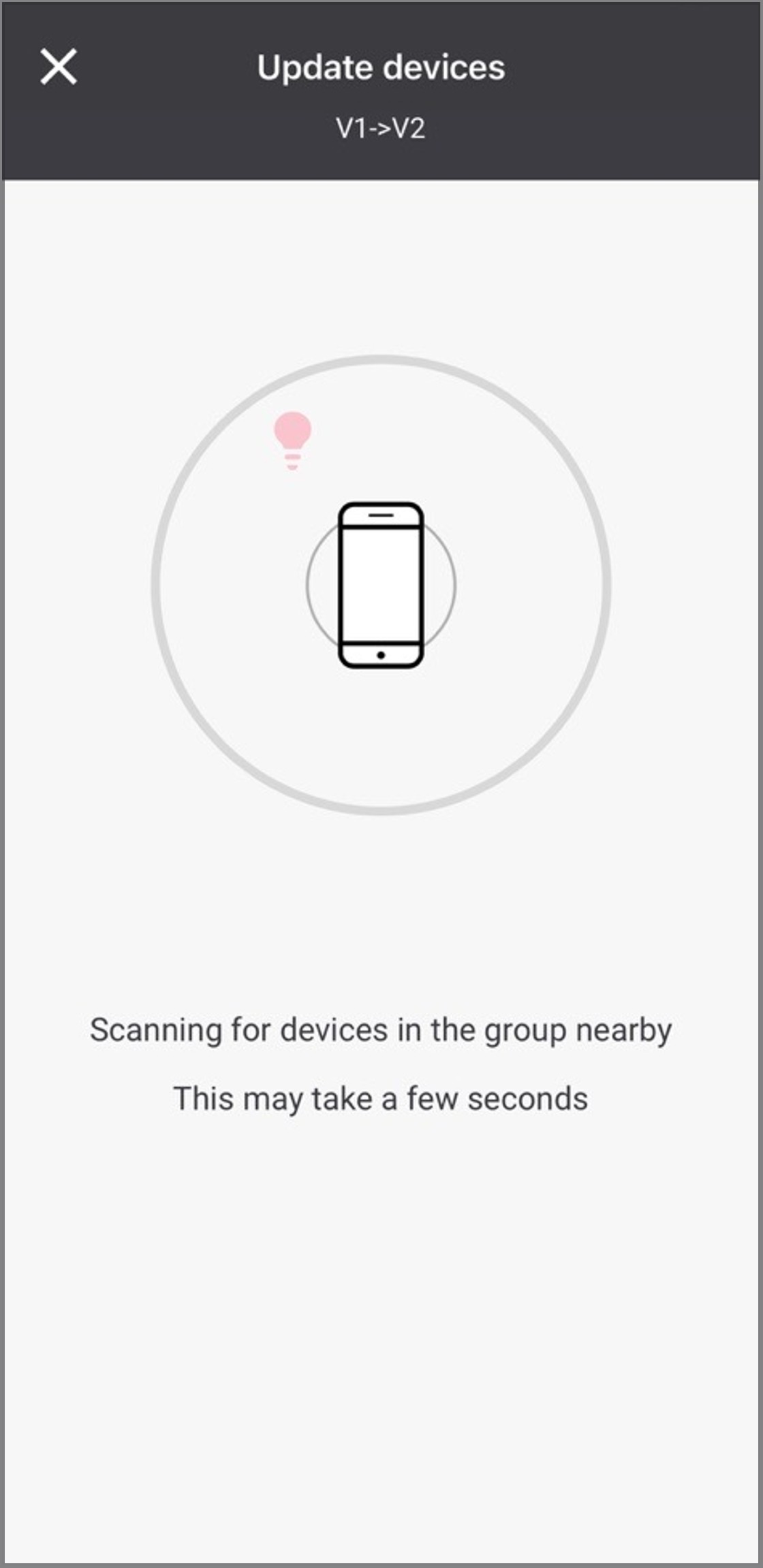
Result: If there are unassigned devices in the network, the app will perform a Bluetooth scan to determine which unassigned devices in the network are currently in Bluetooth range of the mobile phone.
Unassigned devices that are in Bluetooth range will be shown with green dots, indicating good Bluetooth signal strength, allowing these devices to be selected for an update.
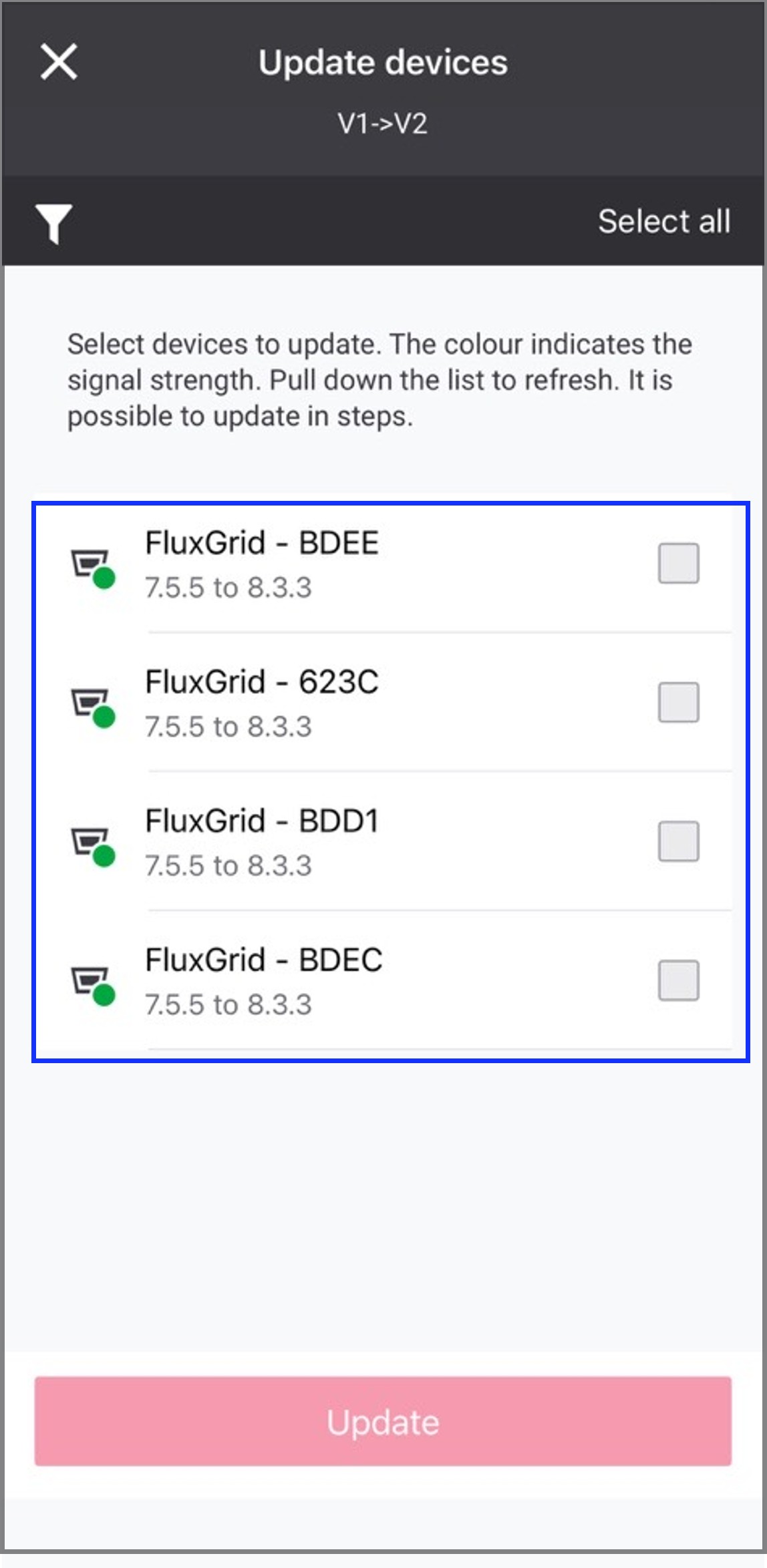
Unassigned devices that are out of Bluetooth range or are unreachable for any reason will be shown with red dots and cannot be selected for an update.
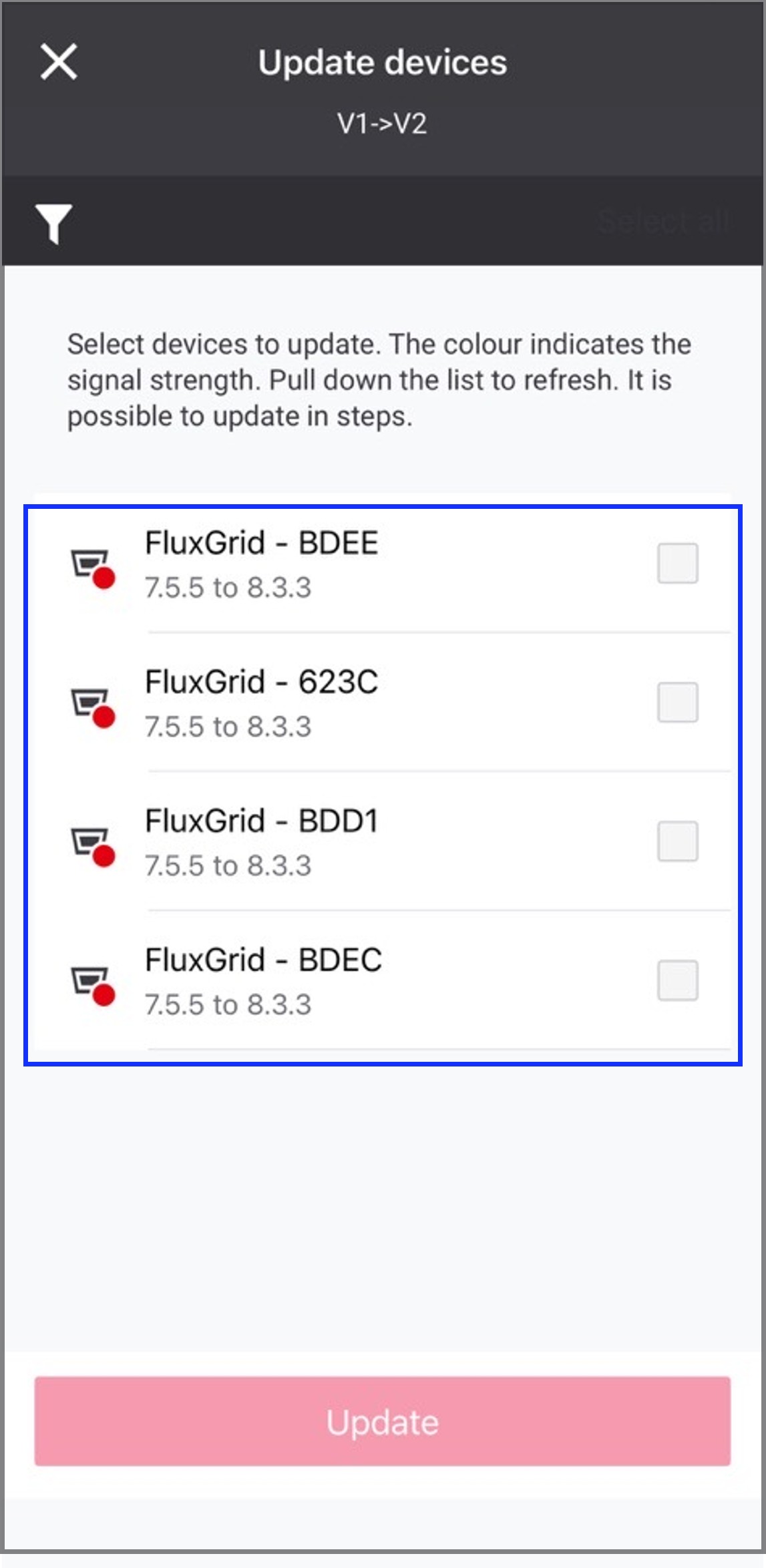
-
In the Update devices screen, select any or all devices with green dots indicating they are in Bluetooth range, then tap Update and allow the Bluetooth update to complete.
Do not move around or allow the mobile app to close or go to the background while scanning and updating devices via Bluetooth, or updates may fail and require further attempts. 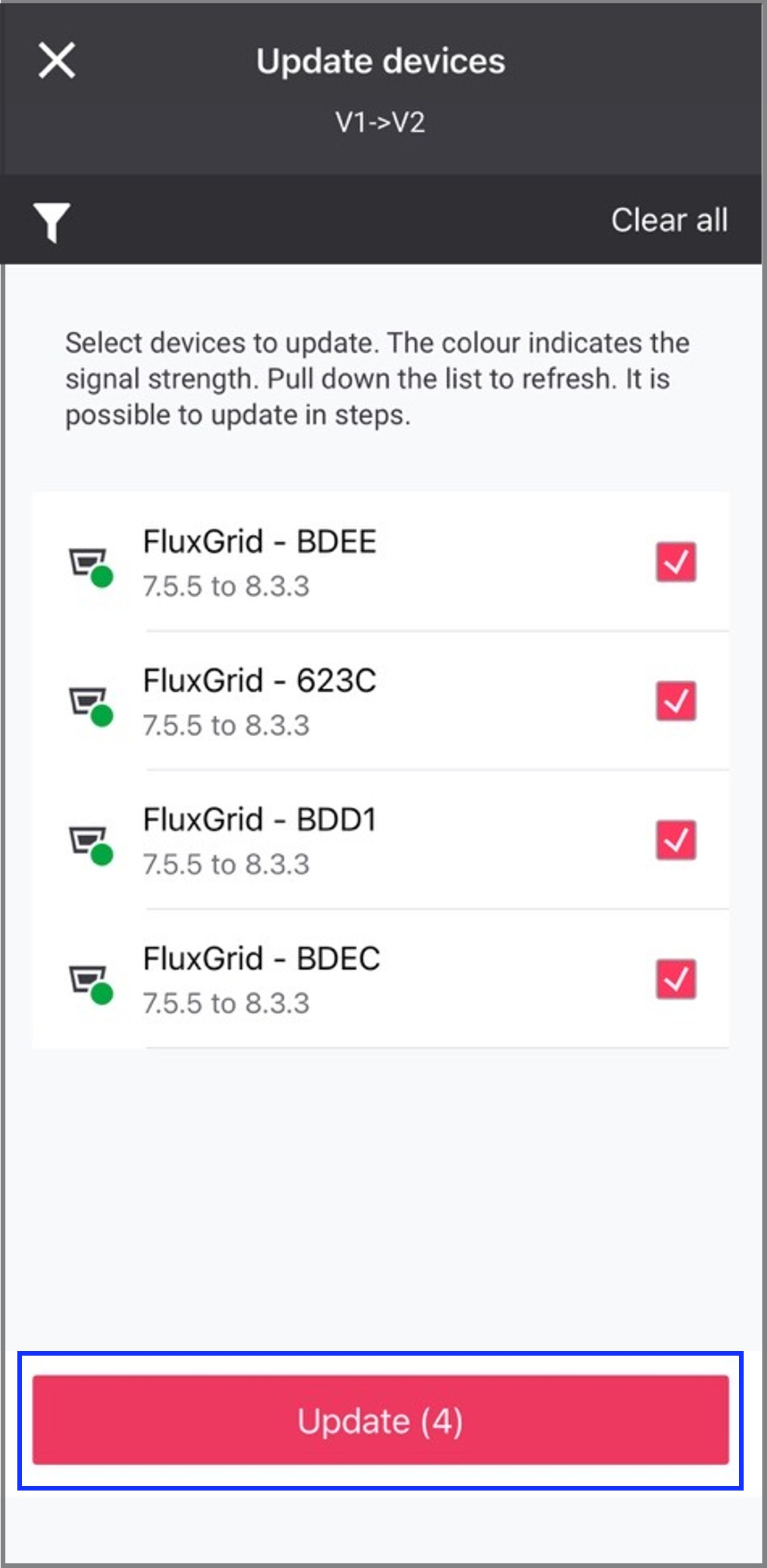
-
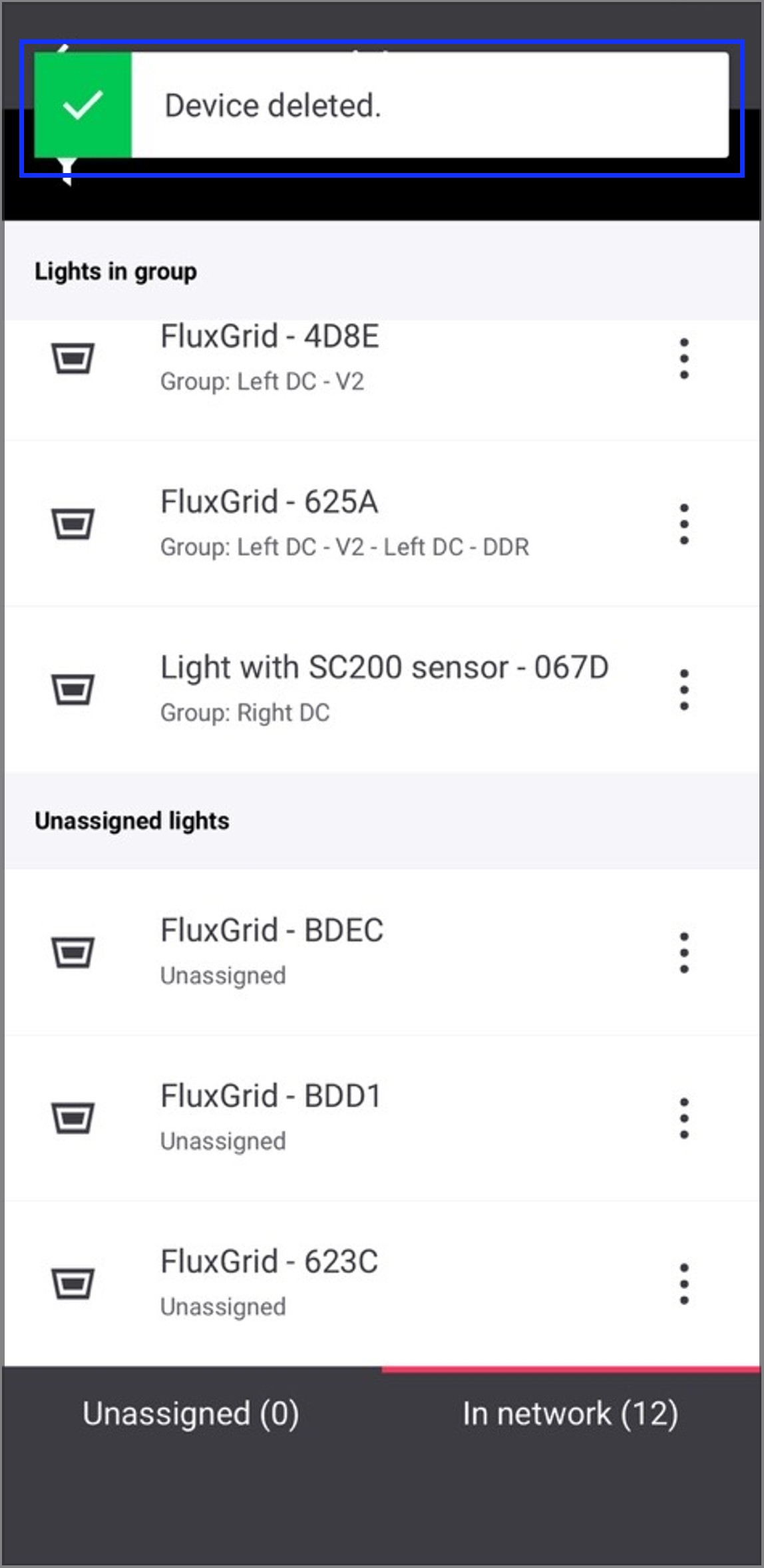
Once the unassigned devices have been updated, they must be reset before they can be added to Light behavior V2 groups. Navigate to the Network screen, then tap Lights → In network. Unassigned devices are listed at the bottom, scroll down if required to view the unassigned devices.
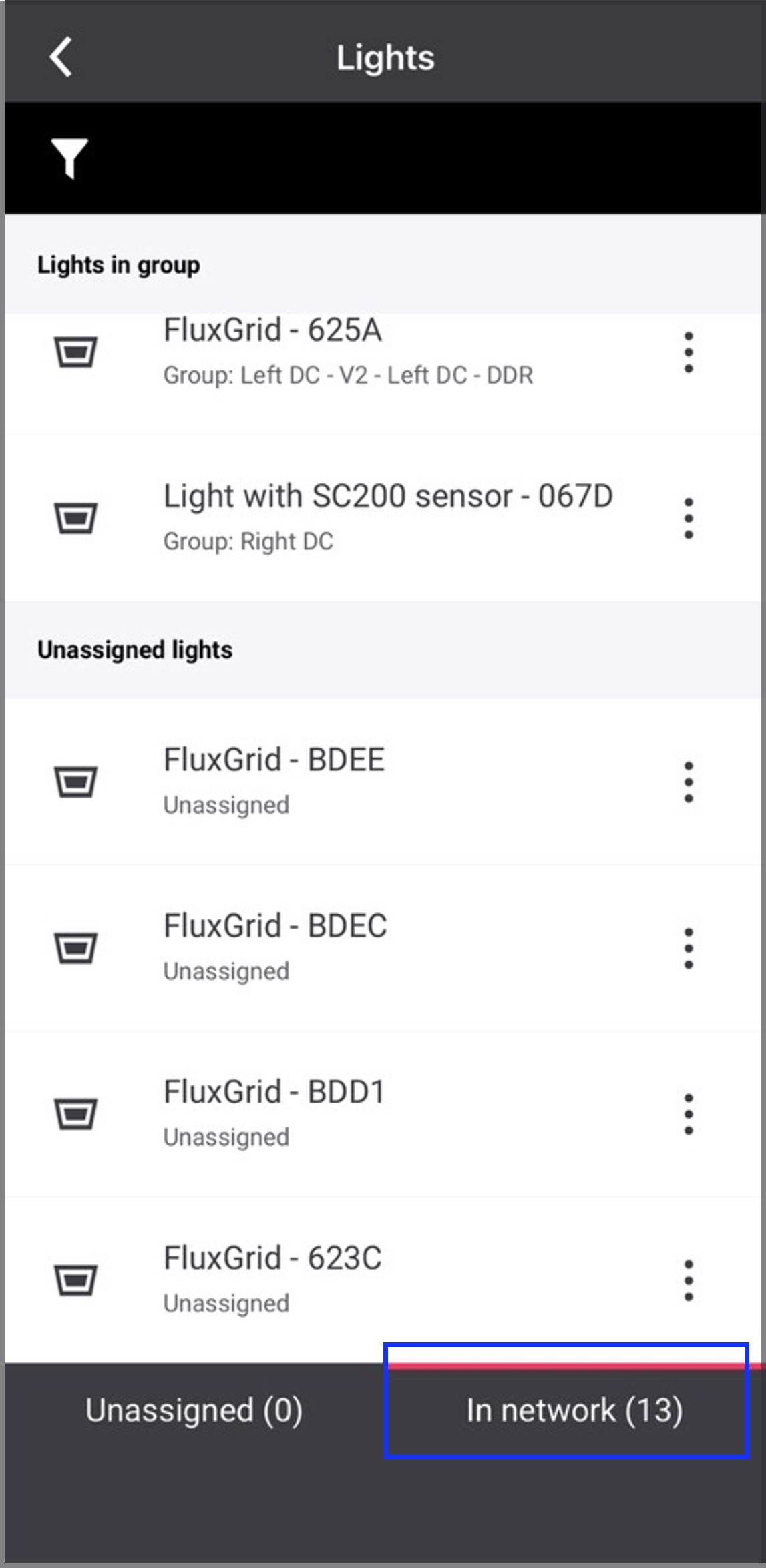
-
Tap the 3-dot icon beside each unassigned device, then tap Delete from project.
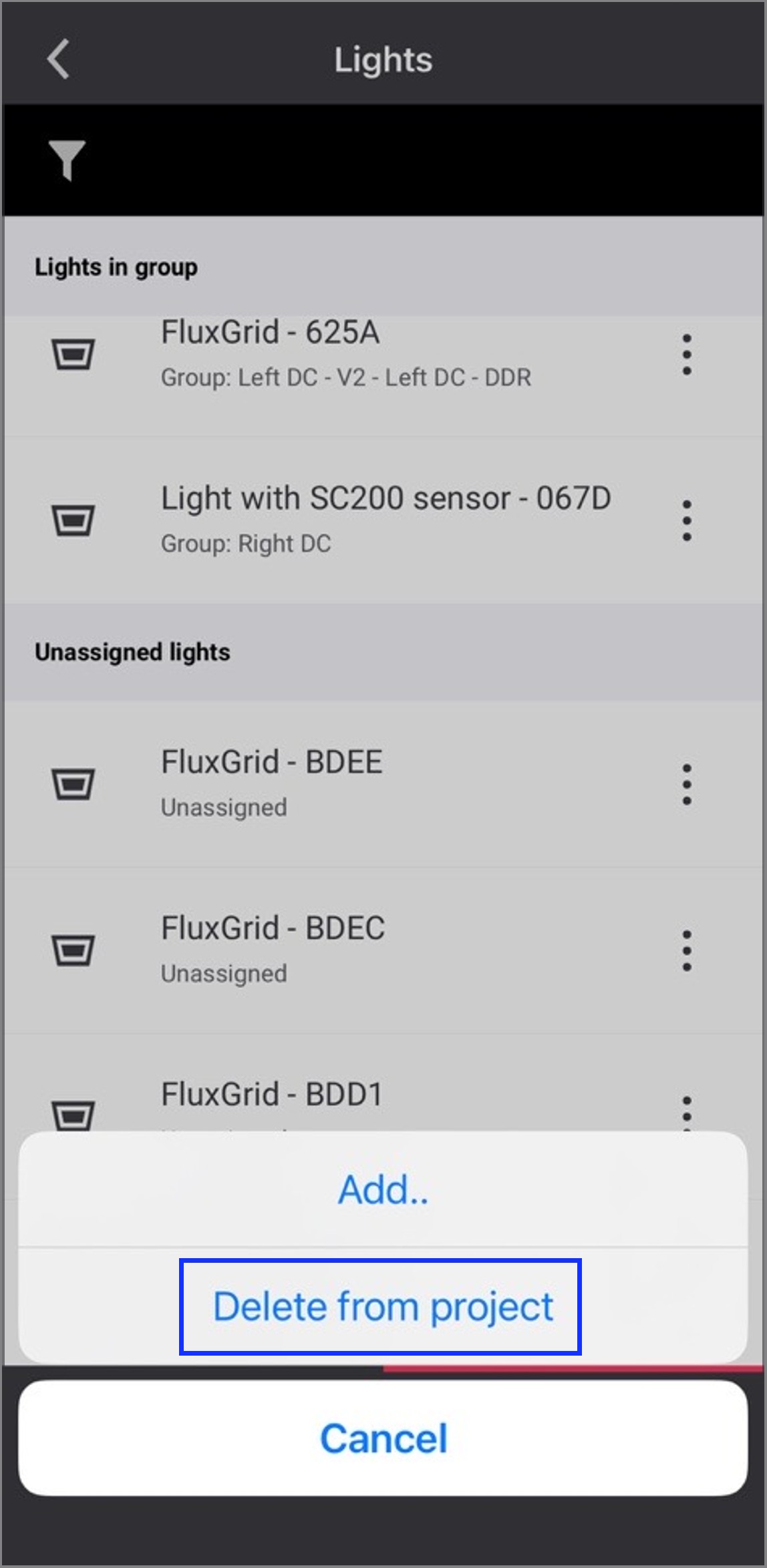
Result: The app will indicate Device deleted message following a successful reset.
-
Add the updated devices to groups or zones.
For more information, see:
-
Deploy the Light behavior V2 configurations to groups.
Migration scenarios for existing projects
Perform the applicable scenario-based procedure to enable Light behavior V2 functionality for the group.
Scenario 1: Projects with gateways and devices with firmware version below 8.x.x
-
Initiate the project update and ensure all device firmware versions and project settings are updated completely.
-
Delete all updated devices to reset them and empty all groups.
Empty groups will auto-upgrade to Light behavior V2 functionality. -
Add the updated devices to groups or zones.
For more information, see:
-
Deploy the Light behavior V2 configurations to groups.
Scenario 2: Projects without gateways and devices with firmware version below 8.x.x
-
Update all devices firmware version via bluetooth.
For more information, see Update lights using mobile app.
-
Delete the updated devices to reset them.
-
Delete the existing networks/groups/zones and create new equivalent networks/groups/zones.
-
Add the updated devices to new networks/groups/zones.
For more information, see:
-
Deploy the Light behavior V2 configurations to groups.
Scenario 3: Hybrid projects and devices with firmware version below 8.x.x
Hybrid project: A project that contains a combination of networks with gateways and networks without gateways.
-
For networks with gateways, follow the migration procedure described in Projects with gateways.
-
For networks without gateways, follow the migration procedure described in Projects without gateways.