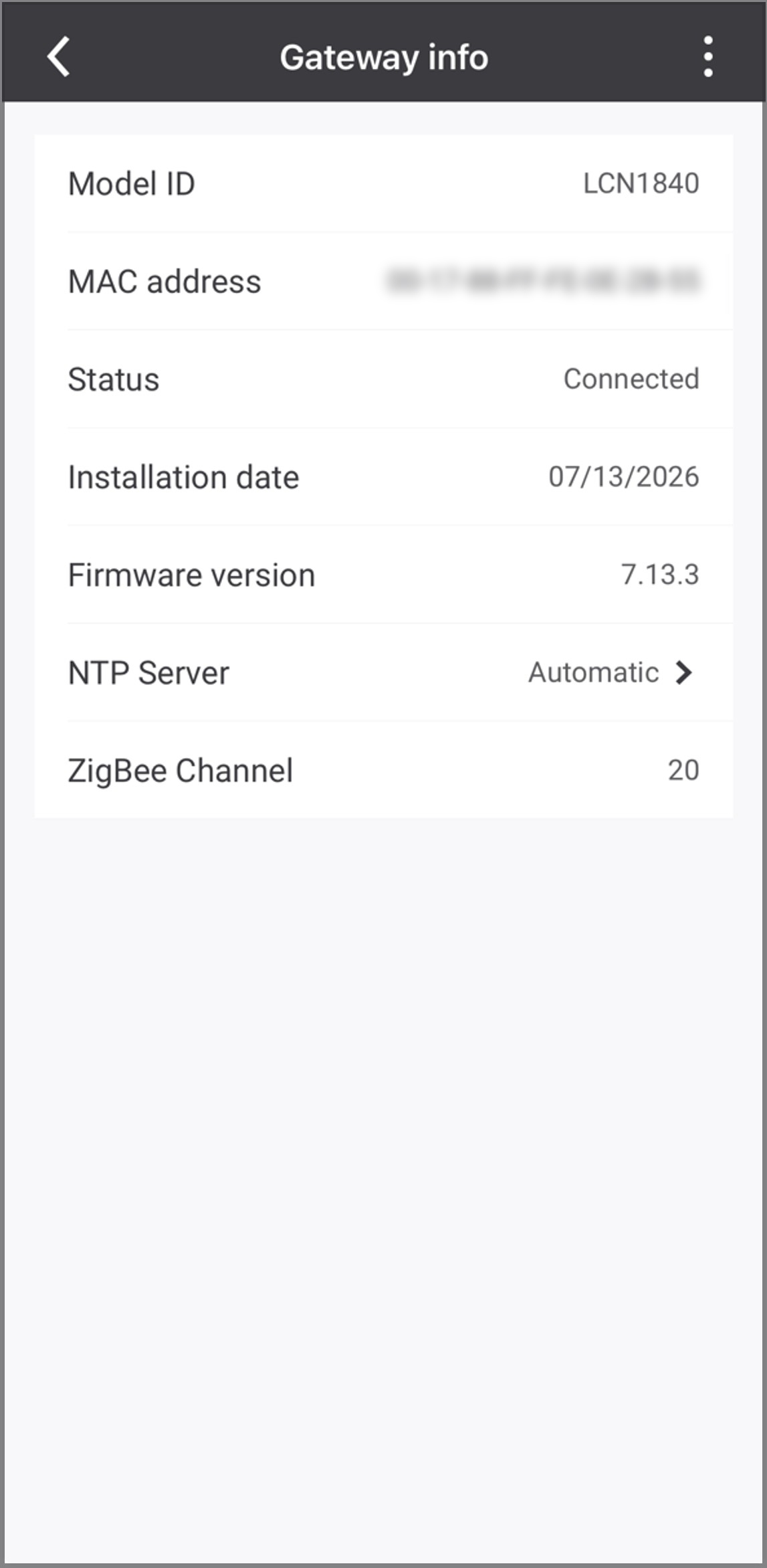
Add gateway
A gateway may be assigned to a wireless network at any point during commissioning. After a gateway is assigned to a network, experts can still continue commissioning the network via Bluetooth, which is the recommended method because it is much faster than communicating with devices via the gateway. After a gateway is added to a network, the app can optionally communicate with the devices in the network through the cloud, then the gateway, with the exception of blinking and adding lights directly via BLE. This significantly increases the time it takes the app to add ZGP switches and sensors and to deploy settings to groups, but it also allows experts to perform functions remotely, out of BLE range of the network.
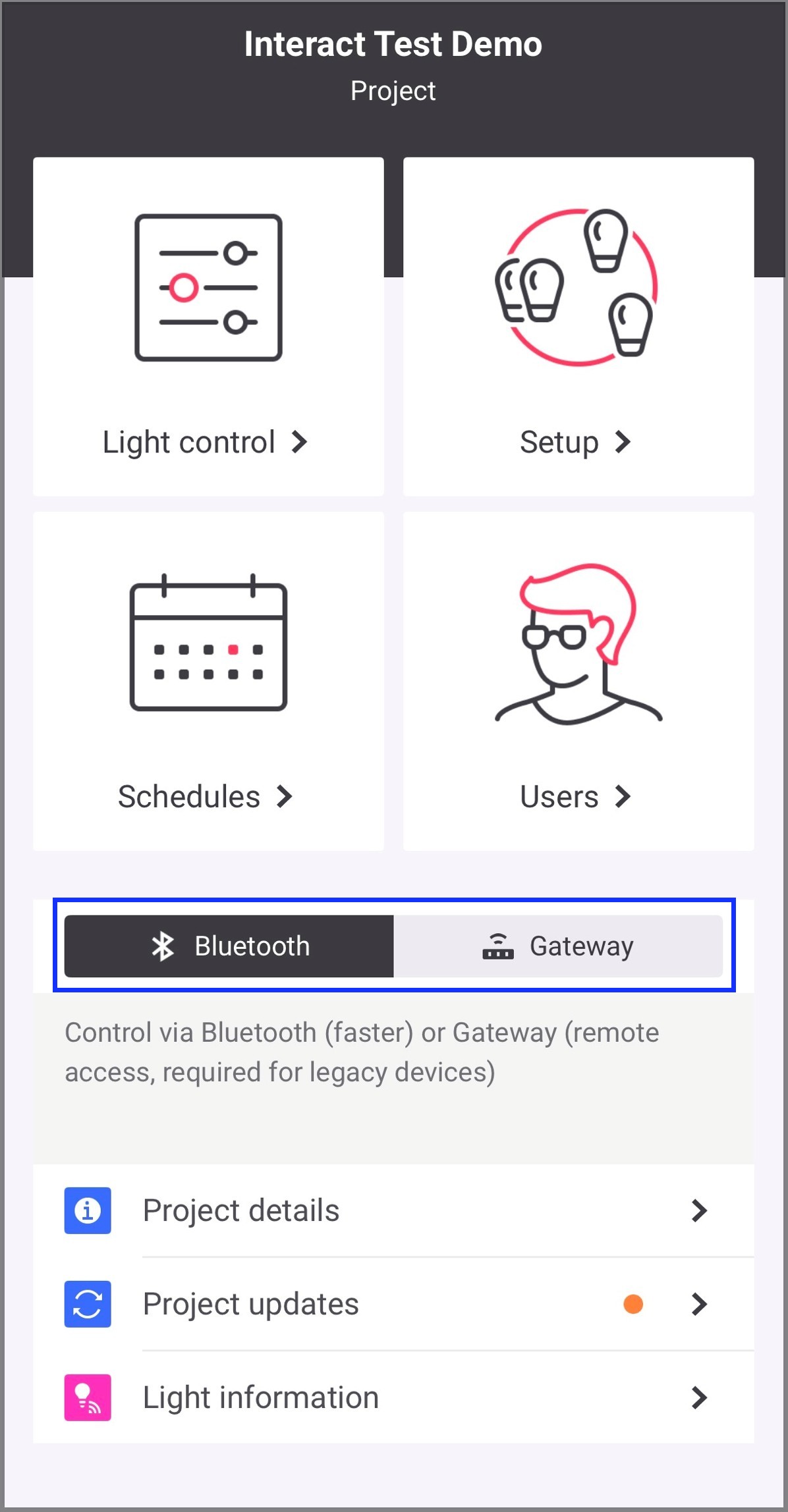
To select the method the app uses to communicate with the network once gateway have been assigned to networks, navigate to the Project screen. Here you can select between Bluetooth (default, recommended method for all on site commissioning) and Gateway (recommended only when remote operations are required).
|
-
The gateway can be added to a wireless network either from the Setup screen where the wireless networks in the project are listed, or from within a wireless network from the Network screen.
Gateways must be fully connected to the internet before they can be added. If you attempt to add a gateway that is not fully connected, it will result in a failed attempt. While adding a gateway, the connection status can be visually confirmed by observing the three LED indicators on the front of the gateway. When all three LED indicators are lit solid blue, the gateway is fully connected. If any of the LED indicators are off or blinking, the gateway is not connected. -
To add a gateway from the project Setup screen, swipe left on the appropriate network, tap the 3-dot-ellipsis, then tap Assign gateway.
-
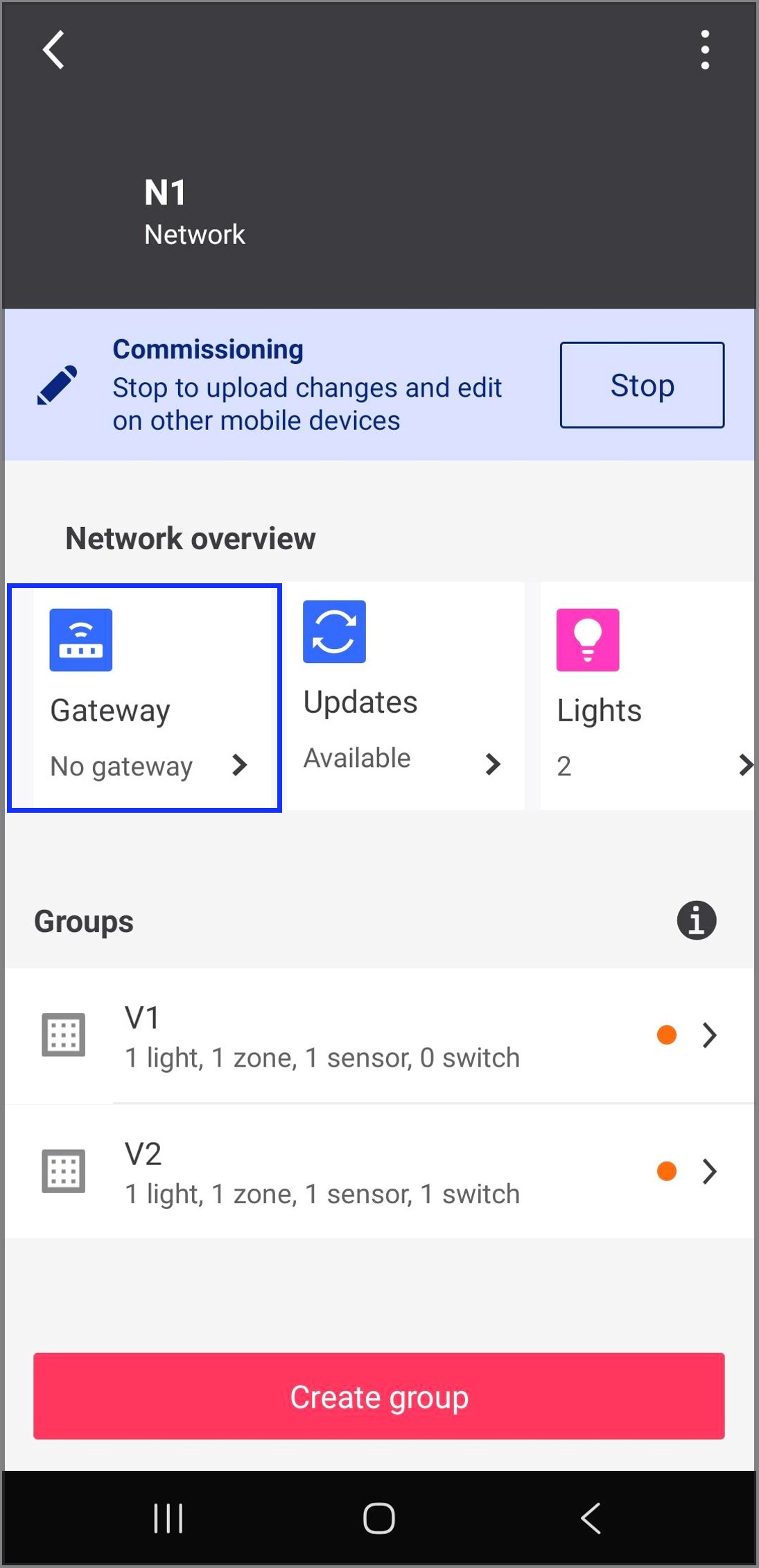
To add a gateway from the Network screen, tap the appropriate network from the project Setup screen, then tap the Start button to start commissioning the network. Then, tap Gateway from Network overview.
-
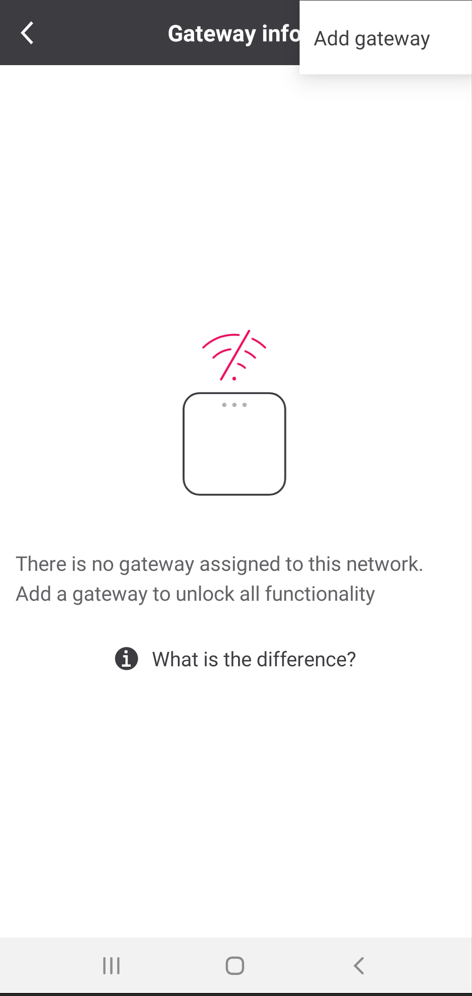
In the Gateway info screen, tap the three-dot-ellipsis and tap Add gateway.
-
In both cases, the app will open the phone’s camera. Scan the QR code on the front or back of the gateway. Alternatively, on the QR code screen, you may tap Or introduce the MAC code and enter the MAC address printed on the QR code sticker on the back of the gateway manually, then tap Connect. If you are having trouble finding the MAC address of the gateway when entering it manually, just tap Where to find the MAC address? and the app will show you where to look.
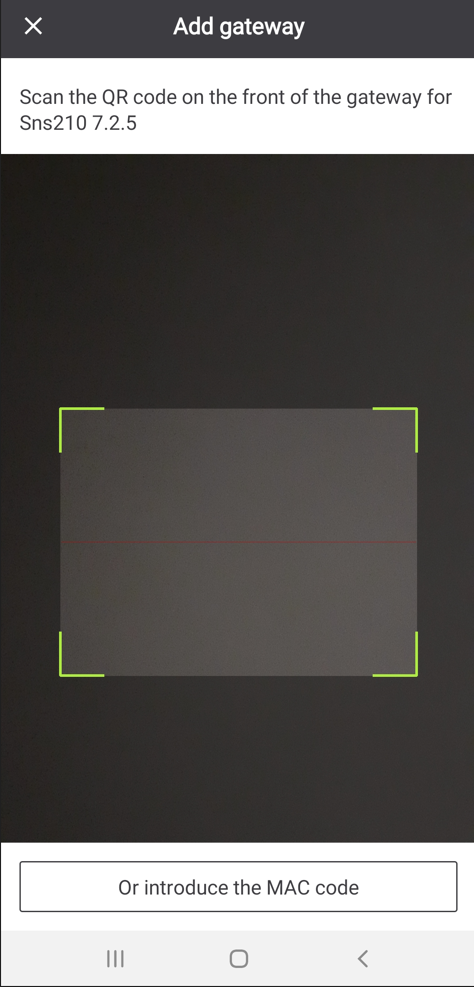
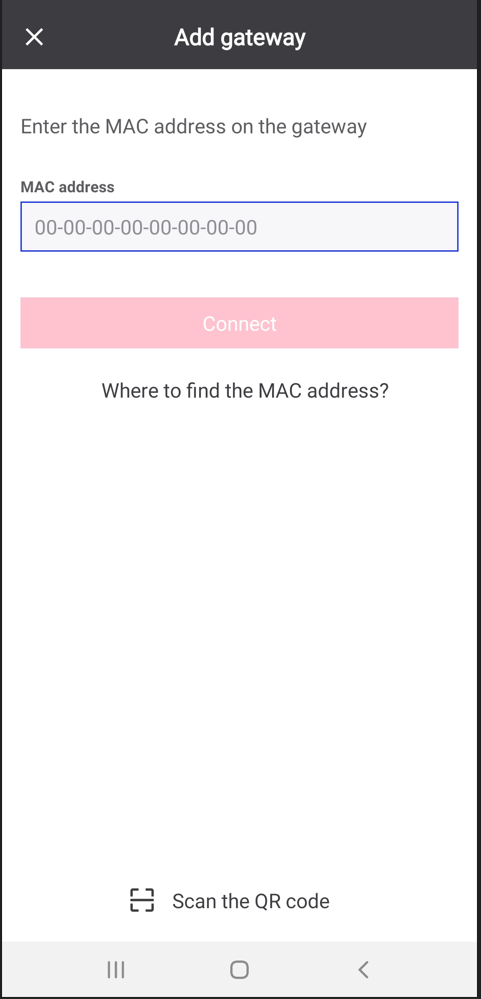
Result: Once the Gateway MAC ID is successfully scanned or entered, it will update its firmware to the latest available version and this may take up to 15 minutes. Once the gateway update is finished, the Gateway info screen appears showing the gateway details and connection status.