Update lights using Mobile App
The firmware version of the luminaires and sensors can now be easily updated via the mobile app and Bluetooth connection, without requiring a gateway.
| Firmware updates via the mobile app (Bluetooth) are optional. Updating devices is only needed when the latest features or bug fixes are not available with the current version. |
Updates can be carried out for either the complete group or for a single device. Up to six devices can be updated at the same time. If more than six devices in a group are selected to update, the additional devices are queued to update as soon as a spot becomes available. Each set of up to six devices will take around 8-10 minutes to be updated.
| Devices with older firmware may require multiple steps to update to the current firmware version. In these cases, the mobile app will perform these multiple steps automatically, but each step will add 8-10 minutes to the update time. Therefore, devices could take up to 30 minutes to complete the update process. |
| It is crucial to ensure that during the update, the phone remains within close proximity to the devices being updated, with the app open and the screen active. If the app is closed, the update process may be interrupted. Only the last device being updated will need to be restarted after an interruption. |
After the update, the groups settings must be manually redeployed.
Update firmware for a single device
-
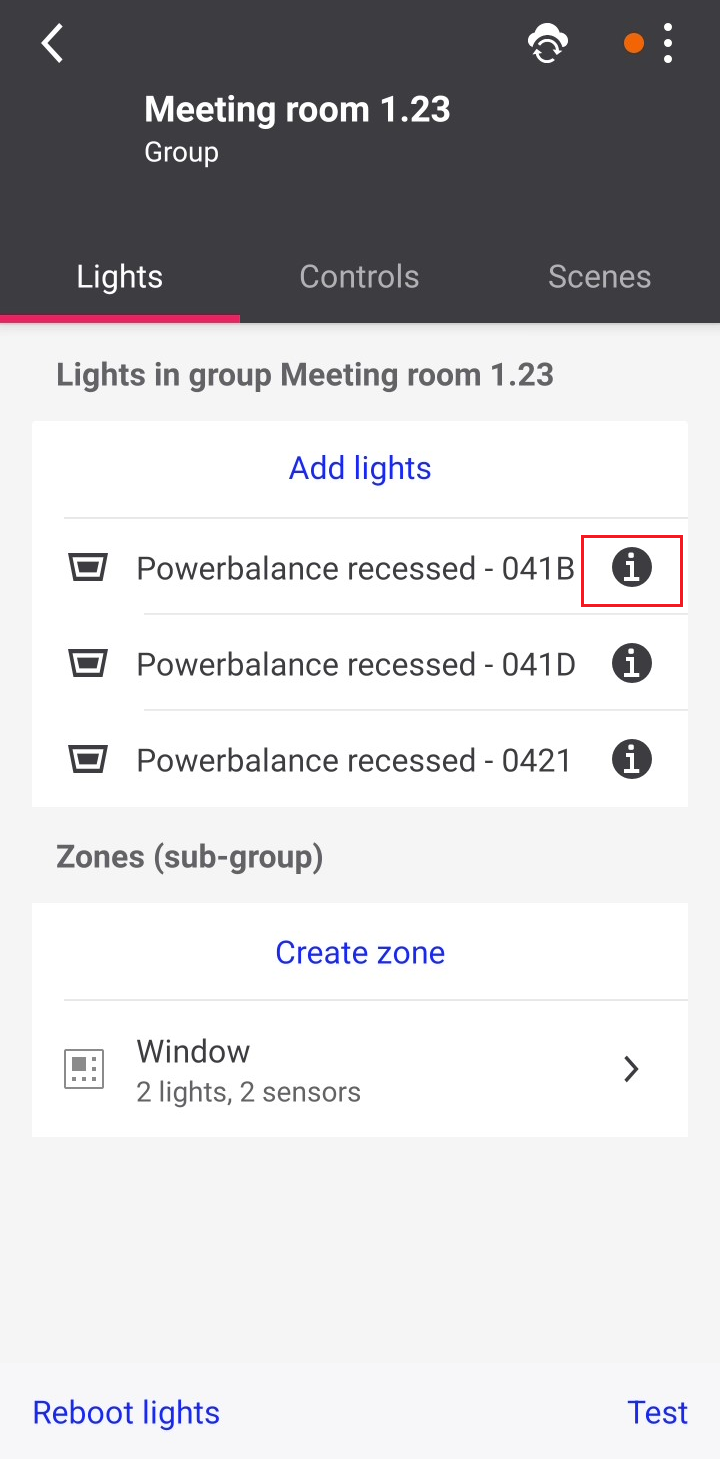
Go to the Setup screen and select a network. Tap Start to start commissioning the network. Next, select a group, then on the Lights tab, tap on the information (i) icon next to the device to be updated.
-
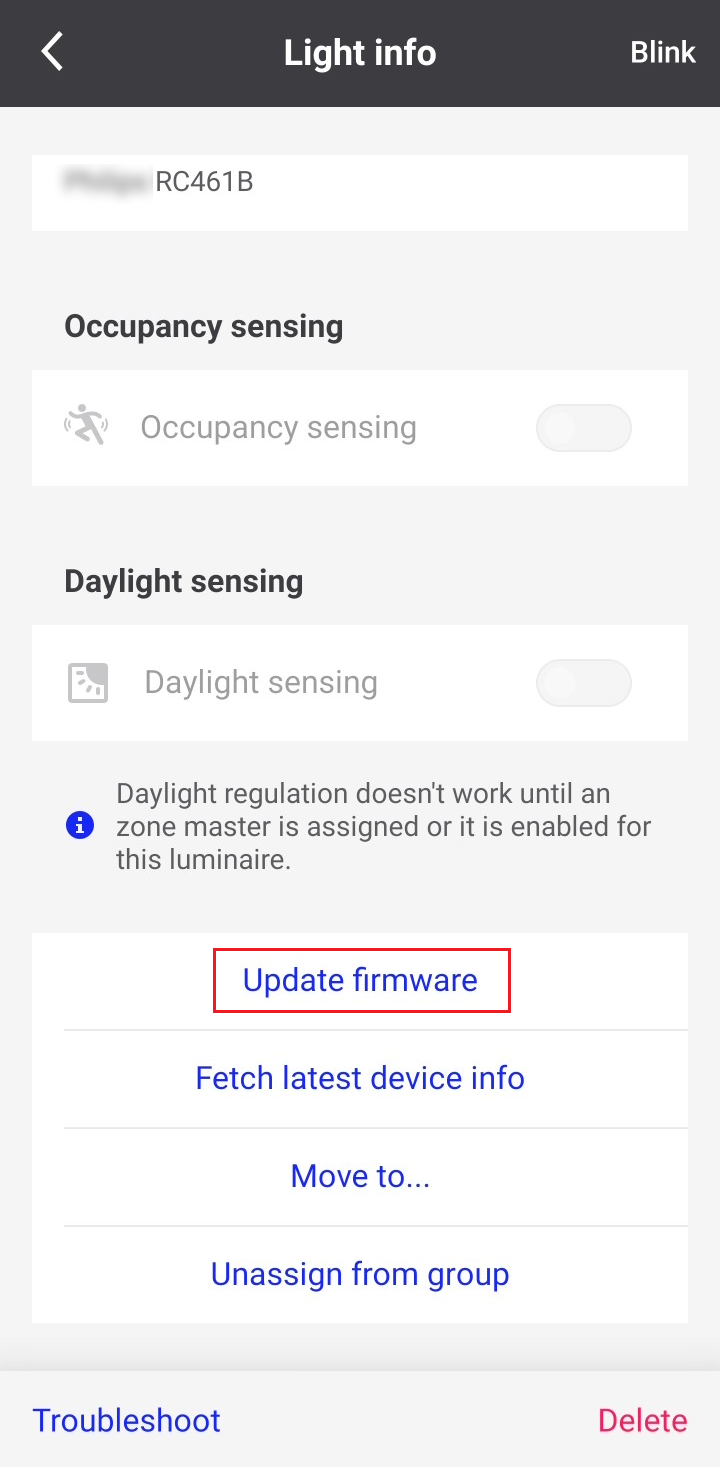
Scroll down to the bottom of the screen and tap on Update firmware.
-
After updating the lights, re-deploy the group settings. For more information, refer to Deploy settings.
Update lights for a group
-
Go to the Setup screen and select a network. Tap Start to start commissioning the network.
-
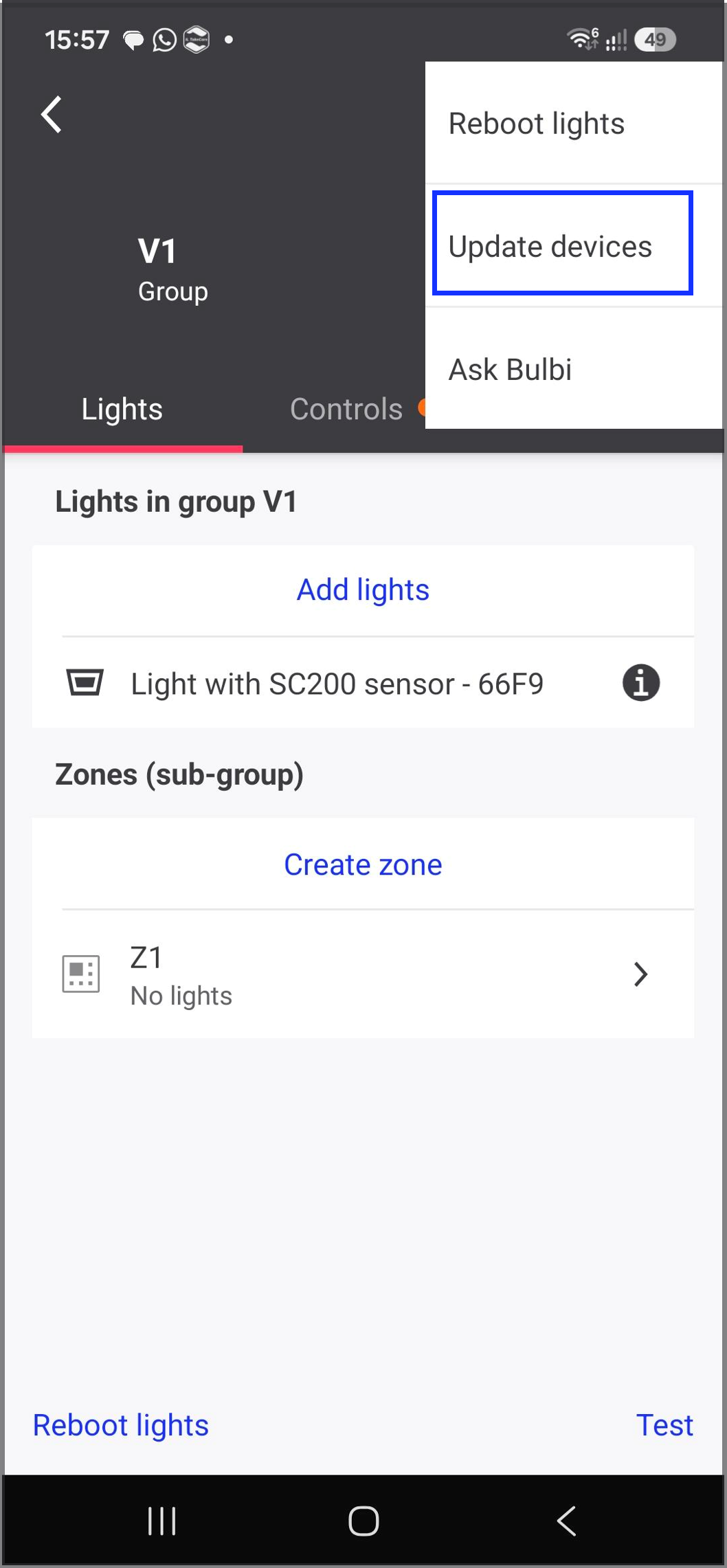
In the Network screen, select a group. On the Lights tab, tap the three dot icon at the top right corner and tap Update devices.
-
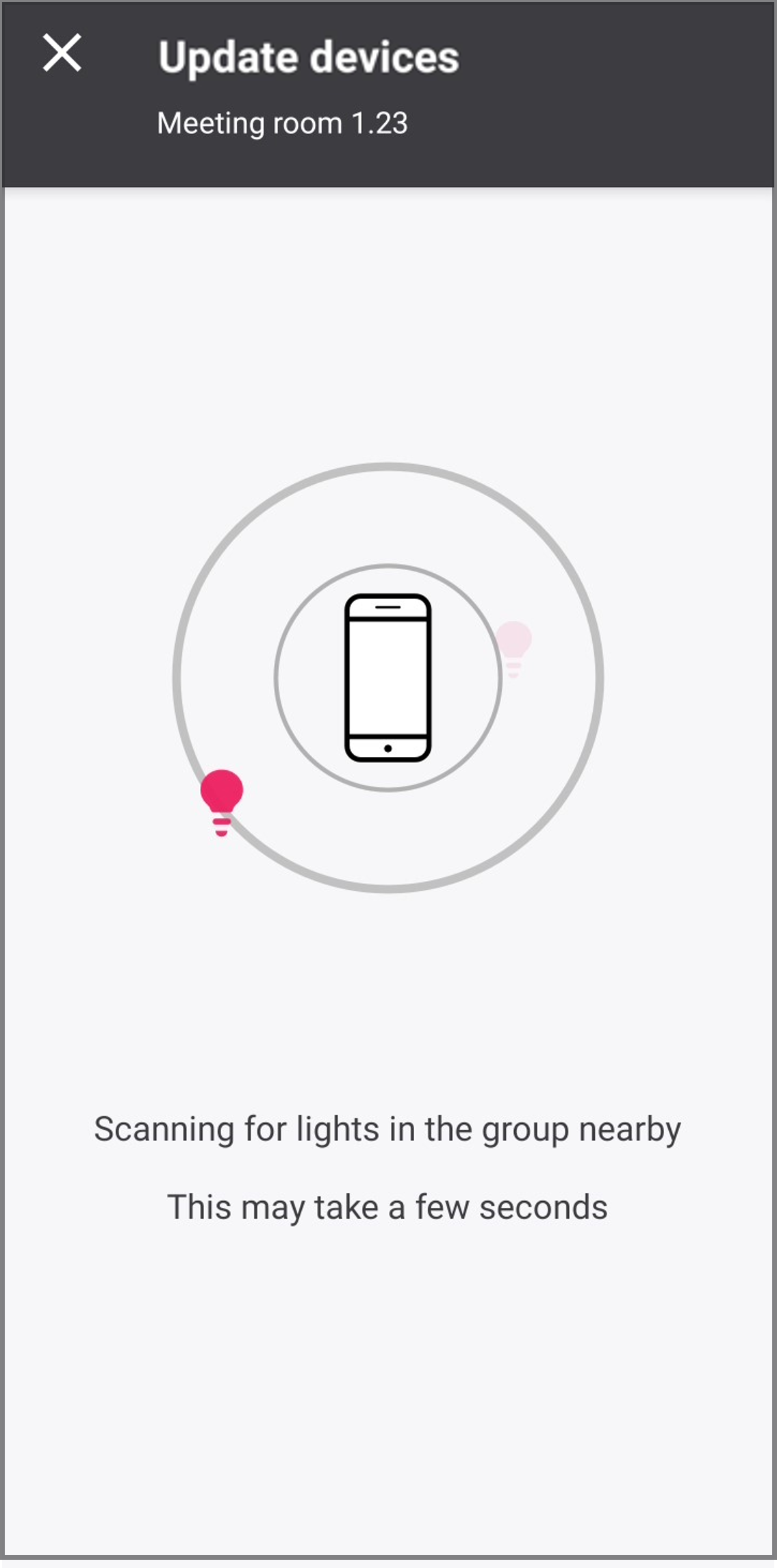
The app starts scanning for lights in the group within Bluetooth range (within a maximum radius of 10-15m from your phone).
-
Select the lights to be updated. If the lights show a green dot, they are within reach or a red dot if they are not. Only lights with available updates can be selected.
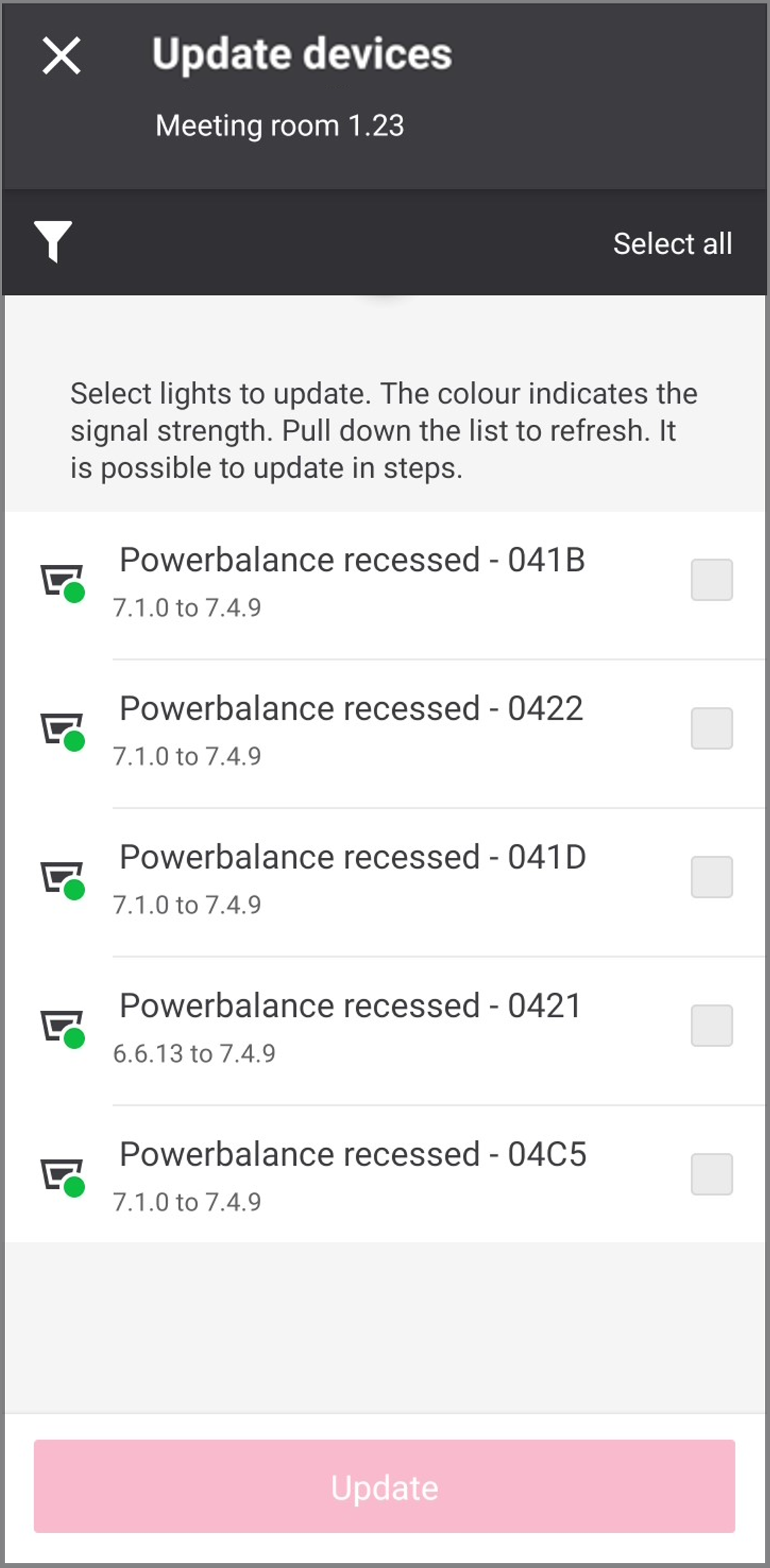
-
After selecting the lights within range, tap on Update, note that up to 6 lights/sensors can be updated at the same time and will take around 8-10 minutes to be updated.
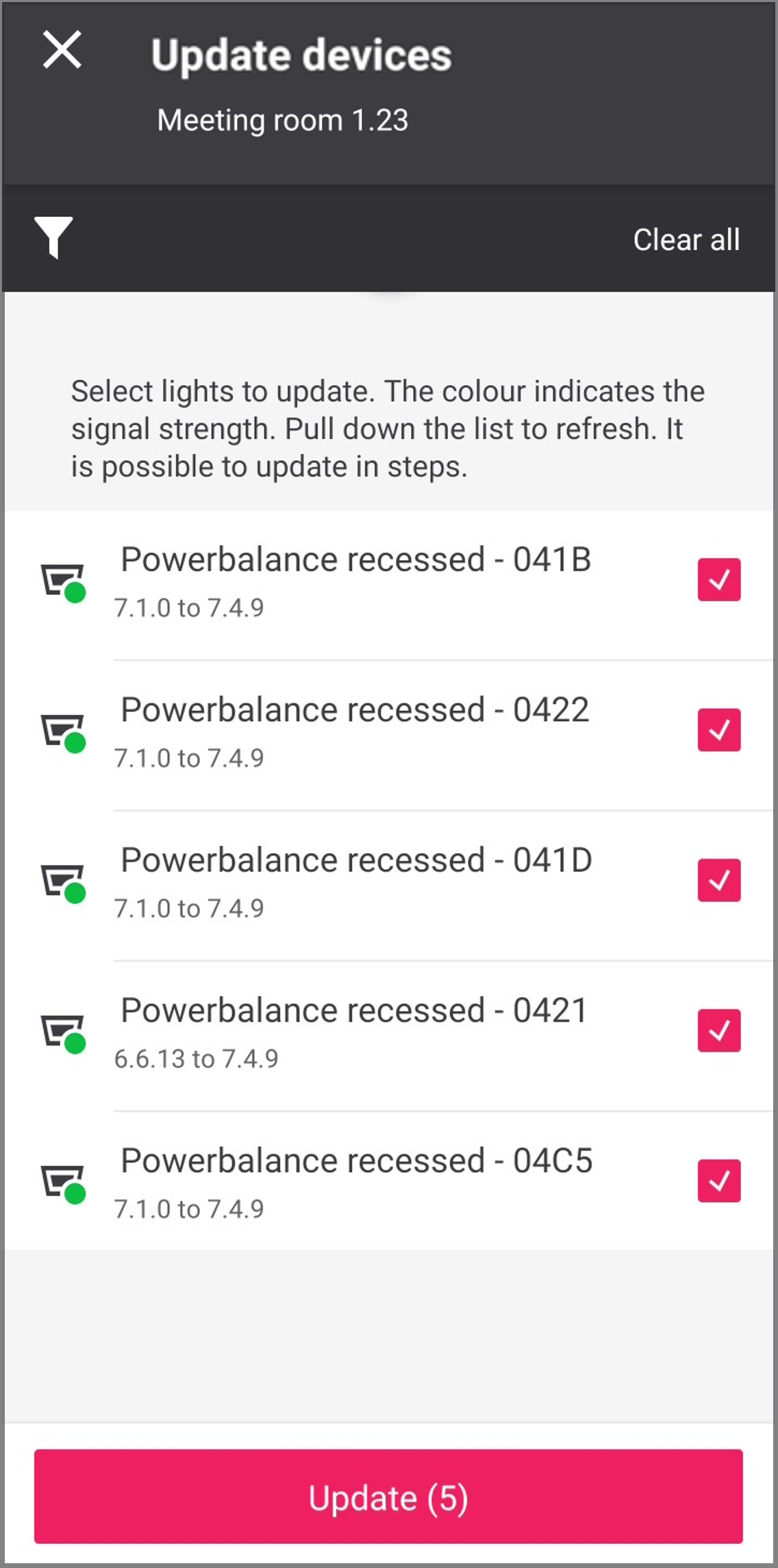
-
If the update fails, then an error message will be displayed on your screen showing which luminaires failed, make sure the devices are energized and respond to a blink before re-trying again to maximize the chance of a successful update.
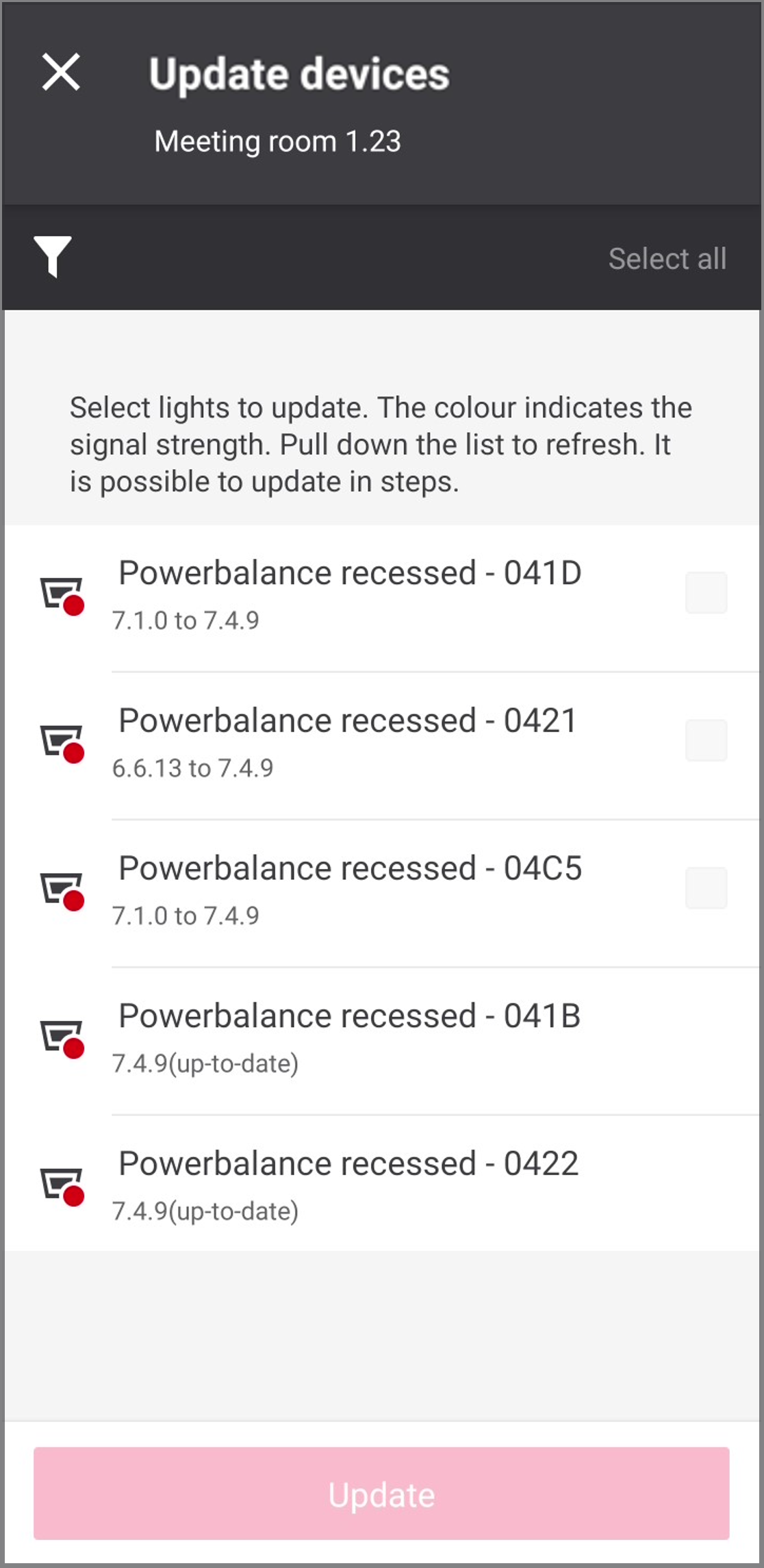
-
If the lights are successfully updated, a message stating up-to-date appears next to the light in your app.
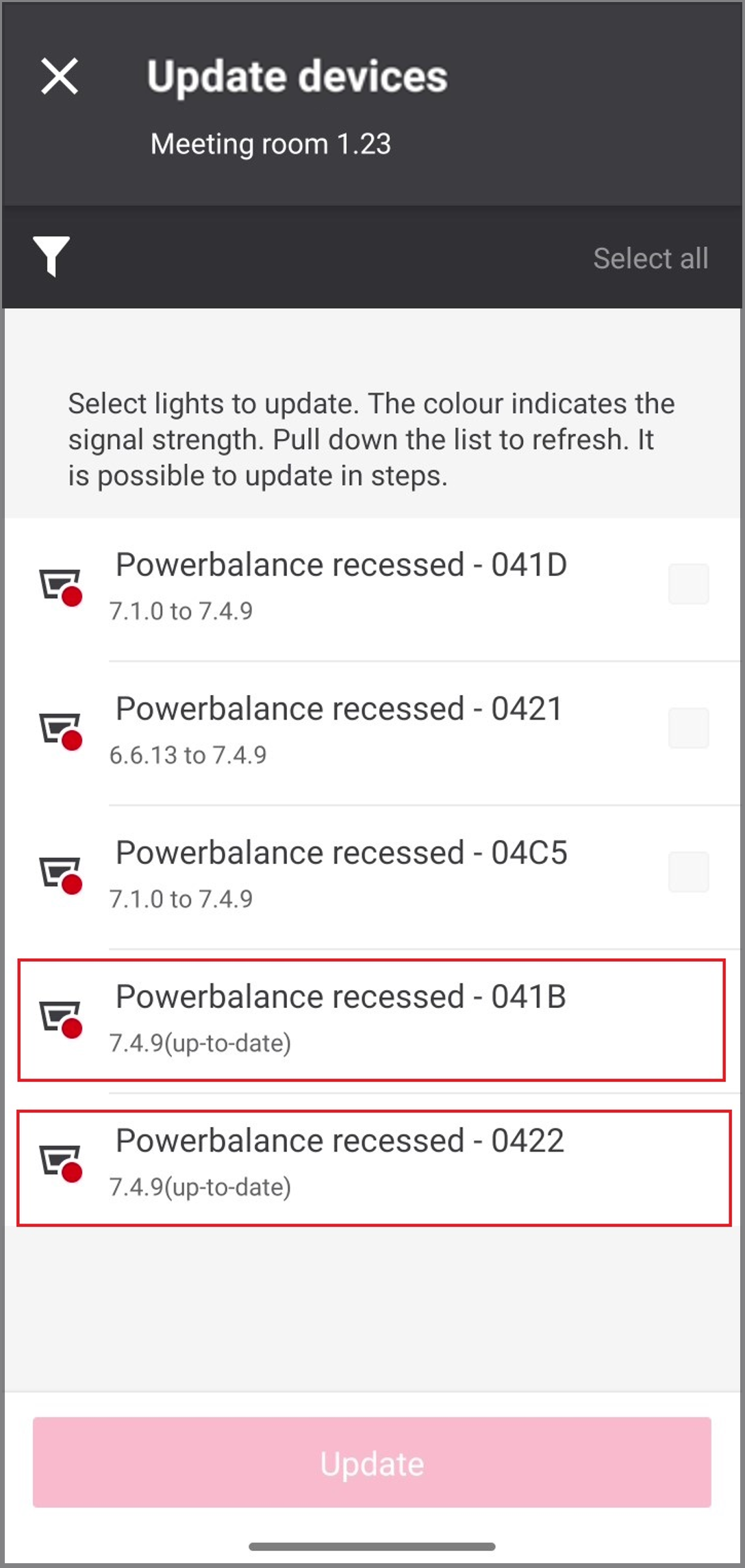
-
After updating the lights, re-deploy the group settings. For more information, refer to Deploy settings.