Stop commissioning wireless networks
When an expert starts commissioning a wireless network in Bluetooth mode using the Signify Interact Builder app, the network becomes locked to the mobile phone and the key to unlock it is stored in the phone’s local app data. No other experts, even the same expert with a different phone, may enter the network while it is locked to the phone. While working inside a network, all configuration data about the luminaires and devices added to the network is also stored in the local app data. Once work is completed or paused within the network, commissioning should be stopped in order to sync the latest configuration data with the cloud and to allow other expert’s mobile devices to enter the network.
| If network commissioning is not stopped and the Signify Interact Builder app is deleted, re-installed, the local app data is erased, or the phone is lost or damaged beyond repair, the network will remain locked and the key will be lost. To access the devices again, the network needs to be force unlocked by an expert user assigned to the project. Force unlocking a network may prevent you from having to reset and re-commission some or all of the networks. However, there is a risk that the network configuration data is not fully synced with the cloud before the key is lost. This may lead to out-of-sync behavior and even "lost" devices that must be reset following a force unlock. Alternatively, you may elect to reset and delete the entire network using BLE, then re-commission all devices in the network. Always stop commissioning the wireless networks when work is completed or paused to avoid these scenarios. |
Once the app starts commissioning a wireless network, commissioning work can optionally be done while the phone is “offline” (has no internet connection). However, to stop commissioning a wireless network, the mobile phone must have an internet connection. To stop commissioning a wireless network:
-
Tap Stop on the Network screen. This will sync and unlock the network. If you are actively commissioning multiple networks in the project in parallel, you can optionally navigate to the project Setup screen, where you can tap the Stop commissioning (x) button (where x = the number of networks in the project the mobile device is actively commissioning). This will sync and unlock all networks in the project.
-
If you have forgotten to stop commissioning networks in any projects, the app will remind you with a pop up and allow you to continue or stop commissioning any networks locked to the phone the next time you log in to the app, or whenever the main Projects screen is loaded. Never delete or re-install the app without first logging in and stopping all network commissioning to ensure all networks across all projects are synced and unlocked.
-
You may optionally sync your wireless network while working within it without stopping commissioning. In any Group screen of a network where commissioning is started, a sync icon is displayed in the top right corner of the screen. Any time there is unsynced data in the network, an orange dot will be displayed on the icon. Tap the sync icon to synchronize the network data with the cloud.
Network force unlock
Any Expert user with access to the project can now unlock a locked network within the project, regardless of which user originally applied the lock.
Perform the following procedure to unlock the locked network.
Prerequisite: The network was locked by a mobile device, and the user lost the key to unlock the network, such as through phone loss or app deletion.
-
In the mobile app, navigate to the locked network.
Any Expert users in the same project can perform this action. 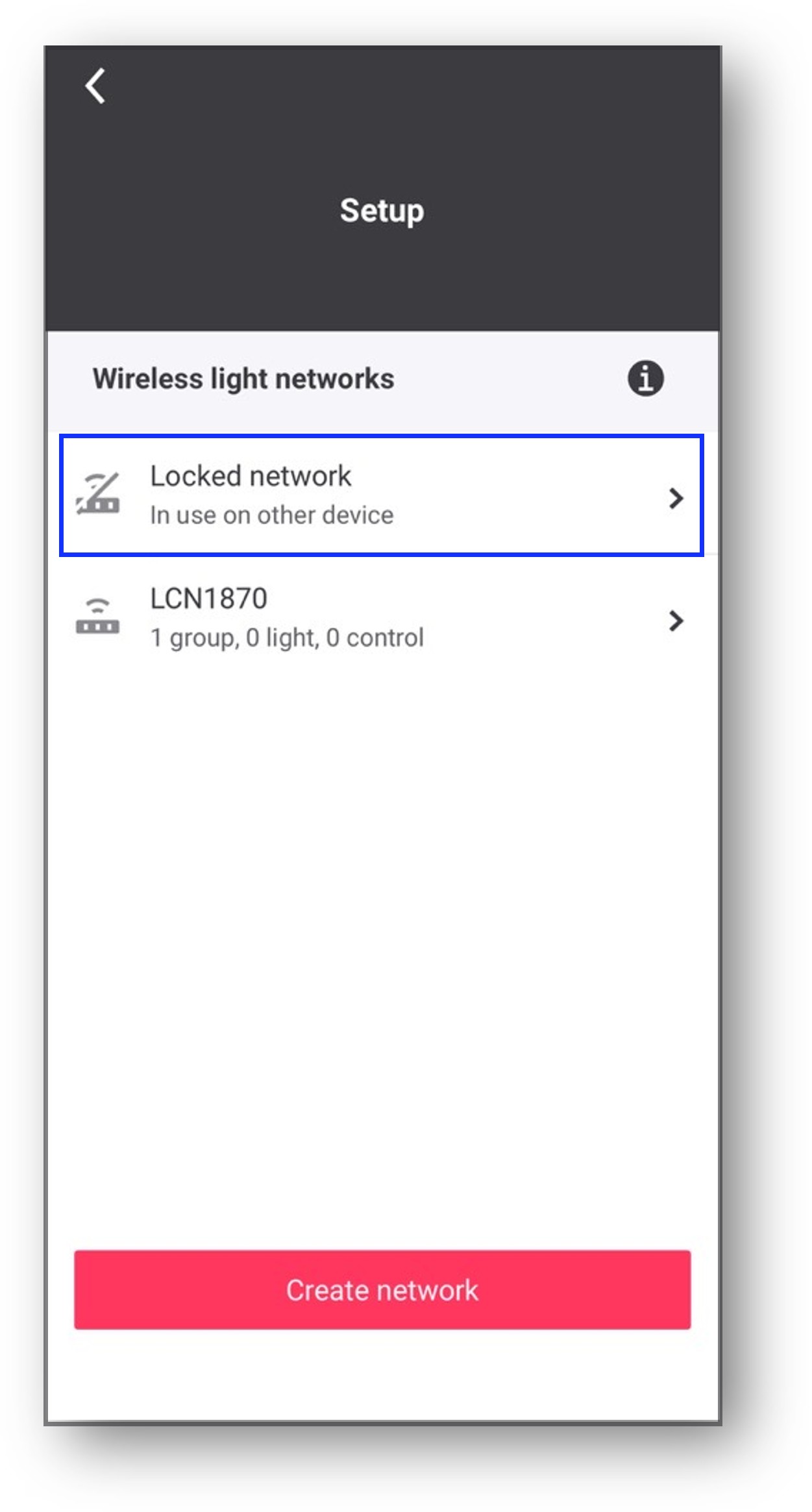
-
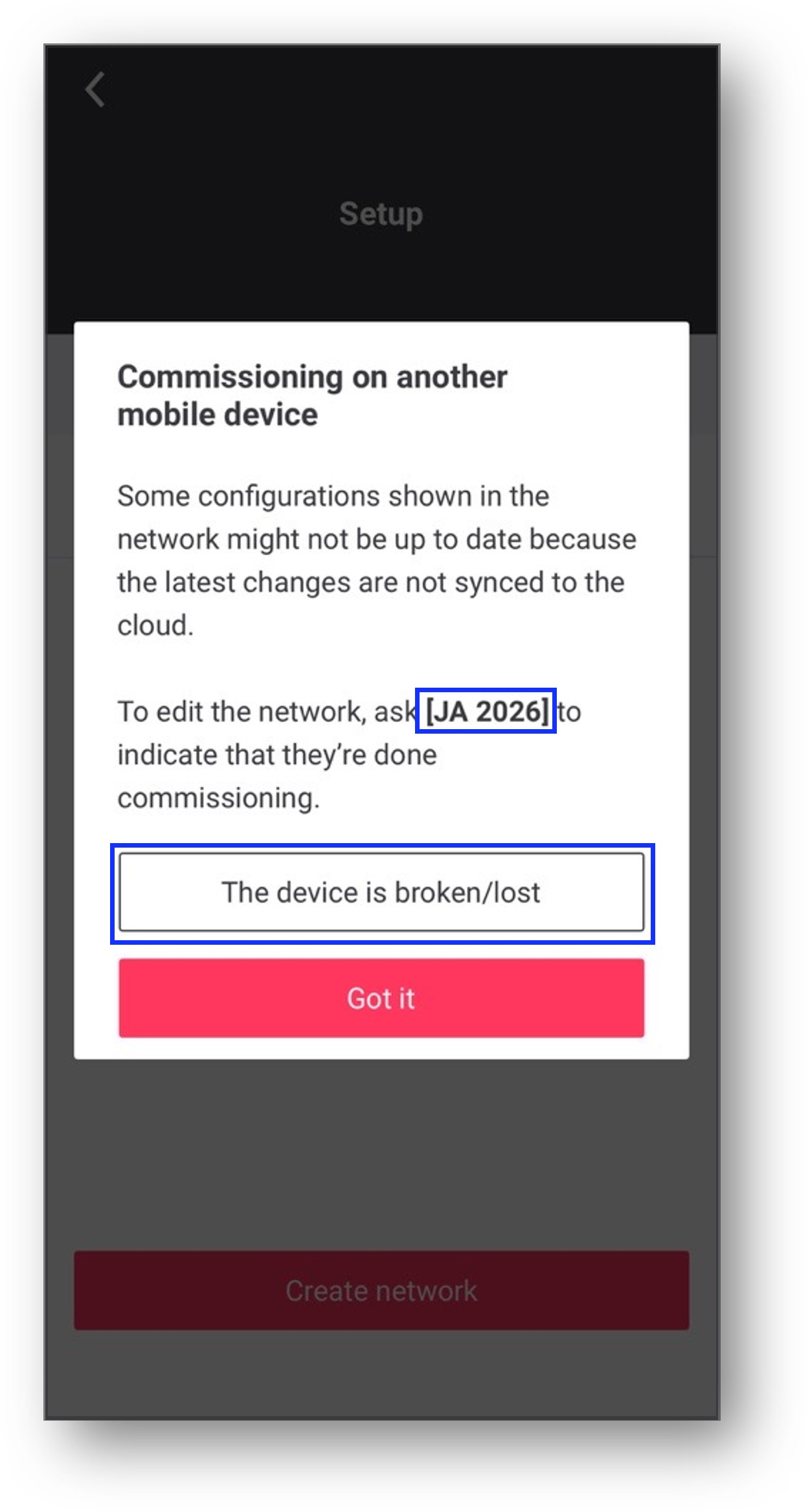
Tap the locked network and the Commissioning on another mobile device dialog box appears. In the dialog box, the user who locked the network appears.
-
Tap The device is broken/lost.
-
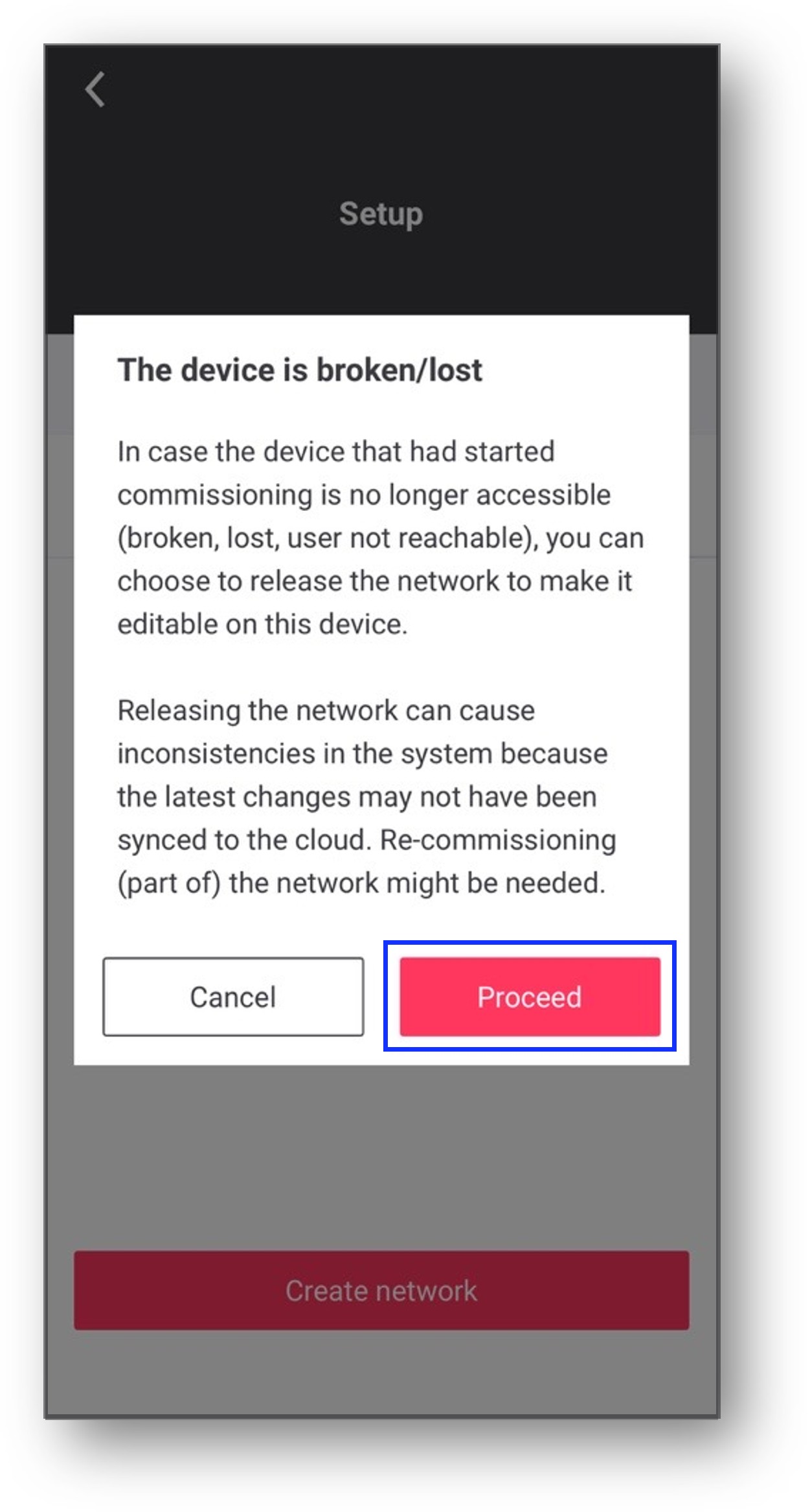
In the The device is broken/lost dialog box, tap Proceed.
-
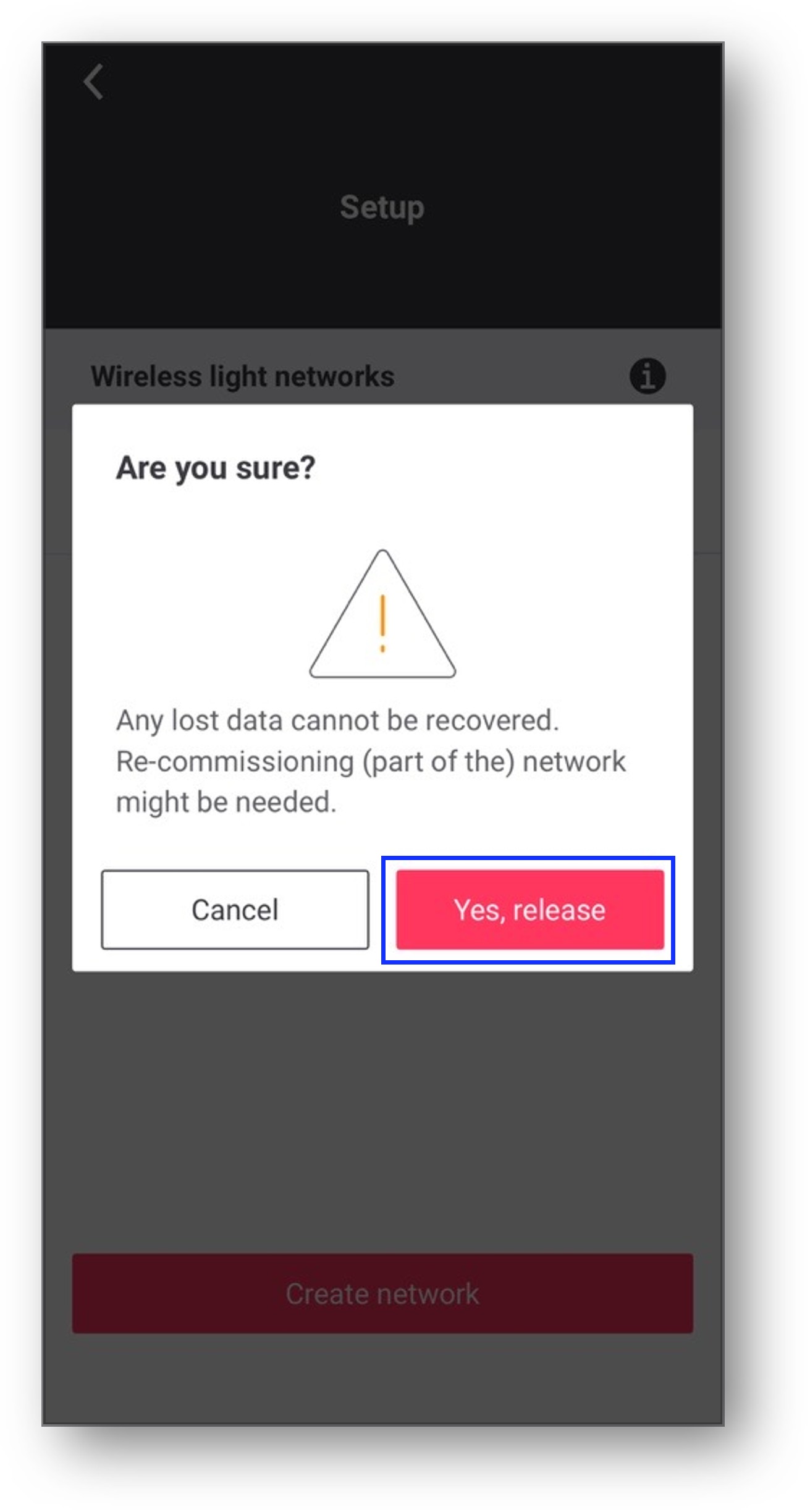
In the Are you sure? dialog box, tap Yes, release to unlock the locked network.
If you tap Yes, release, any changes made by the user who locked the network that were not synchronized to the cloud before losing the key cannot be recovered and recommissioning may be needed.
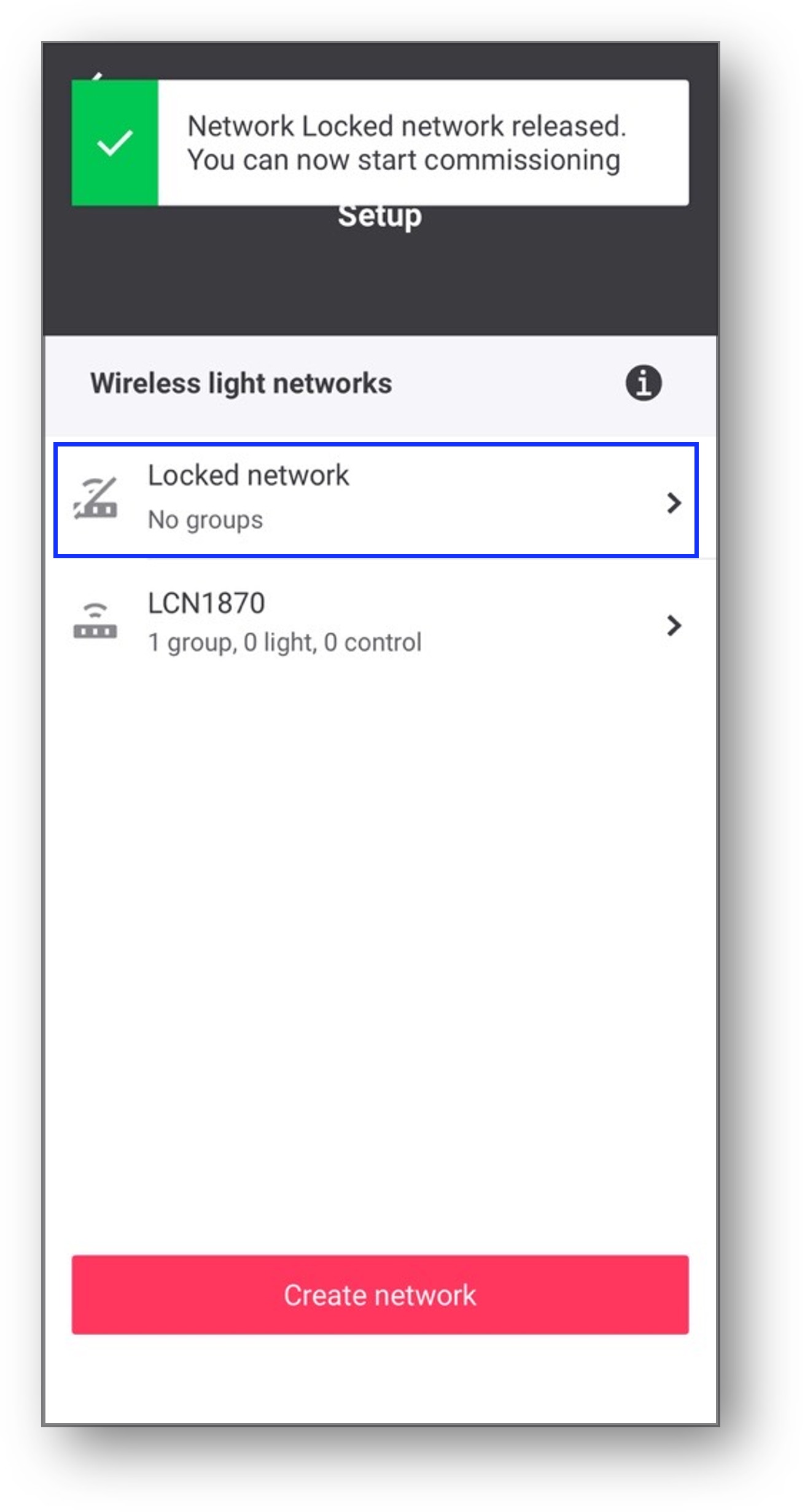
Result: In the Setup screen, the locked network is unlocked and it is available to start commissioning.