BACnet configuration
The BACnet integration is an on-prem, and an IP-based communication between the interact gateway and a third-party BACnet system. It supports manual control and occupancy data reporting of lighting groups.
| The cloud connectivity is not required for BACnet to work, but it is still required for commissioning, updating devices, and performing changes to a project. |
Prerequisite:
-
All lights and groups must be added and deployed.
-
Gateways must be added, updated, and the three LEDs should be in solid blue state.
For more information, refer to the Commissioning guide.
Perform the following steps to commission the BACnet network.
-
In the Signify Interact Builder web portal, navigate to the Setup page and make sure all networks are unlocked and the Sync changes action is performed for all networks.
Whenever a project undergoes any changes such as adding or deleting areas, the Sync changes action needs to be performed again to make sure that the added or deleted areas are accessible and updated for the BACnet integration. -
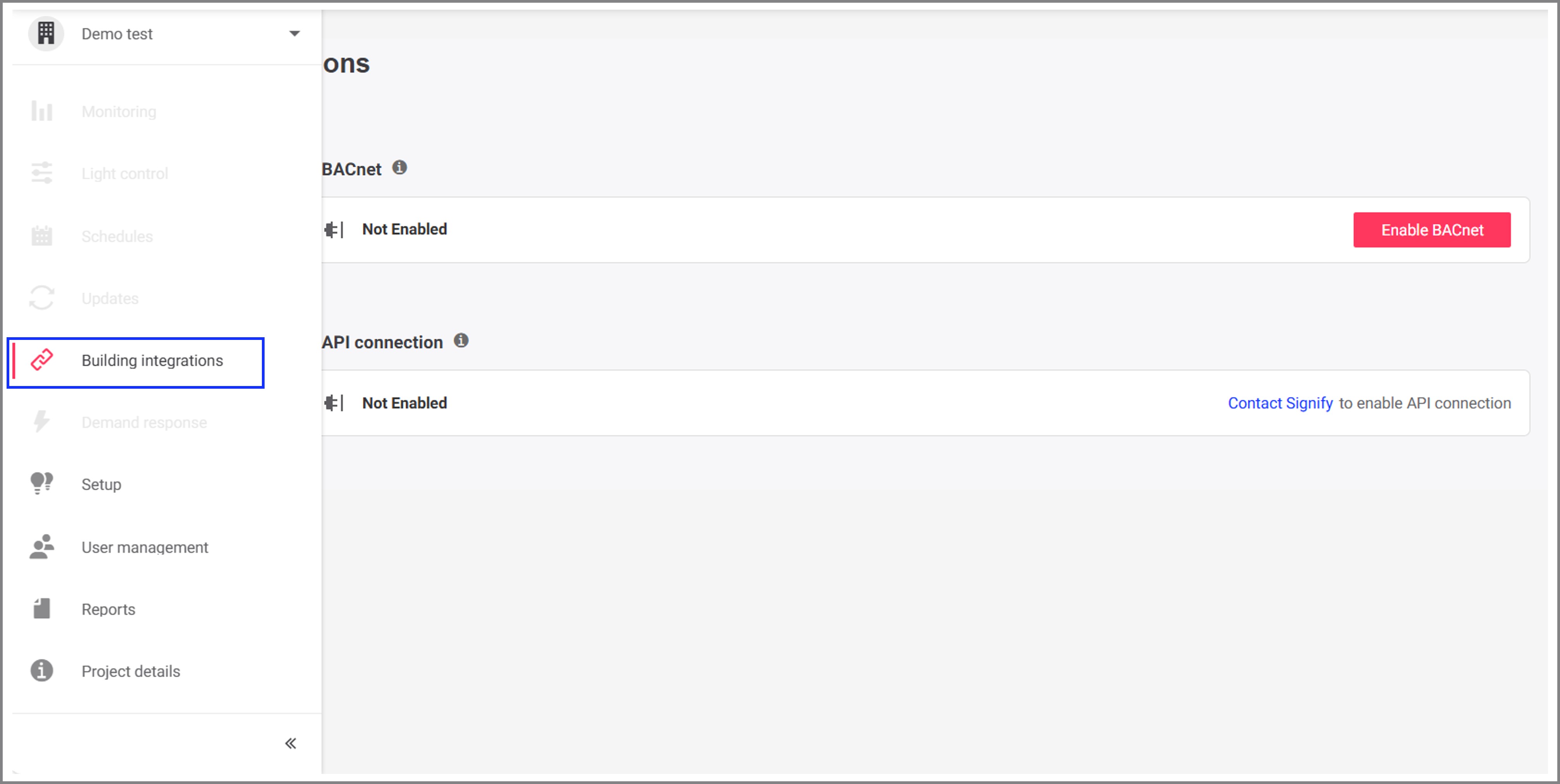
Click Building integrations in the navigation pane.
-
In the Building integrations screen, click Enable BACnet to deploy the BACnet configuration for all gateways in the building.
Once the BACnet is enabled, it cannot be disabled again. If BACnet needs to be disabled then recommissioning is required.

-
In the Building integrations screen, click the download icon to download the Project data for BACnet (.CSV) file.
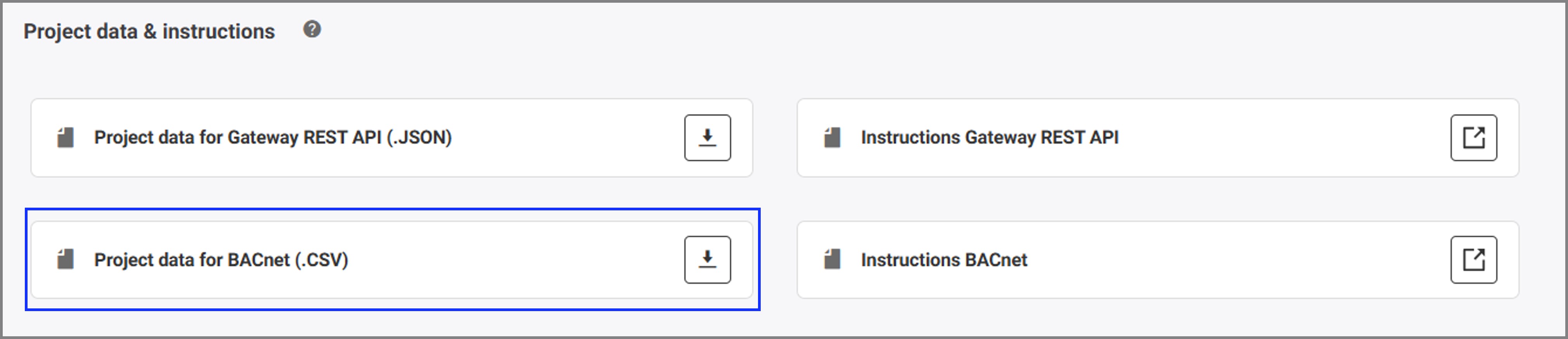
Share the downloaded file with the system integrator. Refer to Developer portal to know more information about the file content and BACnet integration.
| Whenever a project undergoes any changes such as adding or deleting areas, groups, luminaires or sensors, then the changes need to be synched to cloud. Download a new .CSV file with the latest updates and share it with the system integrator. |